


Administration
Authority Delegations
Learn how owners and trusted staff use Authority Delegations to review explicit responsibility handoffs, acceptance, risk, checks, completion, and revocation.
Overview / Purpose
Authority Delegations track explicit handoffs of football responsibility.
Use delegations when responsibility moves from one person to another and the staff needs the purpose, boundaries, success criteria, review expectations, and risk state to stay visible.
A delegation should make the handoff clearer. It should not hide who is accountable or create a private path around the staff's existing access rules.
Who this is for
This page is for organization owners, head coaches, coordinators, and trusted staff who create, accept, review, or close responsibility handoffs.
It is especially useful when a weekly responsibility needs a clear temporary owner, check-in path, or escalation expectation.
What to know first
You must be signed in with organization context before Authority Delegations can load.
Delegation access is limited to organization owners and staff members whose role allows staff authority management.
A delegation is connected to a responsibility definition. Review Staff Authority first when the responsibility itself is unclear.
Linked context remains visibility-bound. If a delegation references a football object, HotRoute should only show the linked object to users who are already allowed to see it.
How it works
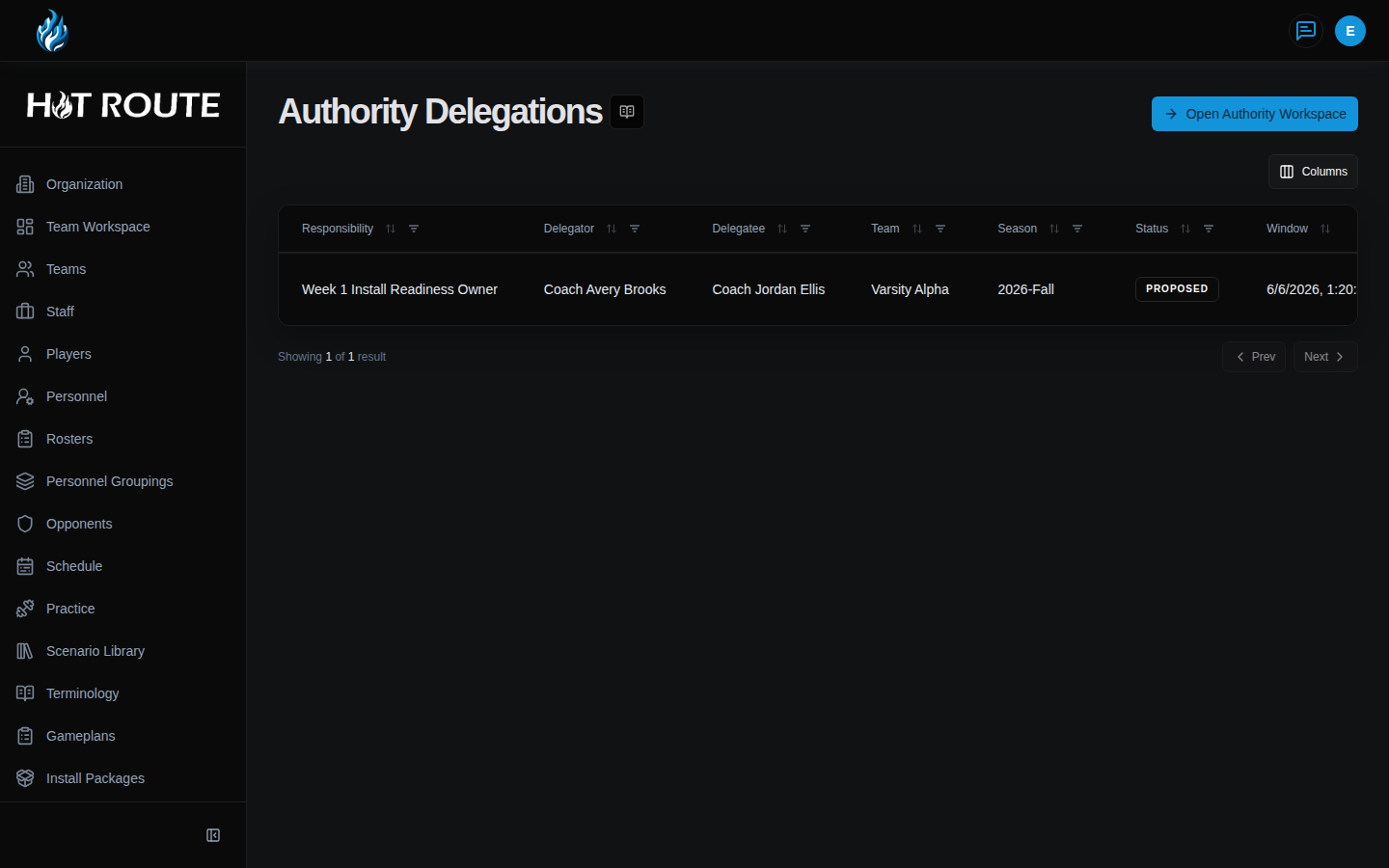
Open Authority Delegations to review current delegation records.
The list links to delegation detail pages. A detail page explains the responsibility, status, team scope, season, delegator, delegatee, current version, window, purpose, context, success criteria, boundary conditions, escalation expectations, rights, linked context, and review state.
The visible action set depends on the delegation state and your access. Common actions include Save Proposal, Accept, Decline, Mark At Risk, Mark Blocked, Raise High Risk, Request Check, Complete, and Revoke.
Use those actions only when they match the staff's real operating state.
Step-by-step instructions
- Sign in to HotRoute.
- Open Authority Delegations from the app navigation.
- Click Open Authority Workspace if you need to start from the team-season responsibility map.
- Review the delegation list.
- Open a delegation row to inspect the detail page.
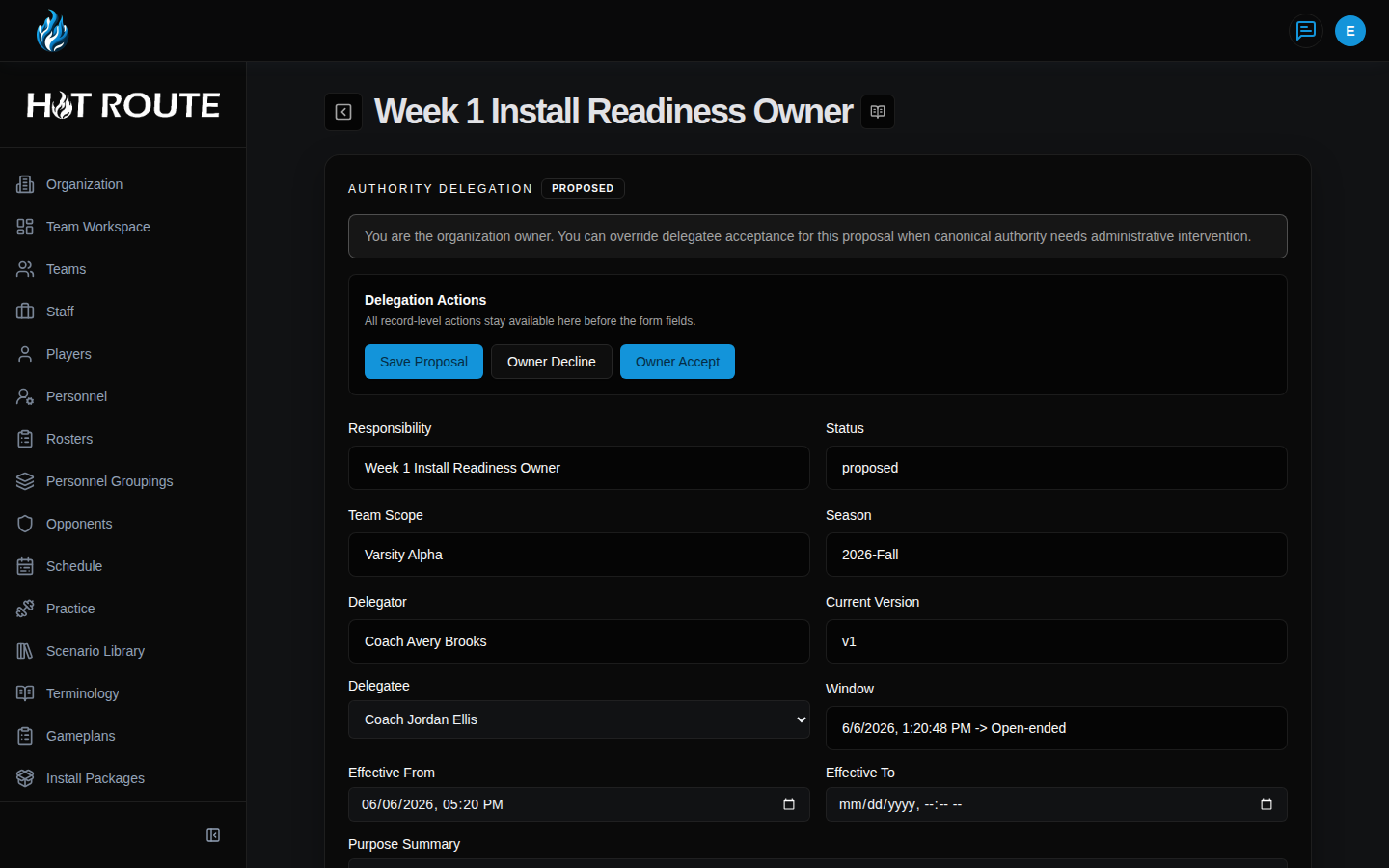
- Confirm the Responsibility, Status, Team Scope, Season, Delegator, and Delegatee.
- Review the Window so the staff knows when the handoff applies.
- Read Purpose Summary, Context Summary, Success Criteria, Boundary Conditions, and Escalation Expectations before taking action.
- Review Linked Context and open linked objects only when the control is visible to you.
- Use Save Proposal while the delegation is still being drafted.
- Use Accept or Decline when you are the intended delegatee or owner control allows the action.
- Use Mark At Risk, Mark Blocked, Raise High Risk, or Request Check when the operating state needs review.
- Use Complete when the delegated work is finished.
- Use Revoke when the handoff should stop.
What good looks like
A healthy delegation makes the handoff inspectable.
The staff should be able to answer:
- What responsibility is being delegated?
- Who delegated it and who accepted it?
- What team and season does it belong to?
- What is the expected window?
- What does success look like?
- What boundaries or escalation expectations apply?
- Is the delegation proposed, accepted, at risk, blocked, completed, or revoked?
- Which linked football objects are relevant and visible?
Common questions or mistakes
Is delegation the same as assigning a role?
No. A role describes a reusable staff seat. A delegation describes an explicit responsibility handoff.
Does a delegation grant access to linked objects?
No. Linked context follows the underlying object's visibility. Delegation text should not be used to expose hidden football work.
When should I mark a delegation at risk or blocked?
Use those states when the staff needs the operating risk to be visible, not as a substitute for normal conversation.
Can a delegation be completed without review?
Use the visible actions and review tabs on the detail page. High-trust responsibility should stay inspectable even when the work is moving quickly.
Related docs / next steps
Read Authority Workspace when you need the team-season view before deciding whether a delegation is needed.
Read Staff Authority when the responsibility definition needs clarification.
Read Authority Roles when the handoff depends on role language.
Read Object-Linked Collaboration when a delegation discussion needs to stay attached to visible linked context.