


Feature Guides
Profile and Account Review
Learn how signed-in users review profile details, policy state, privacy review options, and account deletion requests in HotRoute.
Overview / Purpose
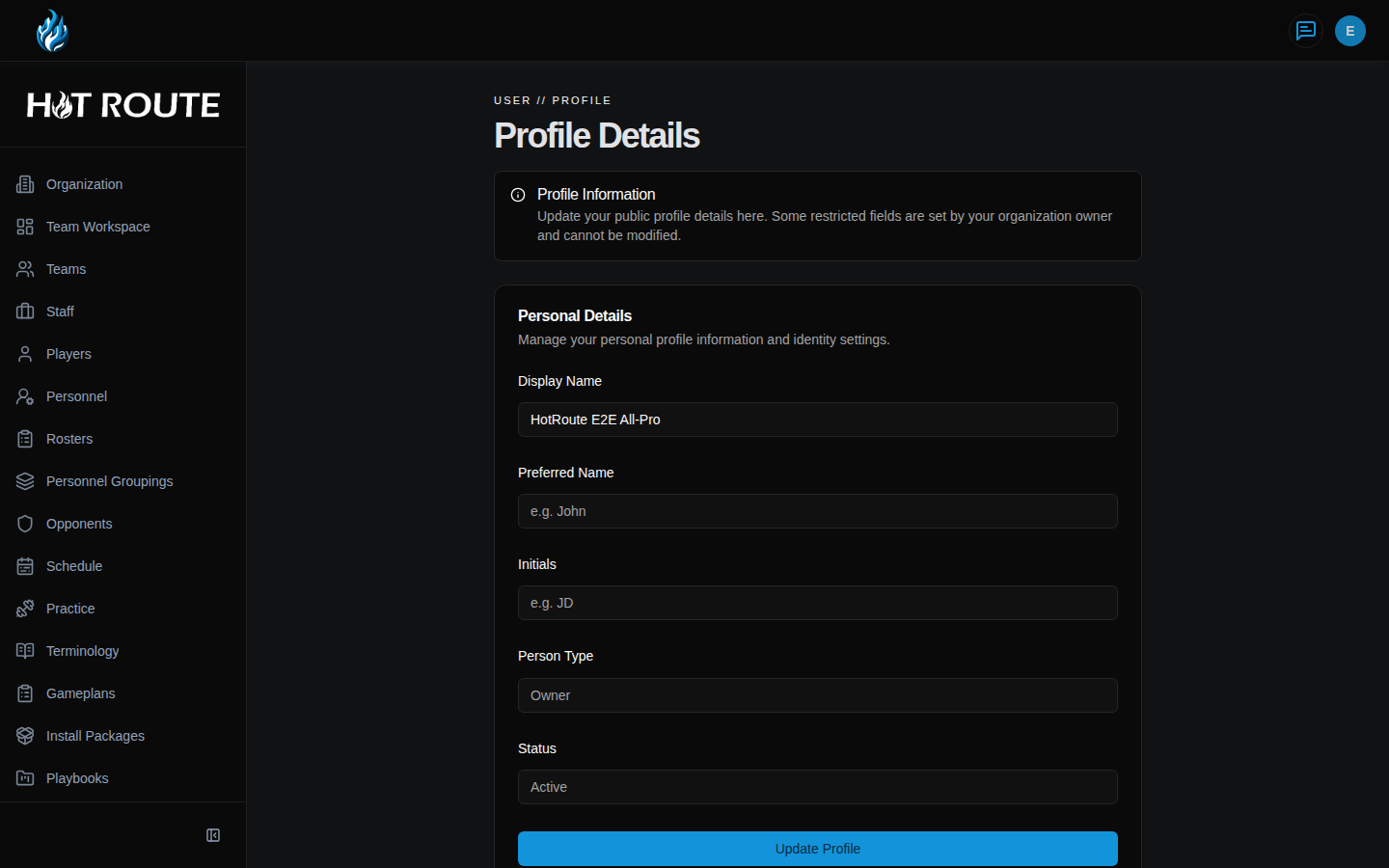
The Profile Details page is where a signed-in user reviews and updates their own personal profile information.
It also shows account data lifecycle options, including current policy state, privacy review requests, and account deletion requests.
Who this is for
This page is for any signed-in HotRoute user.
Owners can use it for their own account, but organization-wide member access is handled from Organization Configuration, not from another person's profile page.
What to know first
You can update personal display fields such as Display Name, Preferred Name, and Initials.
Some fields are read-only because they describe organization-managed state. Person Type and Status come from the organization's membership setup and cannot be changed from this page.
Privacy review and account deletion are request workflows. Submitting a request does not mean HotRoute immediately removes all football records or organization history.
How it works
Open Profile from the top-right user menu.
The Personal Details card is for the name information other staff may recognize in the product.
The Account data lifecycle card shows whether current Terms and Privacy Policy have been accepted, explains the bulk export posture, and provides request buttons for privacy review or account deletion.
Player accounts may also see player-specific teaching history when that context is available.
Step-by-step instructions
- Sign in to HotRoute.
- Click the user circle in the top-right corner.
- Click Profile.
- Confirm the page heading says Profile Details.
- In Personal Details, update Display Name, Preferred Name, or Initials.
- Review Person Type and Status. These are read-only.
- Click Update Profile.
- Confirm HotRoute shows Profile updated successfully! when the save finishes.
- Scroll to Account data lifecycle.
- Review Current policy state.
- Click Request privacy review if you need HotRoute to review a privacy request for your account.
- To request account deletion, type DELETE in the confirmation field.
- Click Submit deletion request.
What good looks like
A healthy profile page has a recognizable display name, current policy state, and clear account request status when a privacy or deletion request has been submitted.
The user should know:
- which name appears for them in HotRoute
- whether their account is staff, player, guest, or another organization-managed type
- whether their account status is active
- whether current policies have been accepted
- how to request privacy review or account deletion
Common questions or mistakes
Why can I not edit Person Type or Status?
Those fields come from organization membership and access state. Ask the organization owner to review membership if they look wrong.
Does requesting account deletion remove organization records immediately?
No. It starts a review workflow. Football records, audit history, and organization responsibilities may have retention or review requirements.
Where do I change the organization owner or member access?
Use Organization Configuration. The profile page only manages your own account details.
Where do I accept current Terms and Privacy Policy?
If policy acceptance is required, HotRoute sends you to the policy acceptance page before protected product use continues.
Related docs / next steps
Read Home Dashboard and Navigation to open Profile from the user menu.
Read Sign In and Account Setup if the account cannot complete sign-in or policy acceptance.
Read Organization Configuration when member access or role state needs owner review.