


Feature Guides
Sign In and Account Setup
Learn how HotRoute users sign in, create accounts, continue organization invites, reset passwords, accept current policies, and recover from common account handoff states.
Overview / Purpose
This page explains how people get into HotRoute and how account setup carries them to the right football organization.
Use it when a coach, staff member, player, guest, or operator needs to sign in, create an account, continue an invite, reset a password, accept current policies, or understand an account recovery message.
Who this is for
This guide is for anyone who needs to enter HotRoute as a real user.
It is also useful for organization owners who are helping a new coach or staff member complete the right invite path.
What to know first
HotRoute works best when the account is linked to the right organization. If the person should join an existing organization, use the invite path from the owner.
There are two invite paths:
- Use an invite code when the owner gives the person a general organization code.
- Use a role-specific member invite when the owner sends an invite link to a known email address from Organization Configuration.
Some account pages are handoff pages. Callback, Confirm, and Complete finish sign-in, email confirmation, and invite linking after the user has clicked an email or identity-provider link. Most users should not need to visit those pages directly.
HotRoute may ask a signed-in user to accept current Terms and Privacy Policy before protected product use continues.
How it works
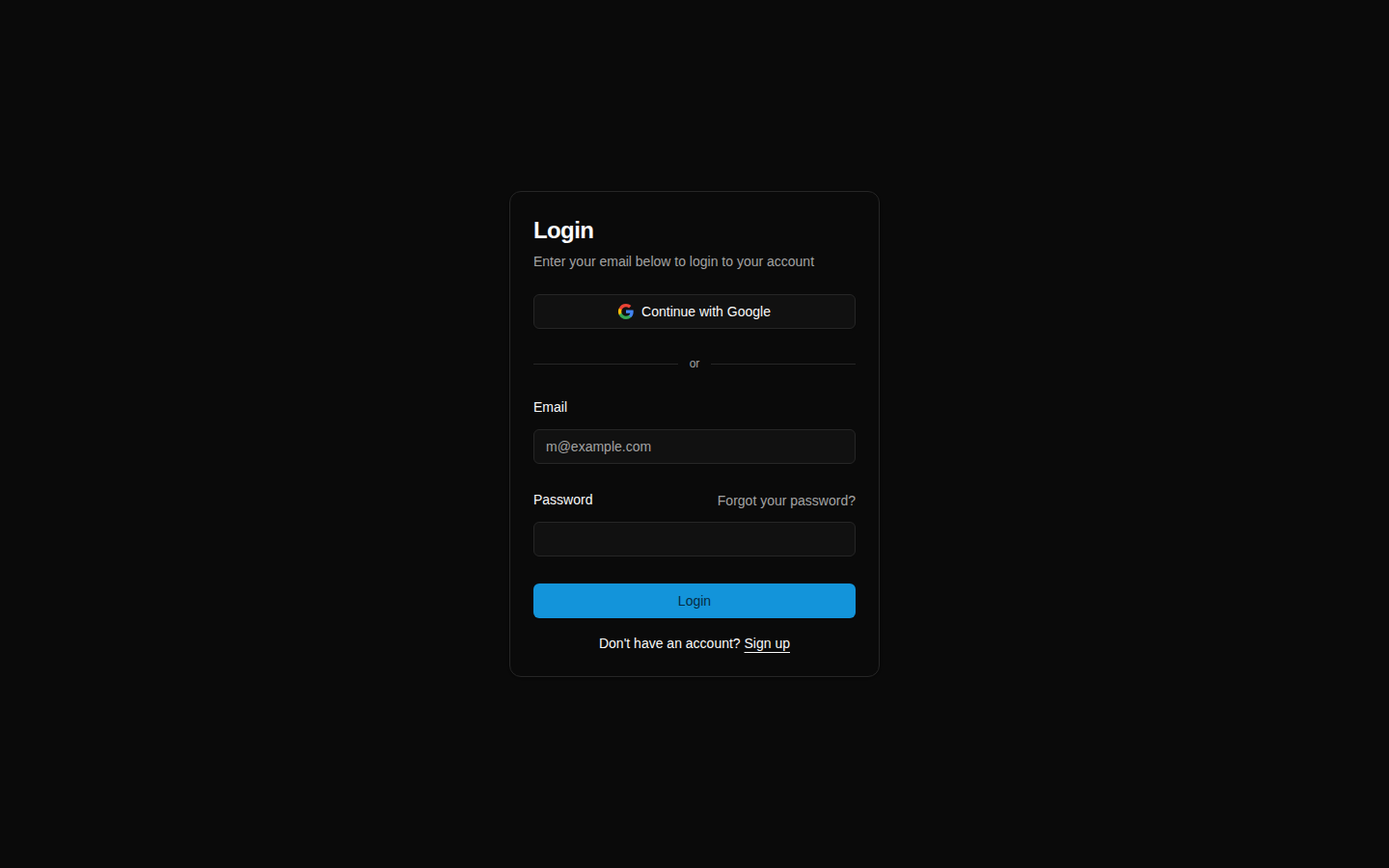
The Login page is for people who already have an account. Users can continue with Google or enter email and password.
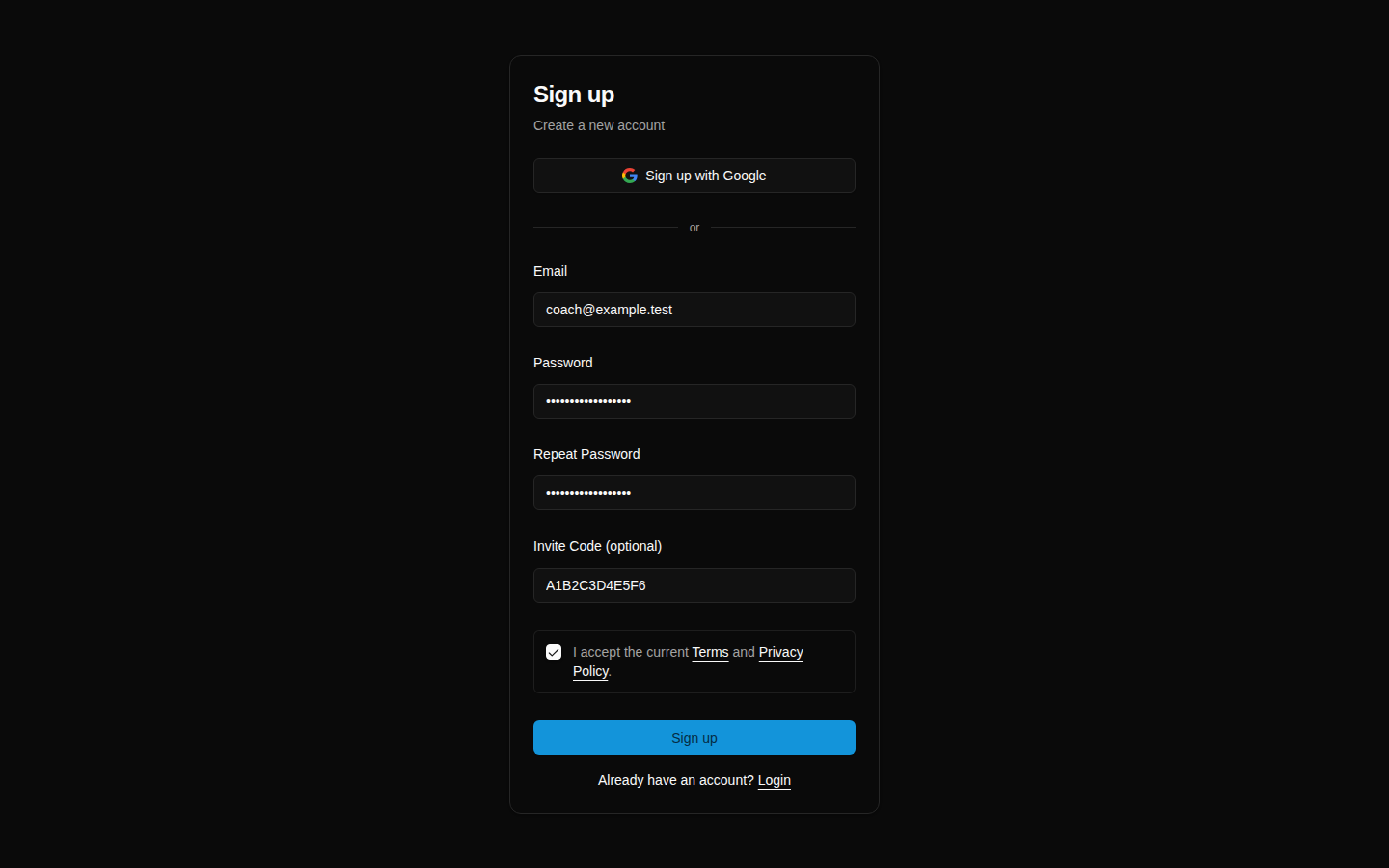
The Sign up page is for new accounts. A new user enters email, password, repeat password, optional invite code, and accepts the current Terms and Privacy Policy.
The Sign-up success page tells the user to check email and confirm the account. If the account was created from an invite, HotRoute keeps that invite context and finishes the organization link after confirmation and sign-in.
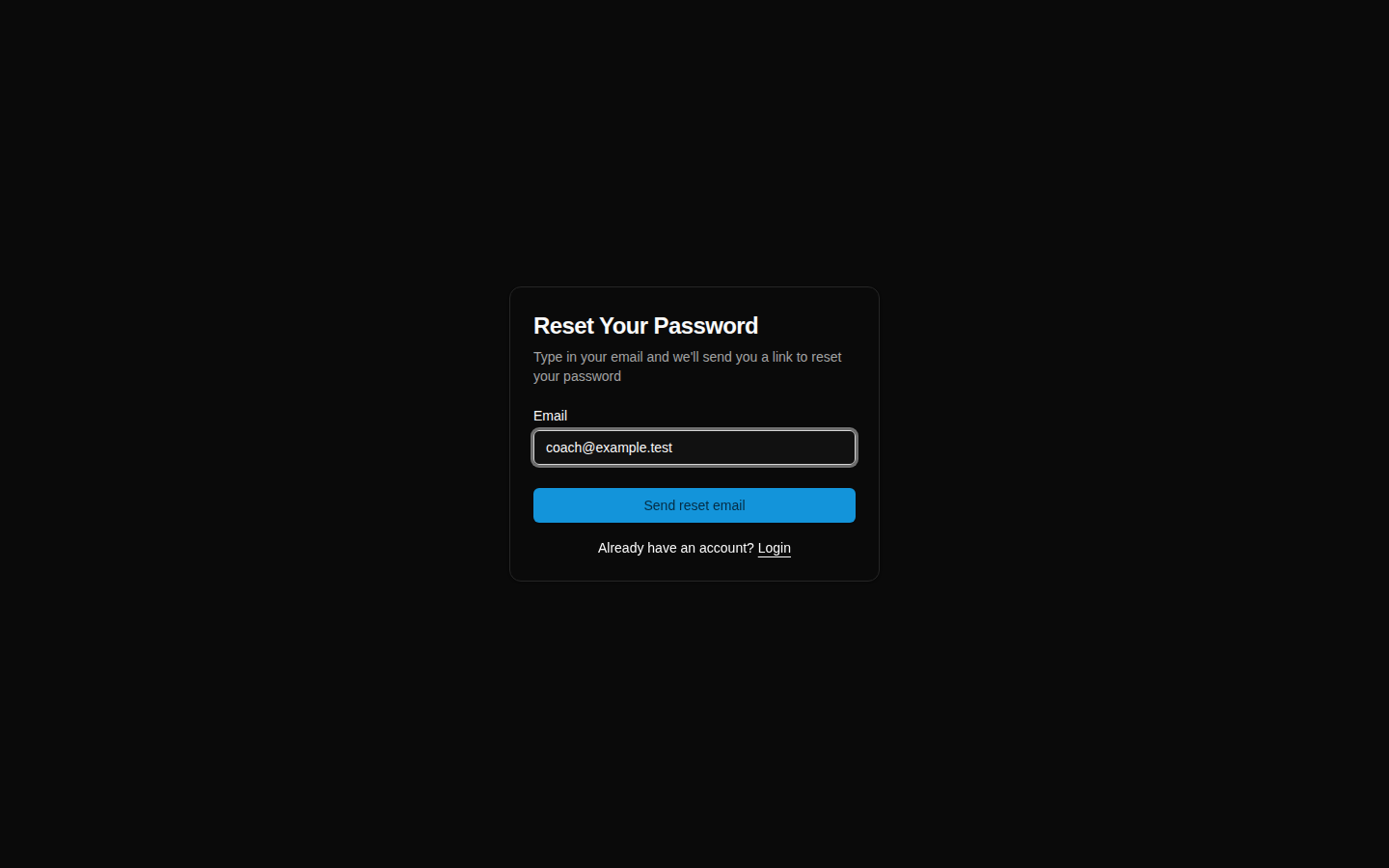
The password reset flow starts from Forgot your password? on the login form. HotRoute sends a reset email when the account uses email and password. The reset link opens the Reset Your Password page.
The Authentication help page appears when a confirmation or sign-in handoff cannot finish. It gives safe next steps without showing private account details.
Step-by-step instructions
- Open the HotRoute login page.
- If you already have an account, click Continue with Google or enter Email and Password.
- Click Login.
- If HotRoute sent you to login from another page, sign in first. HotRoute will return you to the page it can safely open for your account.
- If you need a new account, click Sign up under the login form.
- On Sign up, enter Email, Password, and Repeat Password.
- If your owner gave you a general organization invite code, enter it in Invite Code (optional).
- Check the box that says you accept the current Terms and Privacy Policy.
- Click Sign up.
After sign-up, check your email.
Click the confirmation link from HotRoute.
Return to Login and sign in.
If the account was created from an invite, HotRoute finishes the organization join after confirmation and sign-in.
If you forgot your password, click Forgot your password? on the login form.
Enter your email on Reset Your Password.
Click Send reset email.
Open the reset email, then enter a new password on the Reset Your Password page.
Click Save new password.
- If HotRoute asks you to review policies, read the current Terms and Privacy Policy links.
- Check the policy acceptance box.
- Click Accept and continue.
- If HotRoute shows an account recovery message, use the primary action on the card first, such as Retry sign in, Open organization setup, or Contact HotRoute.
What good looks like
A clean account setup ends with the user signed in, policy acceptance current, and the account linked to the intended organization when an invite was used.
The user should know:
- which email account they used
- whether they signed in with Google or email and password
- whether they entered an invite code or followed a member invite link
- whether they confirmed the account by email
- what page HotRoute returned them to after sign-in
Common questions or mistakes
Do I need an invite code to create an account?
You can create an account without a code, but the account may not be linked to your organization. Use the invite path when you should join an existing staff, team, or program.
Should I type a role-specific member invite code into the Invite Code field?
No. Use the invite link from the email. Role-specific member invites carry the join path in the link.
Why did HotRoute ask me to accept policies after I signed in?
Protected product use requires current Terms and Privacy Policy acceptance. Accept the current policies to continue.
What should I do if the confirmation link does not work?
Return to Login and try the account flow again. If the issue continues, contact HotRoute support so the account handoff can be reviewed.
Why did HotRoute not show the page I expected after login?
HotRoute only returns you to a safe page for your account. If the original page needs organization context, a role, or a subscription feature you do not have, HotRoute shows the right recovery path instead.
Related docs / next steps
Read Home Dashboard and Navigation to understand what appears after sign-in.
Read Invite Code if the next job is helping someone join the right organization.
Read Profile and Account Review to review your account details after sign-in.