


Feature Guides
Play Grid
Learn how the Play Grid helps staff scan, filter, compare, select, and sequence plays from the current playbook scope.
Overview / Purpose
The Play Grid is a visual browsing surface for plays in a selected scope.
Use it when a staff member wants to scan play cards, filter by football context, open a play, or collect selected plays into a sequencing or script workflow.
Who this is for
This page is for coordinators, analysts, and staff members who work with multiple plays at once.
It is especially useful during install planning, weekly prep review, or any session where the staff needs to compare options without opening every play one at a time.
What to know first
The grid depends on scope. Choose the right team, season, and playbook before judging the results.
The grid shows play records. It does not turn selected plays into authoritative weekly truth by itself. Sequencing, scripts, callsheets, and gameplan outputs should still preserve version and source context when they become downstream artifacts.
How it works
This guide covers this route:
| App route | What it is for |
|---|---|
/play-grid | Browse play cards by team, season, playbook, tags, concept, system, formation, personnel, and display preferences. |
The grid can show play cards in different sizes and visual modes. Filters help narrow the visible set. Selection mode helps assemble a focused list when the staff is preparing a sequence or script.
Step-by-step instructions
- In the left navigation, click Play Grid.
- Confirm the selected team, season, and playbook.
- Use the search field when you know part of the play name.
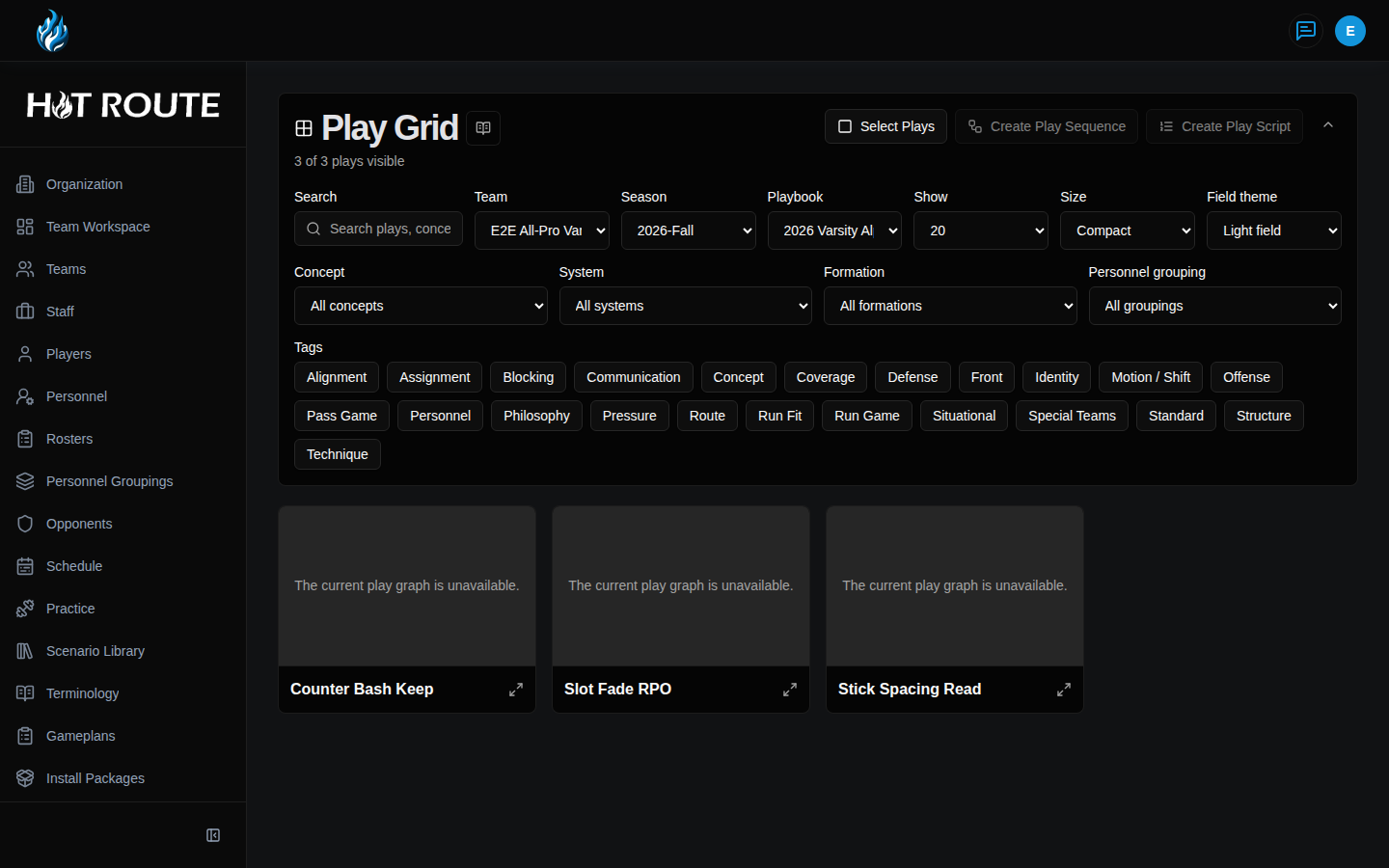
- Use tag, concept, system, formation, and personnel filters to narrow the visible cards.
- Change the card size or display options when the staff needs more or less detail.
- Click a play card when you need to inspect the play detail or designer workspace.
- Turn on selection mode when you need to assemble a set of plays.
- Select the plays in the order the staff wants to discuss or sequence.
- Move selected plays up or down when the order matters.
- Use the create sequence or script action only when the selected list reflects a real football purpose.
What good looks like
A good Play Grid session is scoped and intentional.
Staff should be able to answer:
- Which playbook is the grid showing?
- Which filters are active?
- Why are these plays grouped together?
- Which selected plays are only for discussion, and which should become a sequence or script?
- Which play should be opened for deeper inspection before downstream use?
Common questions or mistakes
Why is the grid empty?
The selected team, season, or playbook may not contain plays, or the current filters may remove all visible plays.
Does selecting plays publish or change them?
No. Selection is a browsing and preparation aid. Follow the specific sequence, script, callsheet, or review workflow when a downstream artifact needs to be created.
Should the grid be used instead of play detail pages?
Use the grid to scan and compare. Use play detail pages when the staff needs object-level context, lifecycle, relationships, or version detail.
Related docs / next steps
Read Plays for play-level lifecycle, version, and detail behavior.
Read Callsheets when selected plays need to become a formatted output.
Read Terminology Registry when tags or shared language need cleanup.