


Feature Guides
Play Designer
Learn how HotRoute Play Designer helps coaches inspect and edit a structured play workspace, validate draft state, manage lifecycle, and keep downstream panels tied to the play object.
Overview / Purpose
Play Designer is the structured workspace for one play.
Use it when a coach or trusted staff member needs to inspect the play board, tune the structured football intent, review validation state, and move the play through draft, validated, reviewed, and published lifecycle steps.
Play Designer is not a freeform drawing tool and not an autonomous coach. It keeps football intent attached to a real play object that belongs to a playbook, team, season, and unit.
Who this is for
This page is for coordinators, play designers, analysts, and trusted staff members who create, inspect, or change football intent.
It is also useful for head coaches and operators who need to understand why a play is blocked, warning-only, draft, validated, reviewed, or published.
What to know first
Open Play Designer from a play. The /play-designer route redirects to the first available play when one exists. If no play is ready for design, the app shows a recovery state that sends the coach back to Plays.
Owners and staff can modify the workspace when their access allows it. Player and guest or parent accounts do not have access to this staff authoring workspace.
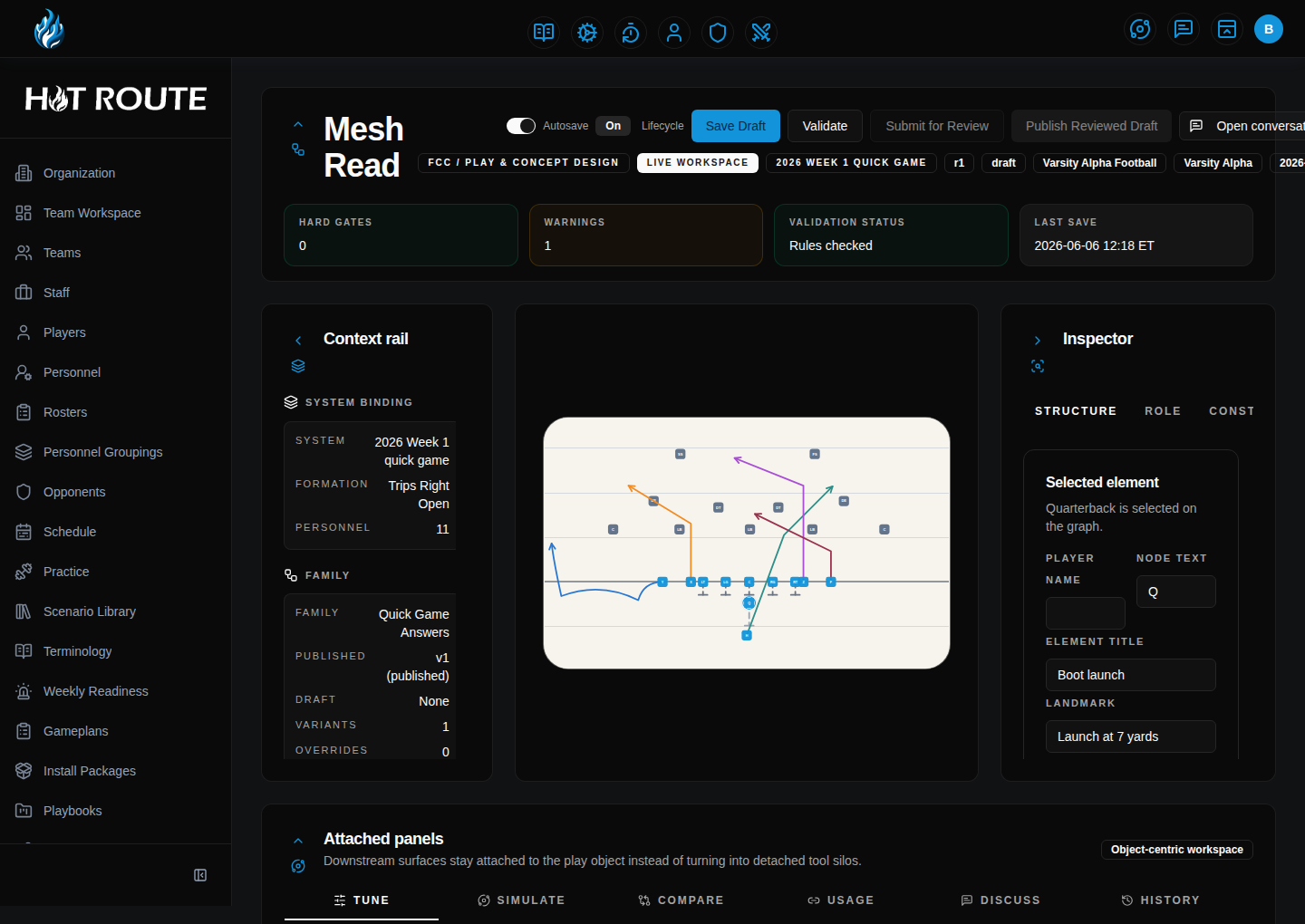
The workspace includes the main board, context rail, inspector, save and review controls, and attached panels for Tune, Compare, Usage, Discuss, and History. Teach and Evidence are planned and unavailable at launch.
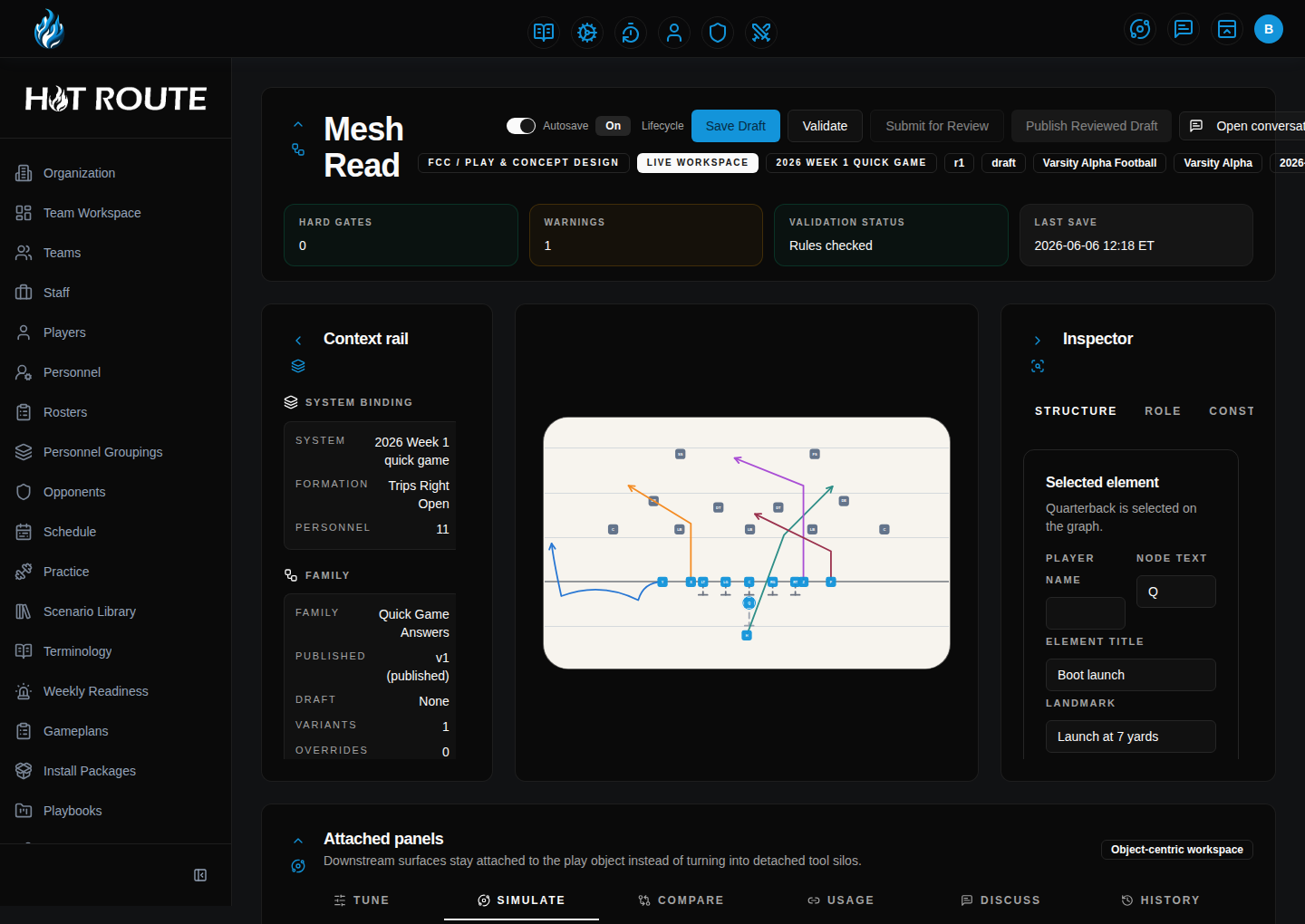
The Simulate dock is currently limited to staff whose organization has an existing simulation agreement or private-preview access. If it is unavailable, check your organization's access with an owner. It does not make game-day calls.
Playback and planned simulation
2D playback follows the paths and timing your staff recorded. Use it to review the drawing in motion. It does not predict how players will respond during a game.
Heuristic advisory preview uses fixed formulas. Its scores cannot tell you a play's chance of success, how reliable a prediction is, or which play is best. Older stored results labeled Historical non-evaluated result are separate from the new play-step checks.
Simulation is planned as part of Pro and is not available yet. Its planned workflow checks saved play movement, supported conditional assignments, and declared timing and spacing requirements. It can compare one permitted change to a motion's end time with the saved original and show recorded movement and check results.
These checks do not predict player performance, model possession or contact, or choose an optimal play. Unsupported or missing inputs can prevent a run. Ask your organization owner which preview workflows are available to your staff.
Coaches decide what to review and publish.
How it works
This guide covers these routes:
| App route | What it is for |
|---|---|
/play-designer | Opens the first available play workspace, or shows recovery when no play is ready. |
/play-designer/[playId] | Opens the Play Designer workspace for one visible play. |
/play-designer/[playId]?dock=tuning | Opens the tuning dock for the selected play. |
/play-designer/[playId]?dock=simulate | Opens the simulation dock for staff with existing organization simulation access. |
The top lifecycle area shows the current draft status, save controls, validation summary, and publish path. The center board shows the play. The context rail explains playbook, family, and binding context. The inspector edits the selected element.
Attached panels stay inside the play workspace instead of becoming disconnected tool silos.
Step-by-step instructions
- In the left navigation, open Plays, Play Grid, or a playbook context that links to a play.
- Open the play that needs design work.
- Click Play Designer when the play detail page or navigation exposes that action.
- Review the play title, playbook scope, lifecycle badge, and last-save state.
- Use the context rail to confirm system, formation, personnel, and concept-family context.
- Select board elements to inspect or edit their structured fields.
- Use Save Draft when the workspace needs an explicit save.
- Use Validate before submitting a draft for review.
- Read hard gates and warnings before continuing.
- Use Submit for Review only after the draft is validated.
- Use Publish Reviewed Draft only when the reviewed draft should become the stable version downstream work can reference.
- Use Open conversation when staff discussion needs to stay tied to the play object.
Validation and refusal states
Validation separates hard gates from warnings.
A hard gate means the play is not ready for the next lifecycle step. A warning means the coach should review the issue, but the workspace may still be usable depending on the current action.
When the workspace cannot validate or simulate safely, HotRoute should block or explain the state instead of presenting false confidence. Treat validation results as coach-facing checks, not as proof that the play will work on the field.
Version and collaboration expectations
A draft is working state. A published version is the stable reference that downstream surfaces should prefer.
When a play is published, staff should start a revision before changing the working draft again. That keeps downstream references from silently shifting.
Object conversations are tied to the play. They should be used for staff discussion about that play, not as a substitute for versioned football truth.
Common questions or mistakes
Does Play Designer create the first play?
No. Create the play from the play workflow first, then open the play workspace.
Does Validate publish the play?
No. Validate checks the current draft state. Review and publish are separate lifecycle steps.
Are Teach and Evidence panels live for every customer?
No. Teach and Evidence are planned and unavailable at launch.
Does the Simulate dock make game-day calls?
No. Preview scores and planned play-step checks do not select the best play or predict a game result. Coaches make the decisions.
Related docs / next steps
Read Plays before using Play Designer for a play lifecycle question.
Read Play Grid when the staff needs to browse plays visually before opening one workspace.
Read Modeling and Simulation for playback, preview limits, and planned simulation.