


Feature Guides
People and Personnel
Learn how staff, players, person records, personnel views, and personnel groupings work together without confusing them with rosters or depth charts.
Overview / Purpose
HotRoute separates people setup into a few coach-readable surfaces.
Use Staff for coaches and football operators. Use Players for player profile context such as position, jersey, team, roster, depth, availability, and eligibility. Use Personnel when you need one combined view of people and their operational state.
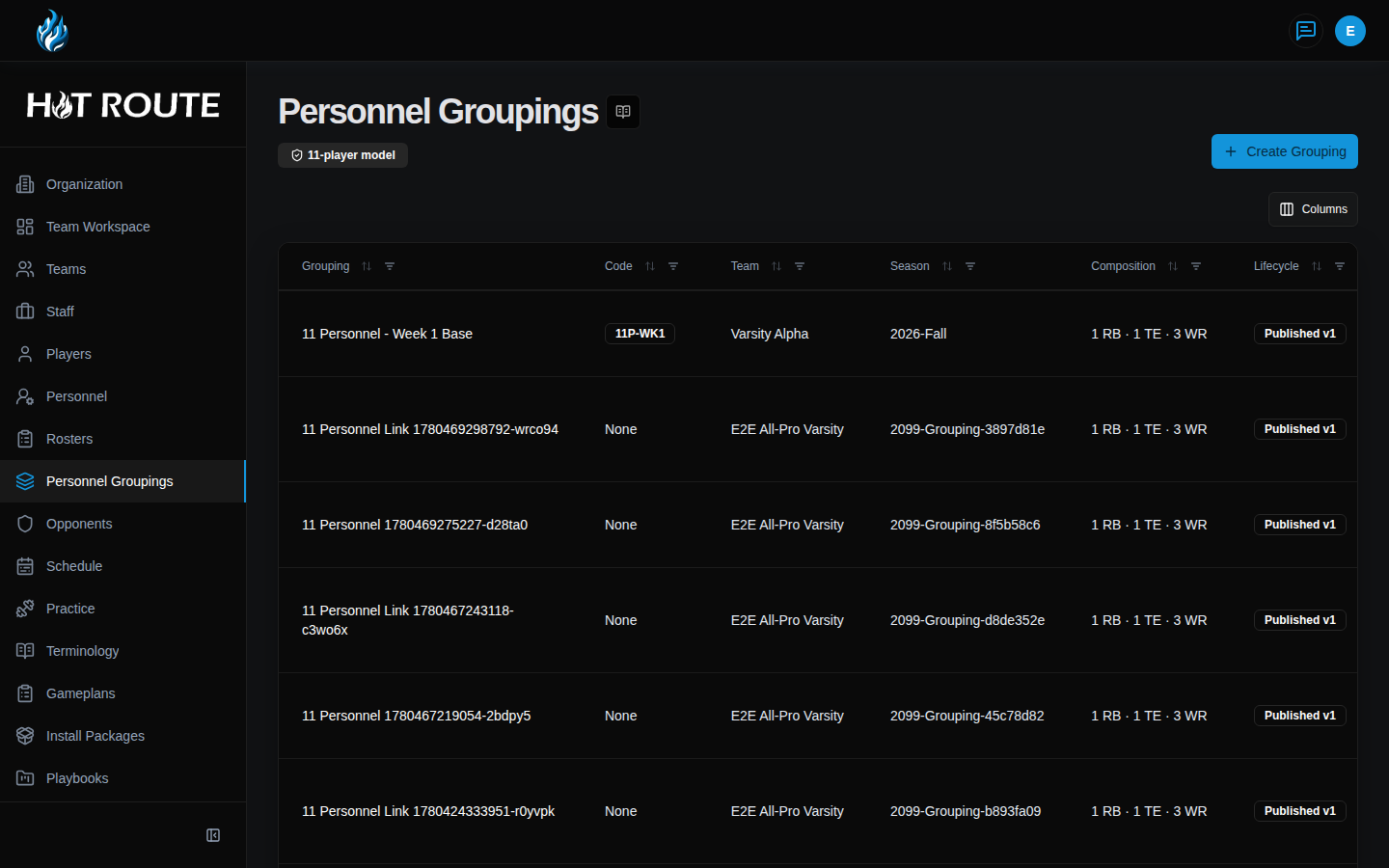
Use Personnel Groupings for football packages such as 11 personnel. A personnel grouping is not a roster and not a depth chart. It describes the offensive package shape: how many running backs, tight ends, and wide receivers are on the field.
Who this is for
This guide is for the people administrator in the football office: the owner, head coach, operations lead, or coordinator who needs clean people records before roster and weekly work starts.
It also helps coaches understand why a name may appear in Players, Personnel, or a roster view at different times.
What to know first
The main people surfaces are different on purpose:
- Staff is for coaches, analysts, and football operators.
- Players is for player profiles and football context.
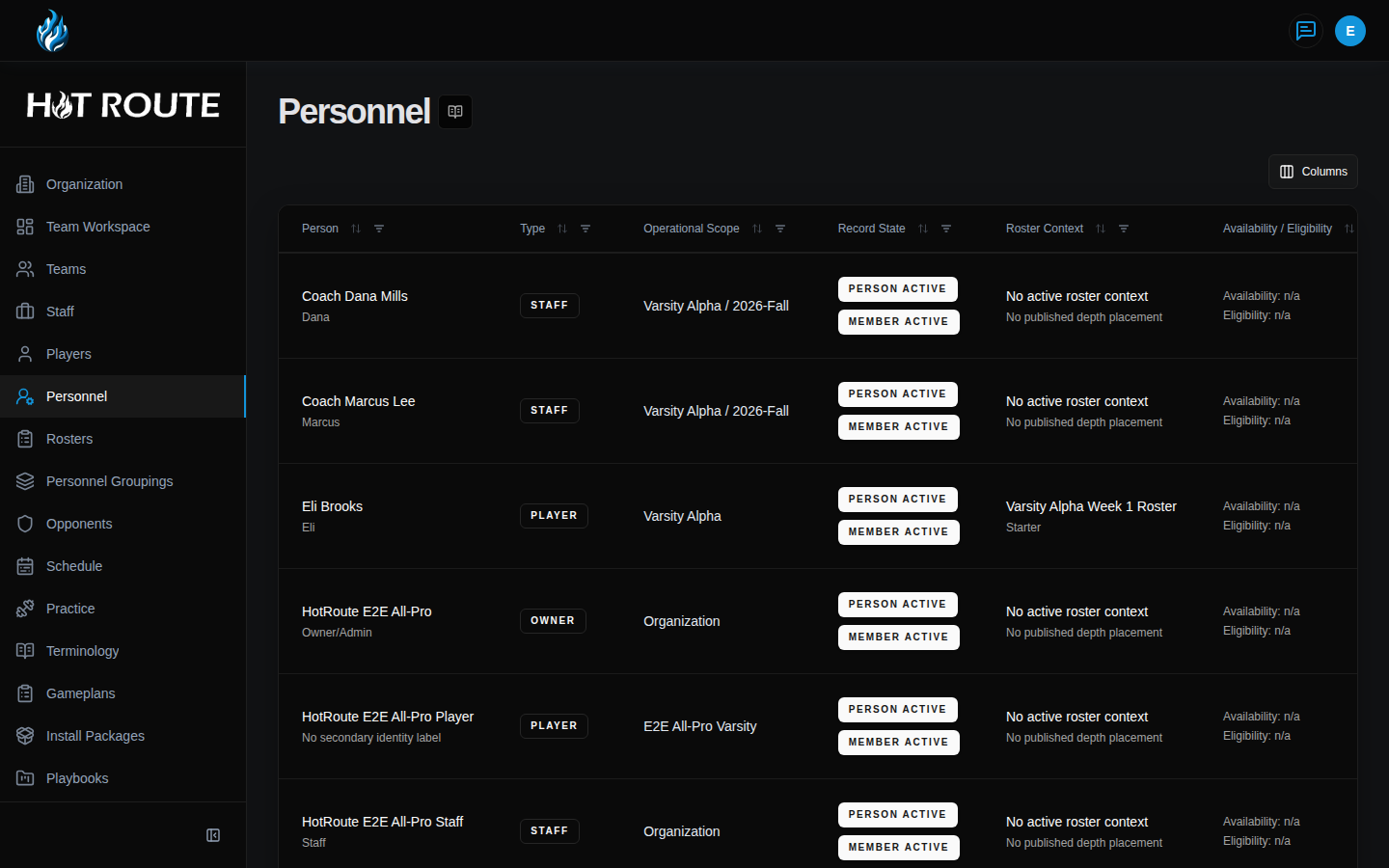
- Personnel is the combined operational view for staff, players, and member state.
- Person detail is the route for one person record.
- Personnel Groupings are offensive package definitions, such as 11 personnel.
- Rosters are season player lists.
- Depth charts are ordered position placements.
Do not put private notes, medical details, school records, or sensitive youth information into screenshots or public docs. Use synthetic examples for documentation and validation.
Access follows role and plan. If a user cannot add staff or players, ask the owner to review membership and plan access.
How it works
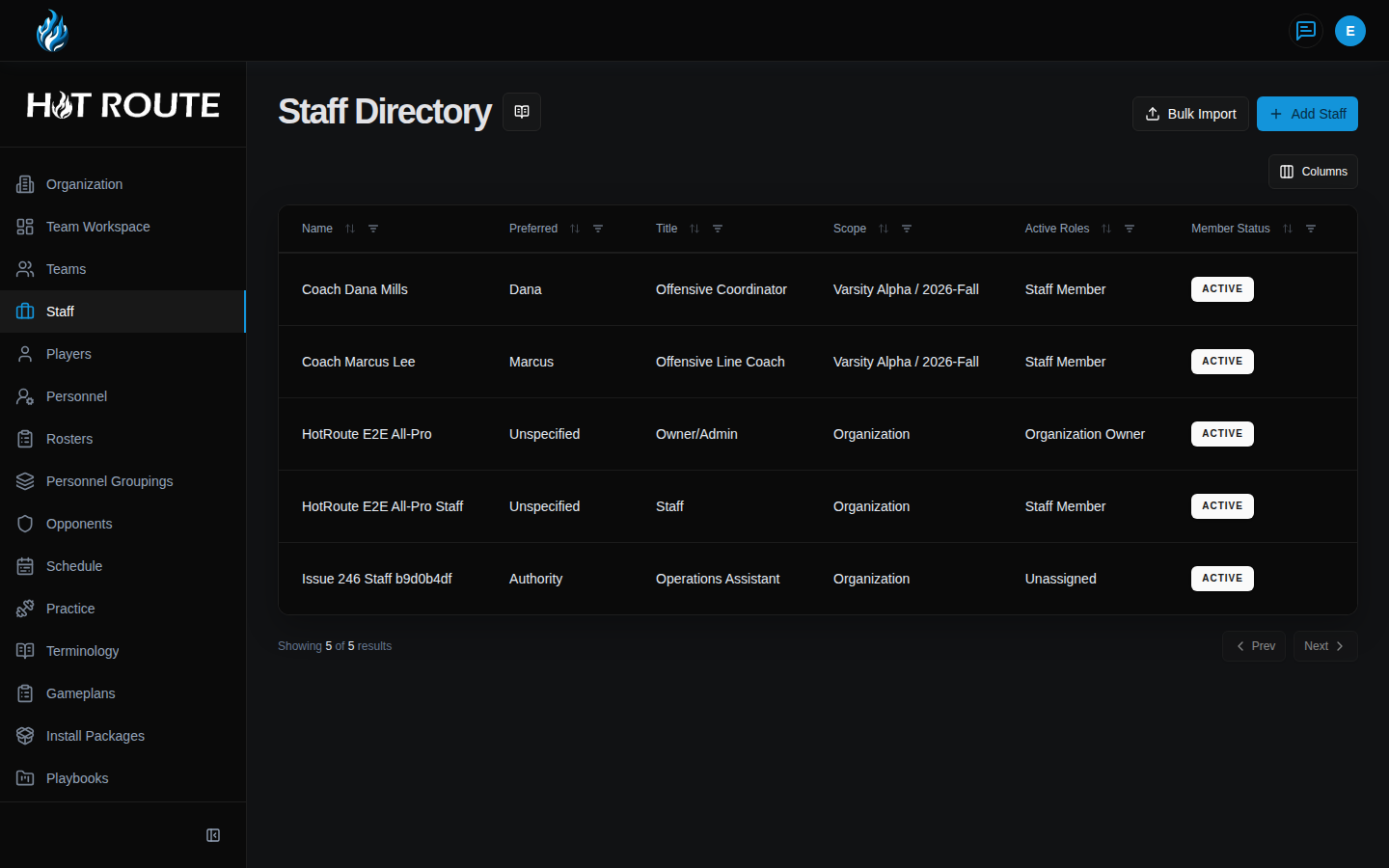
The /staff route opens the staff directory. It shows staff names, titles, team scopes, active roles, member status, and person record state.
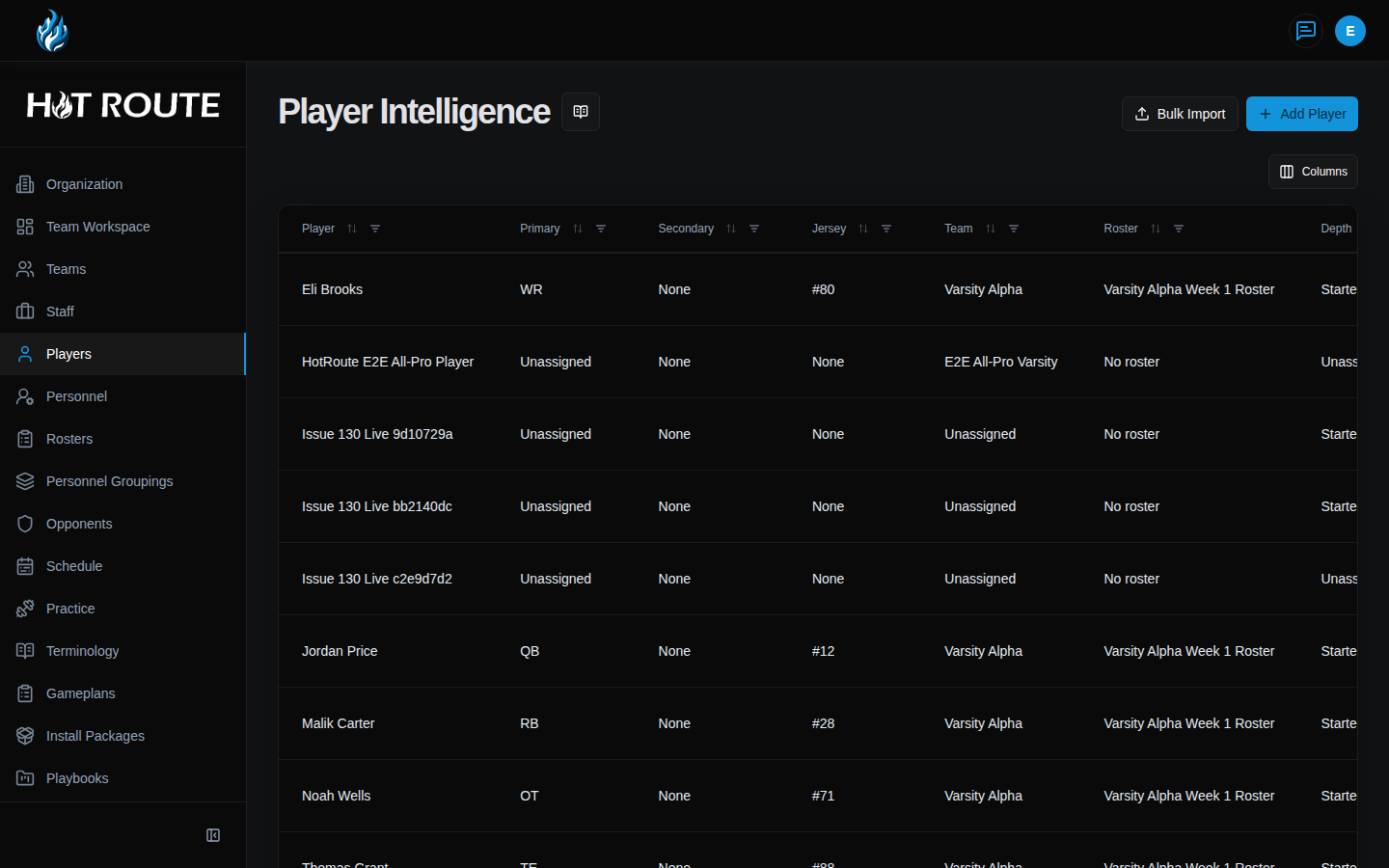
The /players route opens Player Intelligence. It shows player names, primary and secondary positions, jersey, team, roster, depth, availability, and eligibility.
The /personnel route opens a combined personnel view. It is useful when staff need to see people, member state, roster context, and availability in one place.
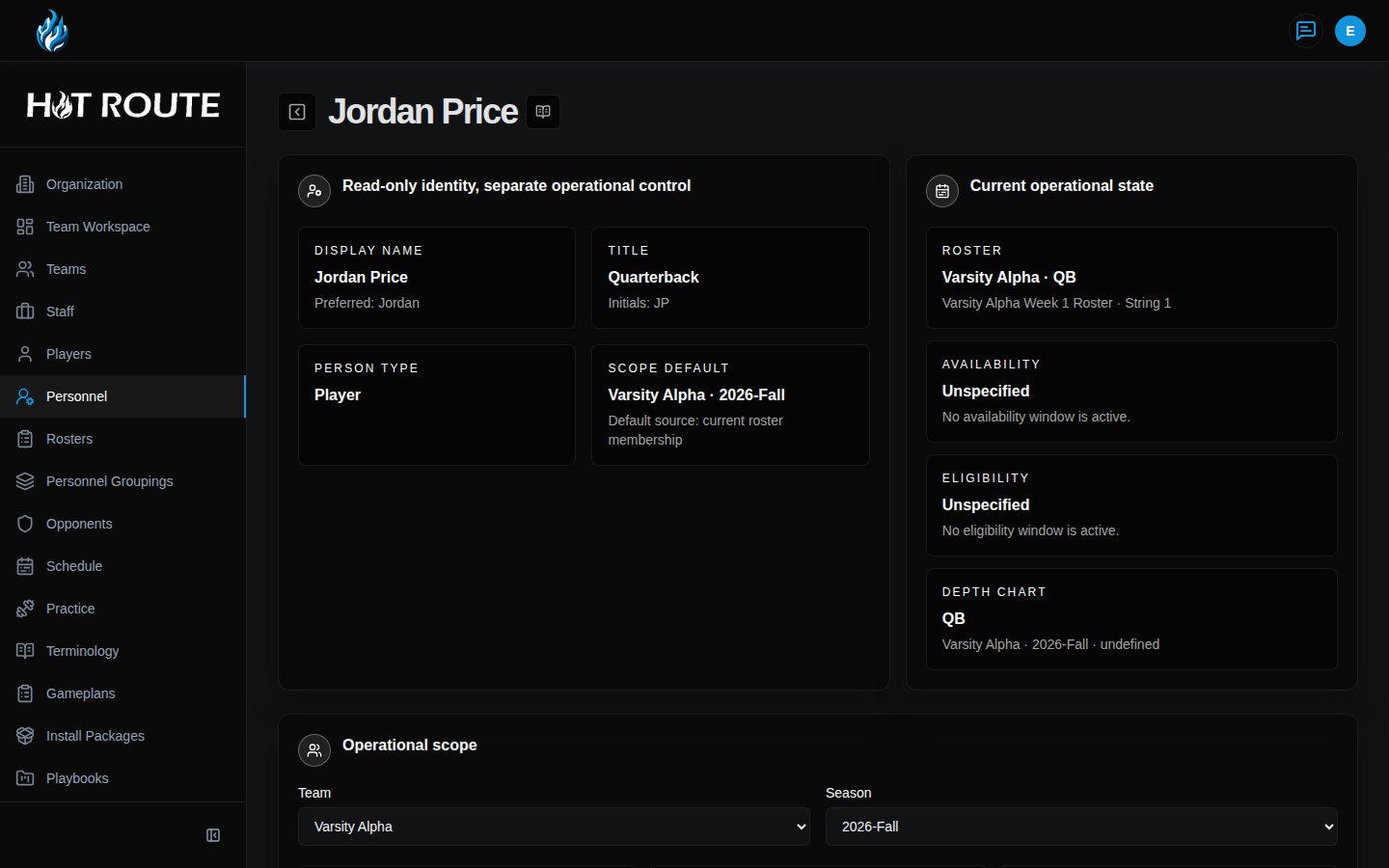
The /person/[id] and /personnel/[id] detail routes open one person. Use detail routes when the work is about one person rather than the whole directory.
The /personnel-groupings route opens offensive package definitions. The create route, /personnel-groupings/new, lets staff define the team, season, display name, shorthand, RB count, TE count, WR count, and notes. The detail route, /personnel-groupings/[groupingId], is where staff inspect or update that grouping.
Step-by-step instructions
- In the left navigation, click Staff.
- Review each staff row. Check Name, Title, Scope, Active Roles, Member Status, and Record.
- Click Add Staff when a coach or operator needs a staff person record.
- In the form, enter Display Name, Preferred Name, Initials, Title / Display Role, Person Type, and Status.
- Click Create Person.
- In the left navigation, click Players.
- Click Add Player when a player profile needs to be created.
- Enter the same person basics, then fill the player section with Team, Jersey Number, and Side.
- Click Create Person.
- Click a player or staff row when you need the person's detail page.
- In the left navigation, click Personnel Groupings.
- Click Create Grouping.
- Choose Team and Season.
- Enter Display Name and Shorthand.
- Set RB, TE, and WR counts.
- Use Notes for football context that helps coaches recognize the package.
- Click Create Grouping.
- Open the grouping row later to inspect, update, publish, or archive it when those actions are available.
What good looks like
Good people setup lets the staff answer:
- Which coaches and staff are active?
- Which team and season is each staff member tied to?
- Which players have position, jersey, and team context?
- Which players are on the active roster?
- Which players have depth placement?
- Which personnel packages are available for play design and game planning?
Common questions or mistakes
Is a player profile the same as roster membership?
No. A player profile says who the player is and gives default football context. Roster membership says that player belongs to a specific roster version.
Is a personnel grouping the same as a depth chart?
No. A personnel grouping says the package shape, such as 1 back, 1 tight end, and 3 receivers. A depth chart says who is first, second, or third at a position.
Why is a player visible in Players but not in a roster?
The player record exists, but the player has not been added to that roster version yet. Open Rosters and Depth Charts.
Why can I view a person but not edit that person?
Editing depends on organization role, staff authority, route access, and plan access.
Related docs / next steps
Read Team Setup and Workspace if the team or season context is not ready.
Read Rosters and Depth Charts when the next job is adding players to the roster.
Read Invite Code or Organization Configuration when a real user needs account access, not just a person record.