


Feature Guides
Playbook Manager
Learn how Playbook Manager brings playbooks, systems, concepts, archetypes, plays, tags, and related creation paths into one football workbench.
Overview / Purpose
Playbook Manager is the football workbench for creating and inspecting the core objects behind a staff's system.
Use it when the job is bigger than opening one play. The page brings the playbook scope, season context, play list, concept families, systems, player archetypes, and terminology tags into one place so a coordinator can see how the pieces fit together.
Who this is for
This page is for coordinators, playbook owners, analysts, and head coaches who need one operating view of the staff's playbook work.
It is also useful for staff members who need to understand where a play, concept, system, or archetype should be created before it becomes part of downstream teaching or weekly preparation.
What to know first
Playbook Manager does not replace the detail pages. It helps staff find or start the right object, then move into the dedicated workspace for deeper editing.
Visibility follows organization, team, season, role, and plan access. If an object does not appear, confirm the selected team, season, playbook, and user access before assuming the object is missing.
The current public docs use the Varsity Alpha and North Valley demo story when examples need realistic football context. Those examples are illustrative demo data, not customer proof.
How it works
The route covered by this guide is:
| App route | What it is for |
|---|---|
/playbook-manager | Legacy entry point that opens the current playbook management surface. |
In the current app, /playbook-manager sends staff to Playbooks. When the entry point includes teamId or seasonId, the redirect preserves that context. When it includes a playbookId, it opens that playbook's detail route. From there, open a playbook row or use the create paths for playbooks, plays, systems, concepts, and archetypes.
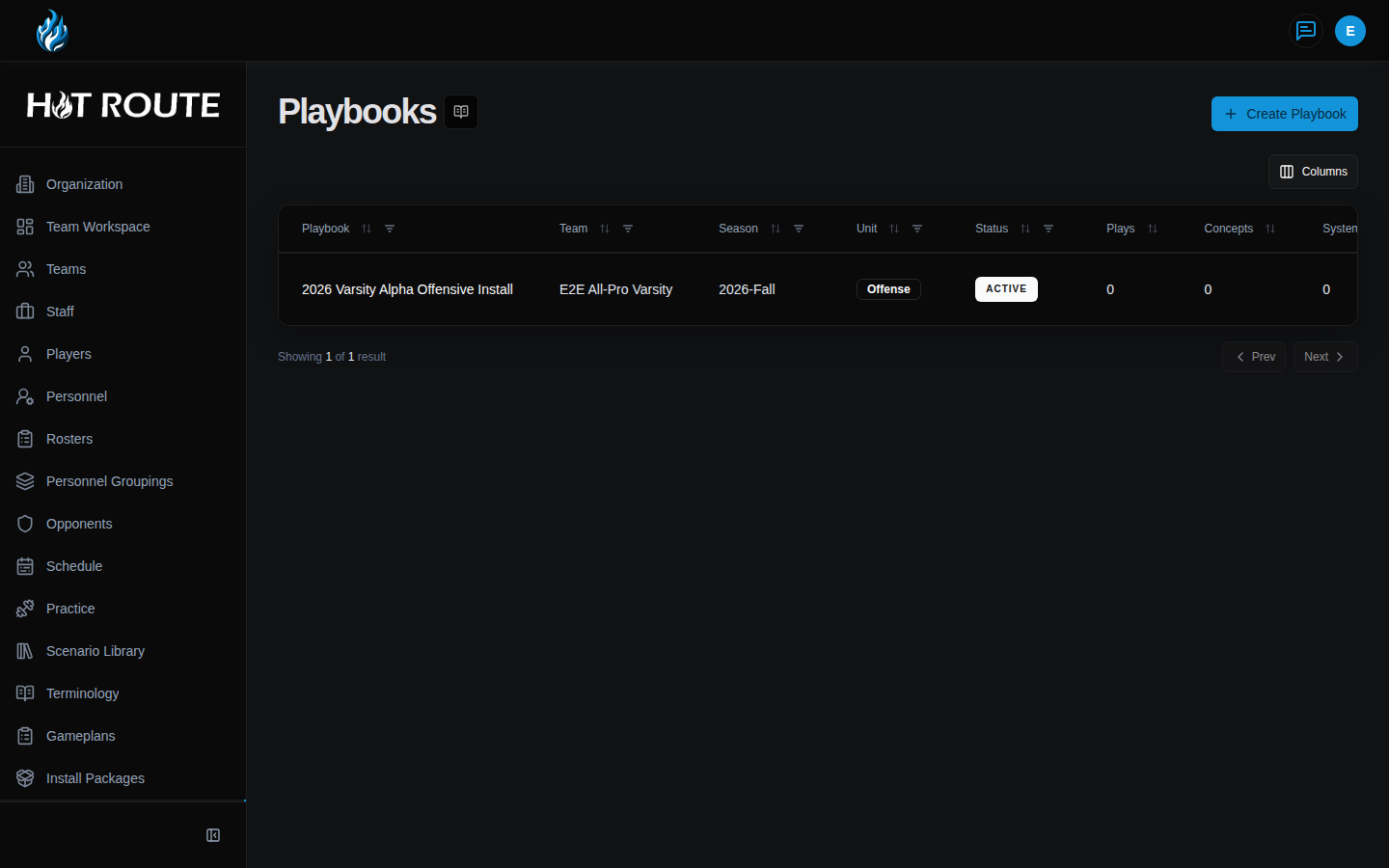
Playbook Manager works best when the staff thinks in this order:
- Choose the team and season.
- Choose or create the playbook.
- Create or inspect the systems, concepts, archetypes, and plays that belong to that playbook.
- Use terminology tags to keep language consistent across the staff.
- Open detail pages when a specific object needs focused review.
Step-by-step instructions
- In the left navigation, click Playbook Manager.
- At the top of the page, choose the current Team and Season.
- Choose the playbook you want to inspect.
- Use the play search field when you know the name or tag you are looking for.
- In the creation tools area, create a playbook, play, concept draft, or archetype draft when your access allows it.
- Open a play, concept, archetype, or playbook row when you need the focused detail page.
- Use the tag controls only when the tag reflects real staff language or a useful grouping for search and teaching.
What good looks like
A healthy Playbook Manager view gives the staff one honest map of the current playbook scope.
Staff should be able to answer:
- Which team, season, and playbook am I viewing?
- Which plays, concepts, systems, and archetypes belong to this scope?
- Which objects are drafts, published versions, active records, or archived records?
- Which terminology tags explain how the staff groups or teaches this work?
- Where should I click next to inspect the object itself?
Common questions or mistakes
Is Playbook Manager the same as Play Designer?
No. Playbook Manager organizes the objects around a playbook. Play Designer is where a play draft becomes a structured play workspace.
Should every idea become a play immediately?
No. Some work belongs first as a concept, system, archetype, or terminology entry. Use the object type that matches what the staff is trying to preserve.
Why do I see fewer plays than another staff member?
Check the selected team, season, playbook, tags, and your access. HotRoute should not show objects outside the current scope or your permissions.
Related docs / next steps
Read Playbooks for playbook list, create, and detail behavior.
Read Systems, Concepts, and Archetypes for the supporting objects around the playbook.
Read Plays when the next job is inspecting one play's lifecycle, versions, tags, or related objects.