


Feature Guides
Object-Linked Collaboration
Learn how HotRoute keeps collaboration tied to visible football objects, linked context, mentions, attention, and conversation lifecycle.
Overview / Purpose
Object-linked collaboration keeps staff conversation attached to the football object being discussed.
The goal is simple: conversation should preserve football context without turning chat into a separate source of truth or a separate access path.
Use this page when you need to understand why a conversation appears next to a play, terminology record, schedule event, standards record, or other supported football object.
Who this is for
This page is for coaches, coordinators, analysts, staff operators, and organization owners who coordinate work around HotRoute objects.
It is especially useful for staff members who need to understand why a conversation is visible, why a mention appears in Attention, or why a linked object does not open for a particular user.
What to know first
Collaboration does not expand product access. If a user cannot see the underlying football object, collaboration should not make the object or its conversation visible.
Object-linked collaboration works best when the message belongs to the object. If the staff is discussing a play, attach the discussion to the play. If the staff is discussing authority, roster, or depth-chart work, attach the discussion to the supported football object that provides the clearest current context.
Dedicated conversation anchors for authority registry records, authority delegations, roster records, and depth-chart records are planned. Today, those areas may point to visible football context, but they should not be treated as separate object-thread anchors until HotRoute shows a conversation control for that object.
Mentions and attention items help staff find work that needs review. They do not change the underlying object permissions.
Conversation lifecycle controls, such as resolving, reopening, locking, unlocking, or archiving, are available only when the current user and conversation state allow them.
How it works
HotRoute first resolves the football object, then opens the conversation connected to that object.
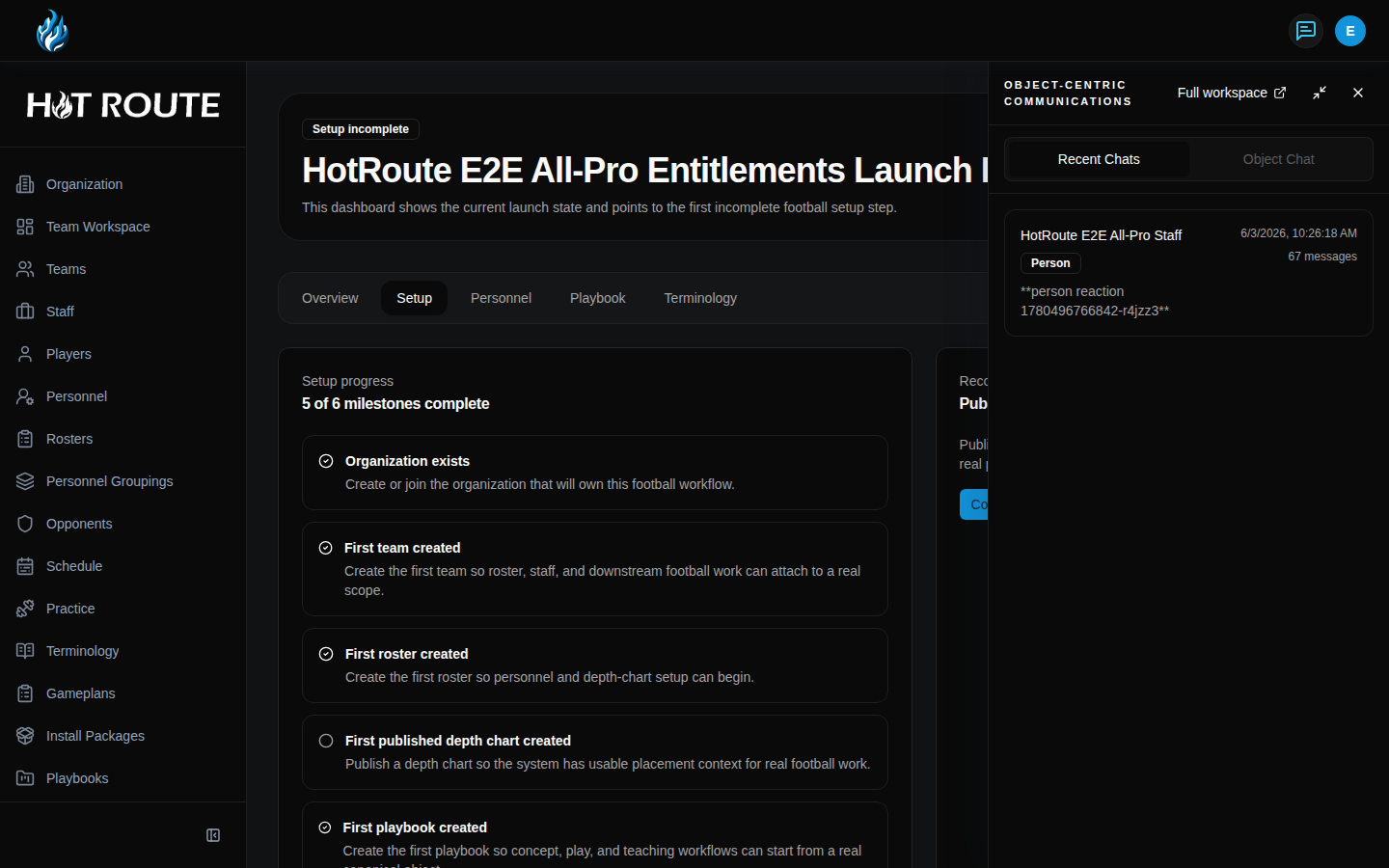
The object can be opened from the full Collaboration Workspace, from the top-bar collaboration shell, or from an object detail page when that page exposes a conversation control.
The conversation panel keeps the object context in view, shows message history when available, and exposes actions that match the current user's access.
In authority work, linked context may appear on a delegation detail page. Use Open linked object only when the linked object is visible to you. A linked object is different from a dedicated authority conversation anchor.
Step-by-step instructions
- Sign in to HotRoute.
- Open the football object you need to discuss.
- Click the visible conversation or collaboration control for that object.
- If you start from the top-right message button, click Full workspace when you need object search.
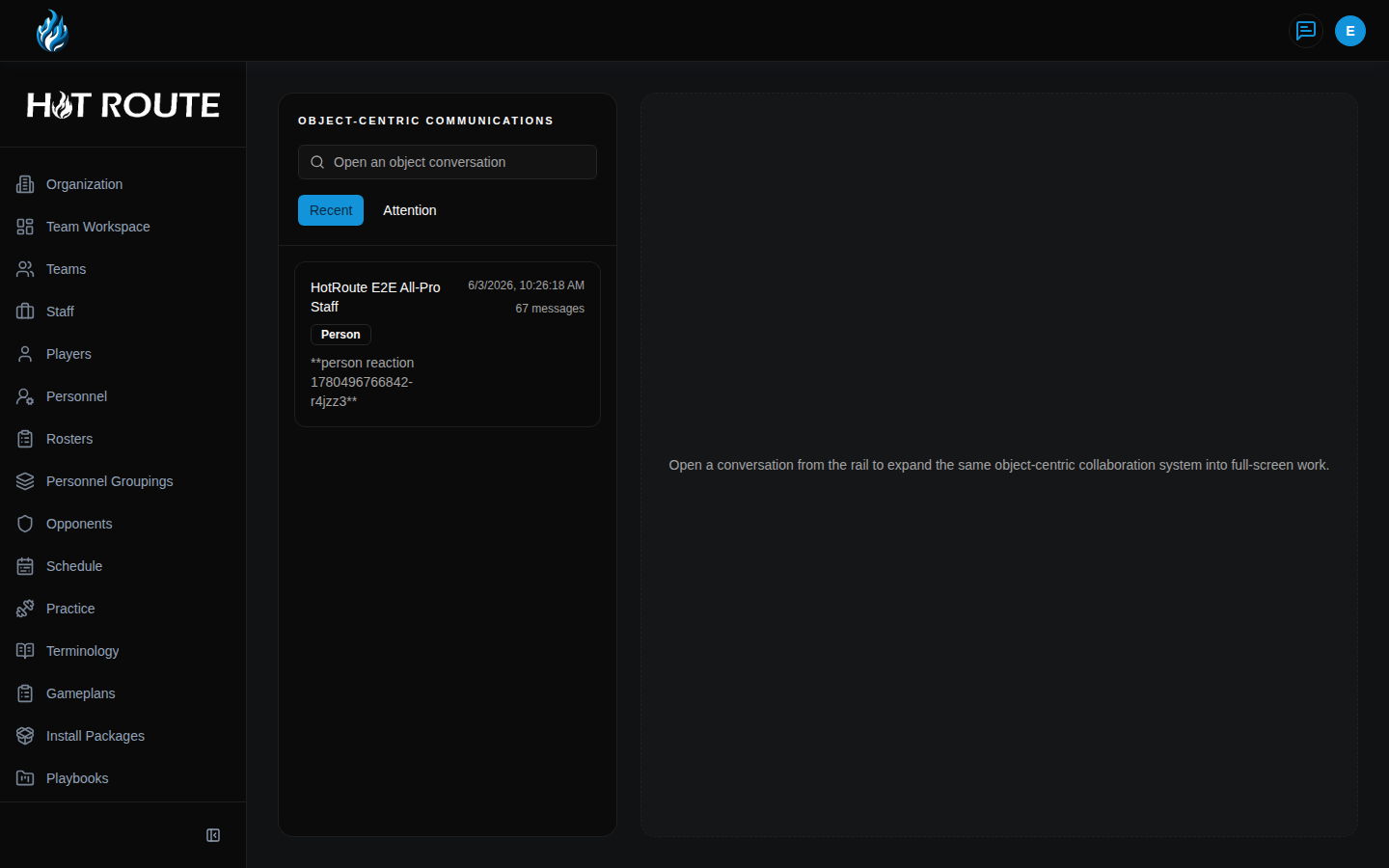
- In the full workspace, use Open an object conversation to search for a visible object.
- Open Recent when you need active conversations you can see.
- Open Attention when you need mentions or items that need your review.
- Read the object context before posting a message.
- Post only the note that belongs in that object's context.
- Mention a person only when they are part of the work. Do not use a mention to work around object visibility.
- Use resolve, reopen, lock, unlock, or archive actions only when the conversation state and staff workflow call for it.
What good looks like
Good object-linked collaboration makes the football context obvious.
Staff should be able to answer:
- What object is this conversation about?
- Why can I see this object and conversation?
- Is this a recent conversation, an attention item, or a specific object thread?
- Does this message belong in this object context?
- Is the conversation active, resolved, locked, or archived?
- Does the linked object still reflect the staff's current source of truth?
Common questions or mistakes
Does mentioning someone grant access to the object?
No. Mentions help people find work that needs review. They do not grant object access.
Why can another coach see a conversation that I cannot see?
They may have access to the underlying object and you may not. Collaboration follows object visibility.
Should every discussion happen in the collaboration workspace?
No. Use object-linked collaboration when the message belongs to a HotRoute football object. Keep unrelated communication in the staff's normal communication channel.
Can I start a dedicated object conversation from every authority, roster, or depth-chart record?
Not yet. Use the conversation controls shown on supported objects. Authority, roster, and depth-chart records can still help staff understand context, but dedicated object conversations for those records are planned.
What should I do if a linked object does not open?
Confirm your organization, team, season, and role context. If those are correct, ask an owner or staff lead to review access.
Related docs / next steps
Read Collaboration Workspace for the full collaboration surface.
Read Authority Delegations when linked context belongs to a responsibility handoff.
Read Authority Workspace when the conversation is part of team-season responsibility coverage.
Read Collaboration and Memory for the broader product area.