


Feature Guides
Locations, Schedule, and Opponents
Learn how locations, schedule events, and opponent records connect football operations to the week of practice, meetings, games, and preparation work.
Overview / Purpose
Locations, schedule events, and opponents connect the football structure to the actual week.
Use Locations for fields, stadiums, offices, and meeting rooms. Use Schedule for games, practices, meetings, walkthroughs, and workouts. Use Opponents for the teams your staff prepares against.
Who this is for
This guide is for football operations staff, coordinators, head coaches, and owners who keep the week organized.
It is also useful for staff who need to understand how opponent records connect to game planning and prep.
What to know first
Set up these records after the team exists:
- Create locations the team uses.
- Create opponents for the season.
- Create schedule events for meetings, practices, walkthroughs, workouts, and games.
- Link games to opponents.
- Link events to locations when the location is known.
Opponent records are not internal people records. Opponent players stay under the opponent team and do not become HotRoute roster members.
Schedule and opponent data should be coach-readable and safe. Do not use private customer data, unsafe youth details, or protected personal information in public screenshots.
How it works
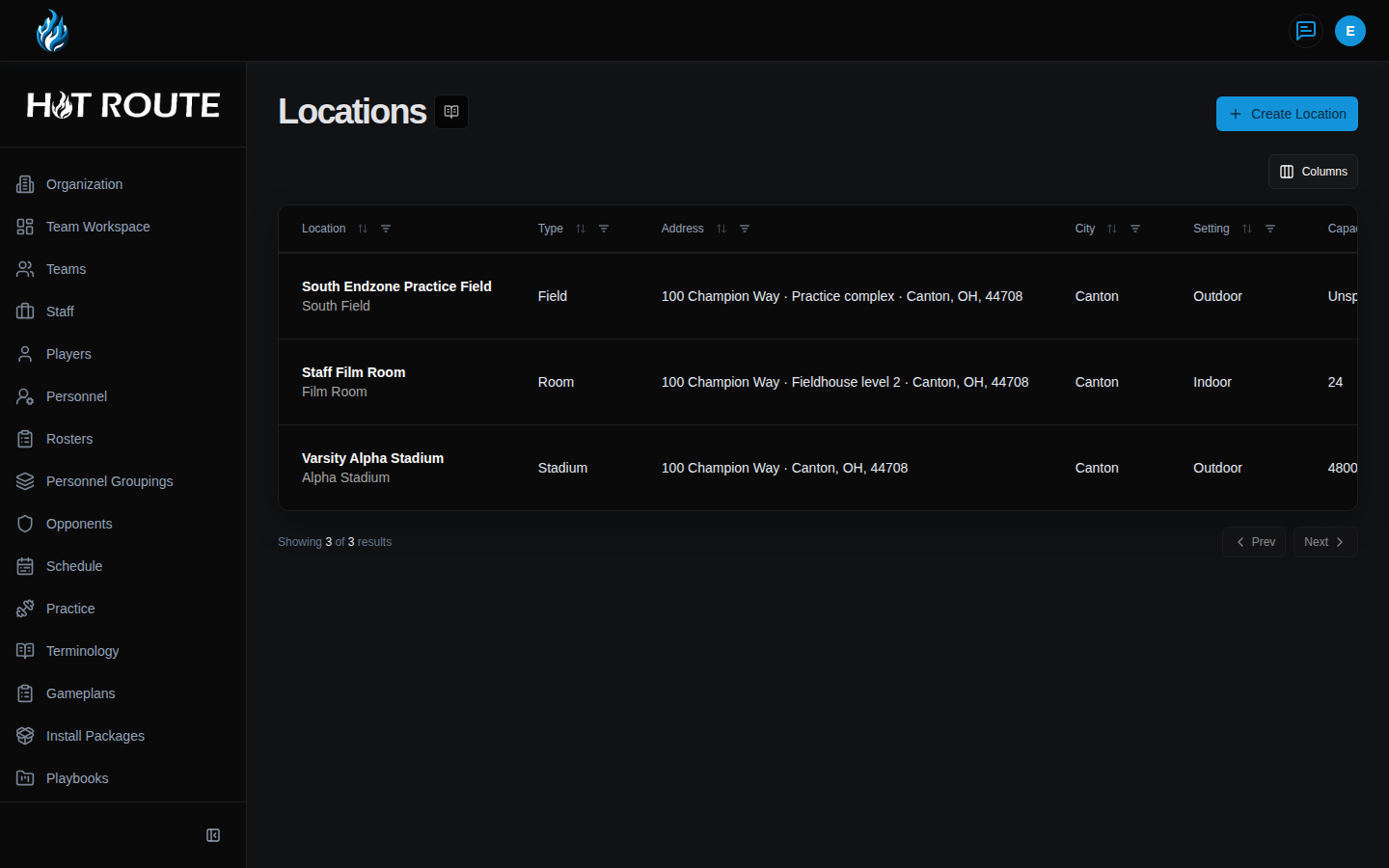
The /locations route opens the locations directory. It shows each location, type, surface, capacity, status, and linked schedule count.
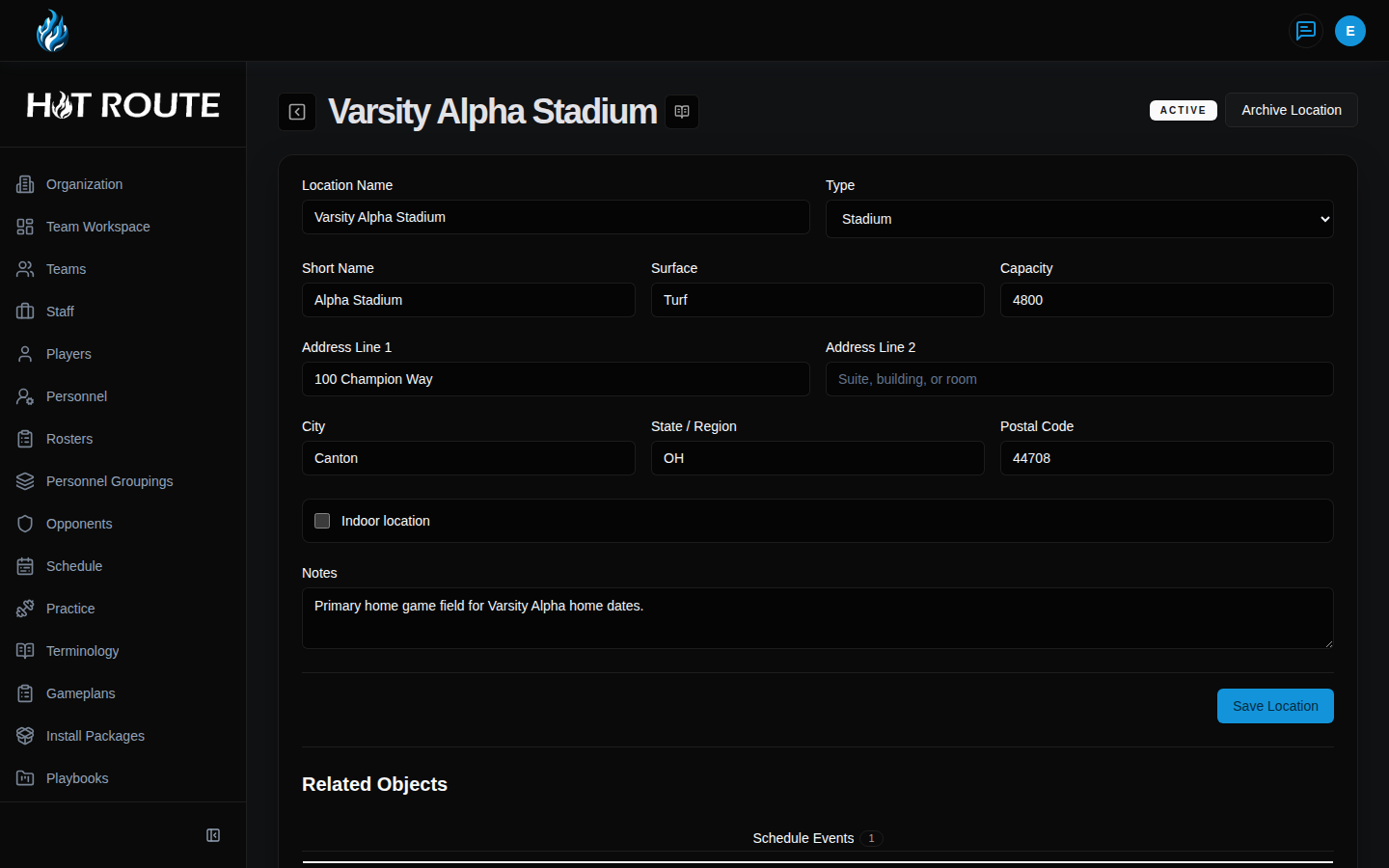
The /locations/new route creates a location. The form includes Location Name, Type, Short Name, Surface, Capacity, address fields, Indoor location, and Notes.
The /locations/[locationId] route opens a location detail page. Use it to inspect or update the location and see related schedule events.
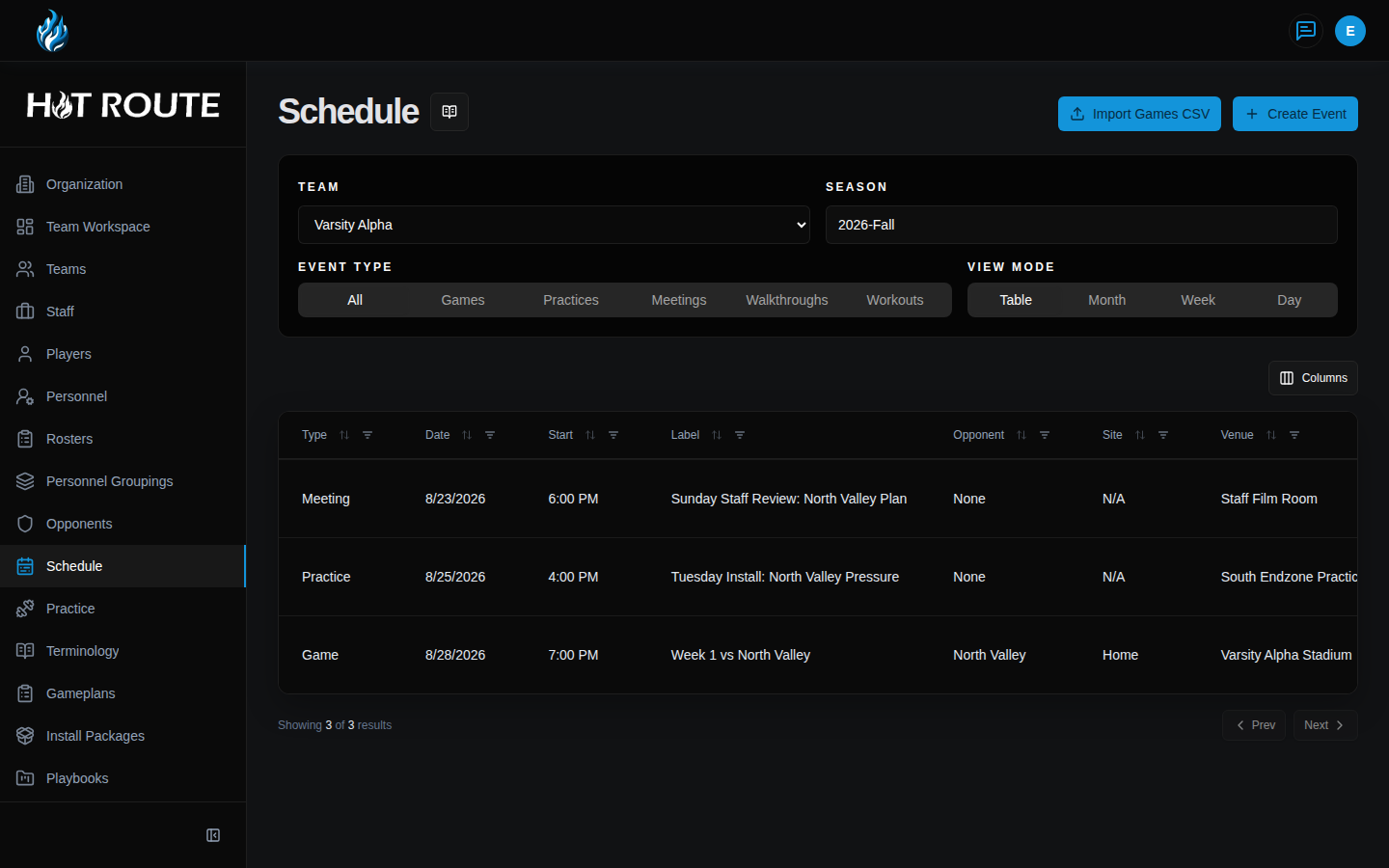
The /schedule route opens the schedule. It can show table, month, week, and day views. Filter by team, season, and event type when the calendar gets crowded.
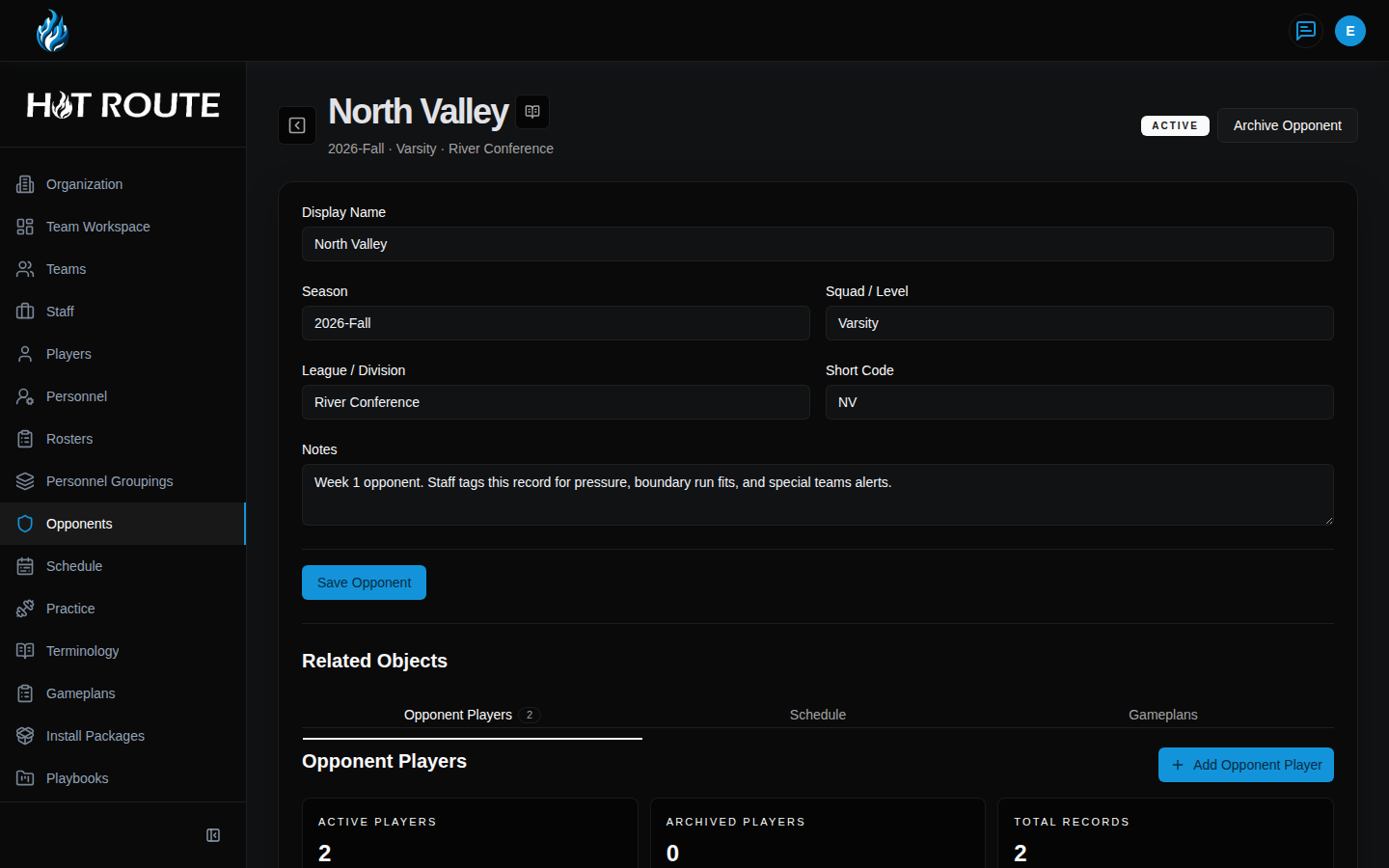
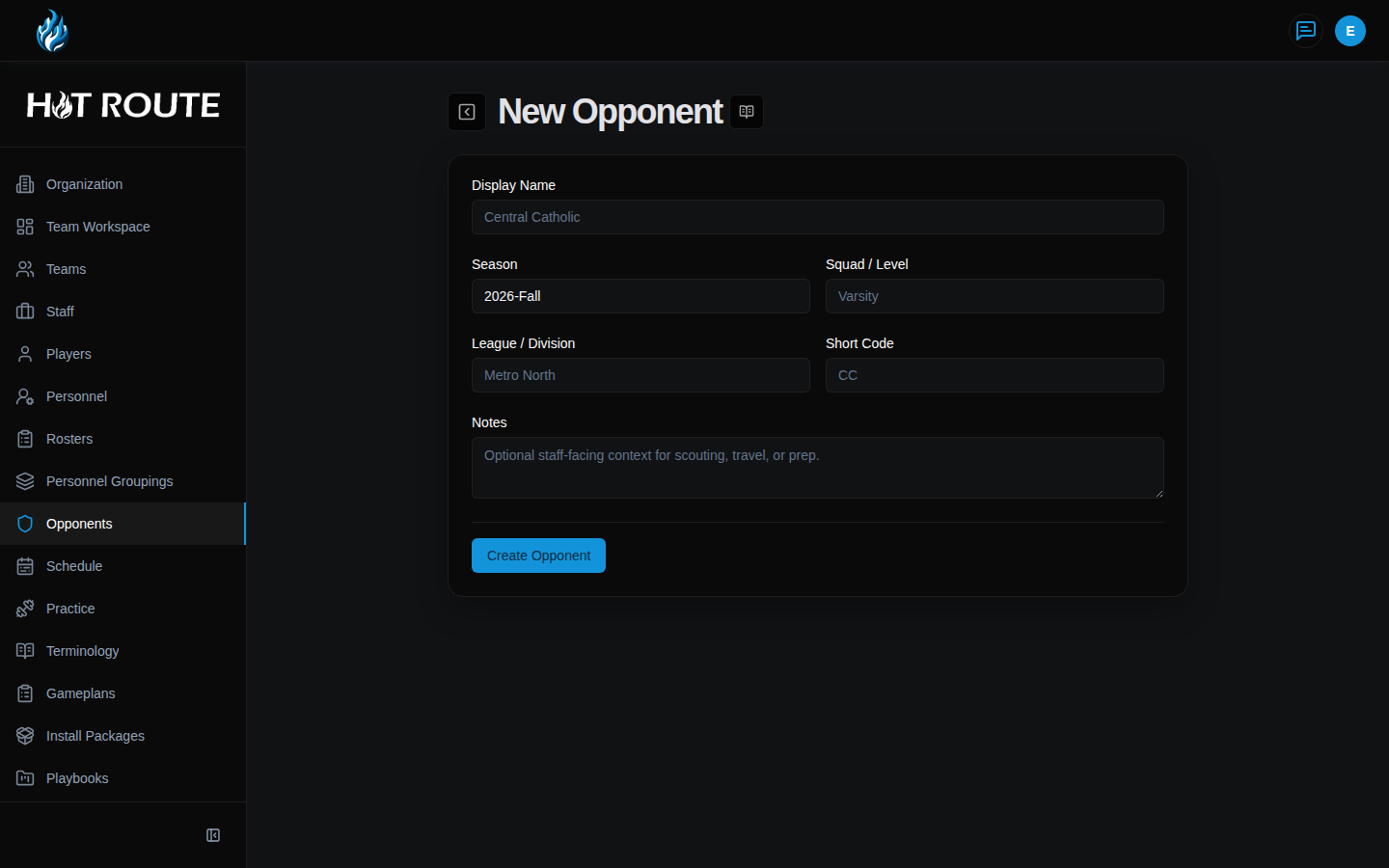
The /opponents route opens the opponent directory. The /opponents/new route creates an opponent team. The /opponents/[id] route opens one opponent and its related players, schedule, and gameplan context.
Step-by-step instructions
- In the left navigation, click Locations.
- Click Create Location.
- Enter Location Name.
- Choose Type, such as field, stadium, office, room, or other.
- Add Short Name, Surface, Capacity, address fields, and Notes when useful.
- Check Indoor location when the place is indoors.
- Save the location.
- Open the location row to inspect the detail route and related schedule events.
- In the left navigation, click Opponents.
- Click Create Opponent.
- Enter Display Name, Season, Squad / Level, League / Division, Short Code, and Notes.
- Click Create Opponent.
- Open the opponent row to inspect related objects.
- Click Add Opponent Player when the staff needs opponent player context for prep.
- In the left navigation, click Schedule.
- Choose Team and Season.
- Use Event Type to show all events, games, practices, meetings, walkthroughs, or workouts.
- Click Create Event to add a new schedule item.
- For games, choose the opponent and site.
- For meetings, practices, walkthroughs, and workouts, use the label, date, time, venue, notes, tags, people, and prep links that make the event clear to the staff.
- Use Import Games CSV only when importing a game schedule from a clean file that staff has reviewed.
What good looks like
Good weekly setup lets the staff answer:
- Where is each meeting, practice, and game?
- Which team and season does the event belong to?
- Which opponent does the game prepare for?
- What is the staff trying to accomplish in each event?
- Are opponent notes clear enough to guide game planning?
- Do schedule events line up with roster and staff readiness?
Common questions or mistakes
Why is an opponent required for a game?
A game should point at the opponent record so gameplan, schedule, and prep context stay connected.
Do I need a location for every schedule event?
Use a location when it helps the staff know where the work happens. A meeting or practice can still carry venue text when the exact location record is not ready yet.
Are opponent players the same as HotRoute players?
No. Opponent players belong to the opponent record. They are prep context, not internal roster members.
Why does my schedule look empty?
Check the team, season, event type, and view mode filters first. The event may belong to a different team or season.
Related docs / next steps
Read Team Setup and Workspace when schedule events are attached to the wrong team or season.
Read People and Personnel when an event depends on staff or player context.
Read Rosters and Depth Charts when the week depends on a ready roster.