

Administration
Billing Settings
Learn how organization owners review billing status, start self-serve checkout, open Customer Portal, and handle All-Pro contact-led billing in HotRoute.
Overview / Purpose
The Billing page is where an organization owner reviews plan access and manages self-serve billing actions for the organization.
Use it to review the current plan, open Customer Portal when available, start enabled checkout offers for Rookie, Veteran, or Pro, and contact HotRoute for All-Pro.
Who this is for
This page is for organization owners.
It is also useful for staff operators who need to understand why some HotRoute surfaces are available or unavailable based on the organization's plan.
What to know first
Billing is organization-scoped. A user having access to a team or staff workflow does not automatically make that user the billing owner.
For launch, organization owners manage billing. There is no separate customer billing-admin role.
Rookie, Veteran, and Pro are the three self-serve plans. You can start checkout when an offer is available to your organization. If an offer is unavailable, use the contact or recovery option shown on the page. All-Pro is offered separately through contact sales and cannot be selected in self-serve checkout or Customer Portal plan changes.
HotRoute may show a checkout result after a payment flow. The product waits for billing confirmation before plan access changes are treated as active.
How it works
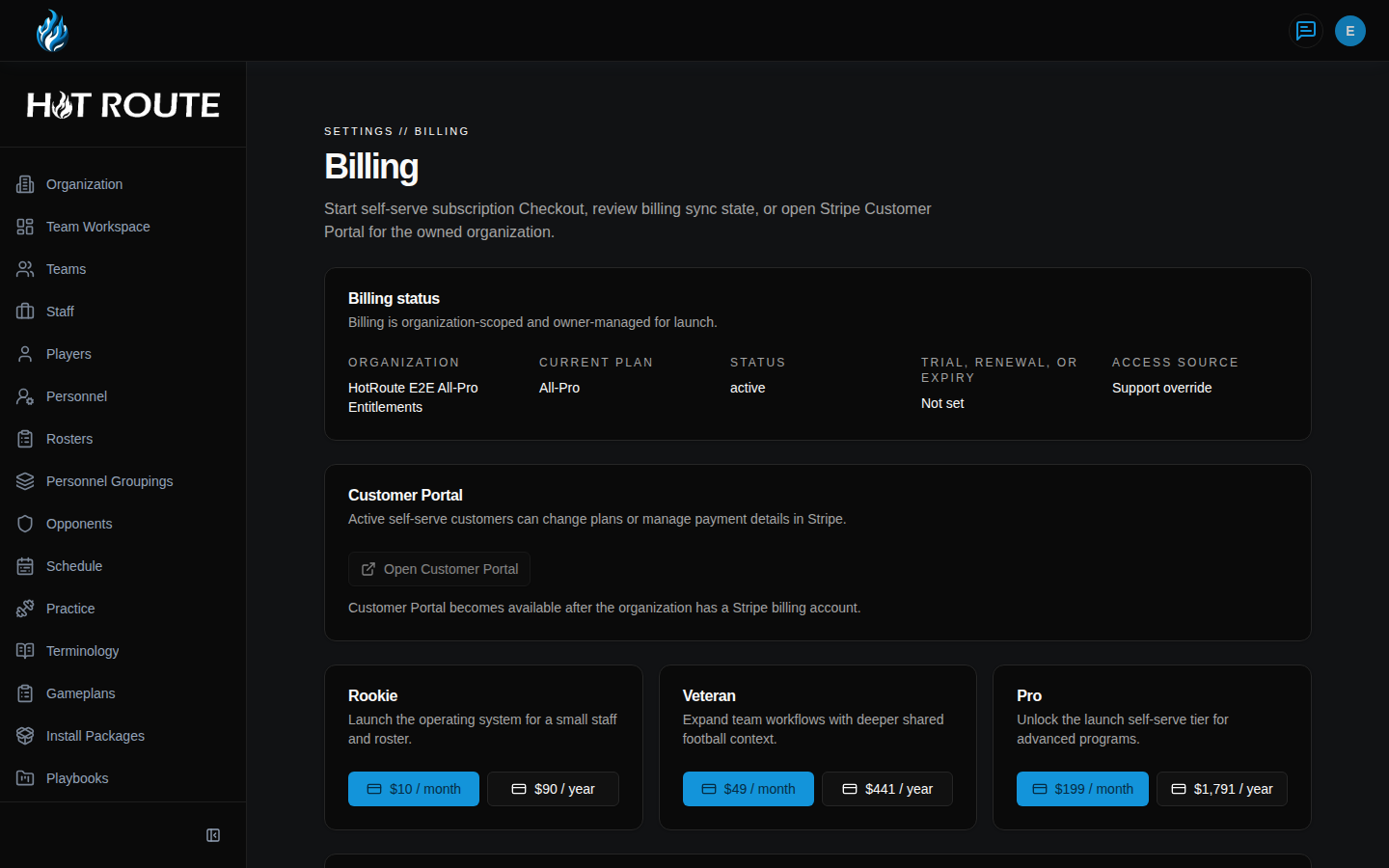
The Billing status card shows the organization, current plan, status, trial or renewal date, and access source.
The Customer Portal card lets active self-serve customers manage plan or payment details when a billing account exists.
The plan cards let the owner start monthly or annual checkout for Rookie, Veteran, or Pro when an offer is available. If an offer is unavailable, use the recovery or contact option shown on the page.
The All-Pro card gives a contact path for contact-led billing.
Step-by-step instructions
- Sign in as the organization owner.
- Click the user circle in the top-right corner.
- Click Settings.
- Click Open billing settings.
- Confirm the page heading says Billing.
- Review Billing status for the current organization, plan, status, date, and access source.
- If your organization has a billing account, click Open Customer Portal to manage plan or payment details.
- To start self-serve checkout, find an available offer on the Rookie, Veteran, or Pro plan card. If the offer is unavailable, follow the page's recovery or contact guidance.
- Click the monthly or annual price button for the plan you want.
- Complete checkout from the billing provider page.
- Return to HotRoute and review any checkout message at the top of the page.
- For All-Pro, click Contact HotRoute instead of self-serve checkout.
What good looks like
A healthy billing page gives the owner a clear read on the organization's current plan and next billing action.
The owner should be able to answer:
- Which organization is this billing page for?
- What plan is currently active?
- Is the status active, trialing, unavailable, or waiting for review?
- Can I open Customer Portal?
- Do I need self-serve checkout or All-Pro contact-led help?
- Did a checkout flow complete, cancel, or wait for confirmation?
Common questions or mistakes
Can any staff member manage billing?
No. Billing is owner-managed for launch.
Can I upgrade to All-Pro from Customer Portal?
No. All-Pro is contact-led. Use Contact HotRoute.
Why is Customer Portal unavailable?
Customer Portal becomes available after the organization has a billing account. Trial or plan-change states may also require HotRoute support.
Why did checkout finish but access not change immediately?
Billing confirmation can take a short handoff after checkout. Review the checkout message and contact HotRoute if the state does not resolve.
Related docs / next steps
Read Organization Defaults to return to owner settings.
Read Home Dashboard and Navigation to understand how plan access affects navigation.
Read FAQ / Help / Next Steps when billing state does not look right.