


Feature Guides
Collaboration Workspace
Learn how HotRoute collaboration keeps conversations tied to visible football objects, recent chats, attention items, and object-specific threads.
Overview / Purpose
The Collaboration Workspace is where HotRoute keeps staff conversation tied to the football object being discussed.
Instead of treating chat as a separate inbox, HotRoute organizes collaboration around visible objects such as plays, terminology, gameplans, schedules, and other launch-visible work areas.
Who this is for
This page is for coaches, coordinators, analysts, and staff members who coordinate football work inside HotRoute.
It is also useful for organization owners who need to understand that conversation visibility follows product access.
What to know first
Collaboration does not expand access. If a user cannot see the underlying football object, collaboration should not make that object visible.
Object-linked collaboration follows the same rule. Mentions, attention items, and linked context help staff find work they are already allowed to see. They do not grant access to hidden football objects.
The workspace requires a signed-in user with organization context.
Recent conversations and attention items depend on activity. A clean empty state is normal before the organization has object conversations.
How it works
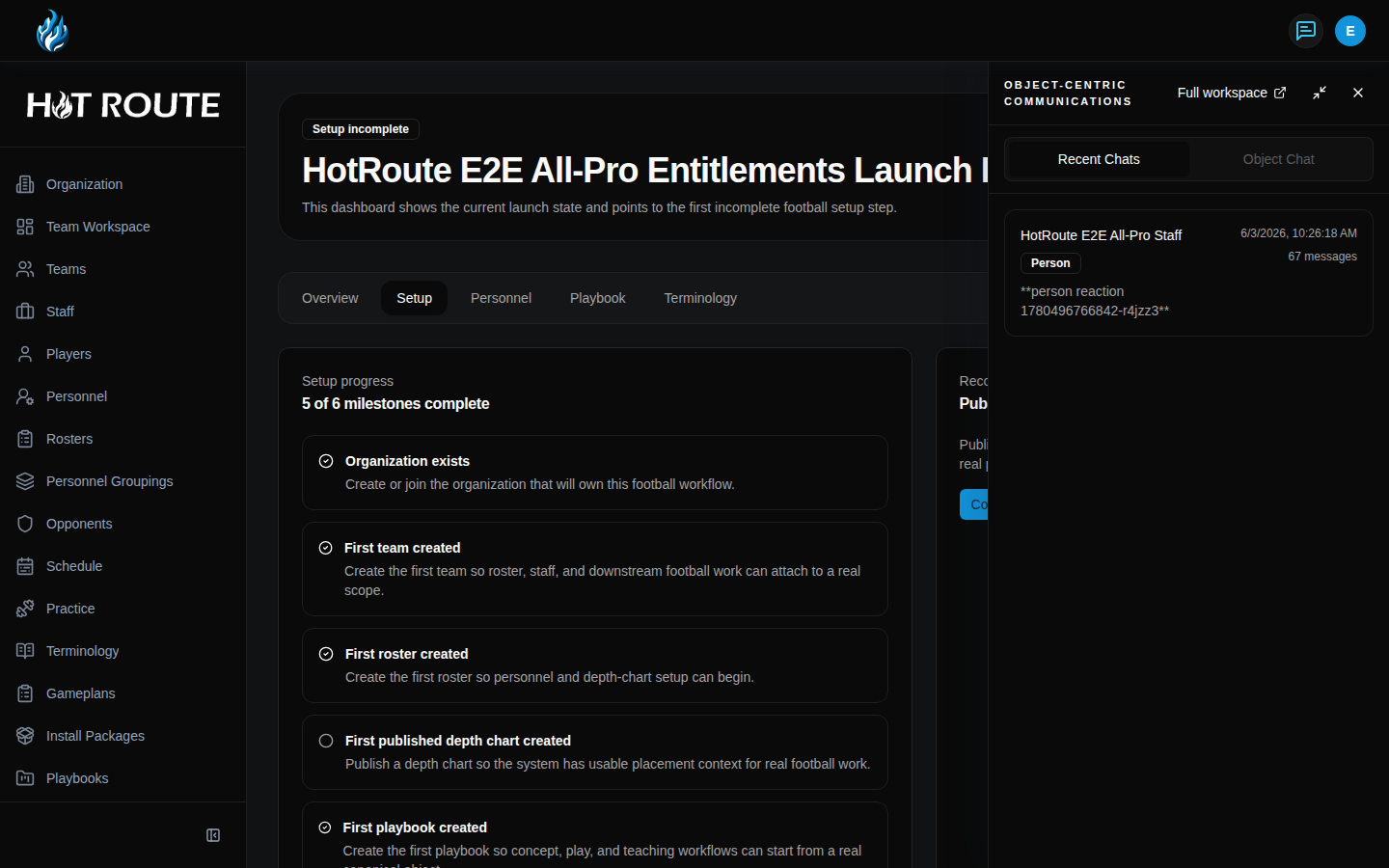
The top-right message button opens the collaboration shell. The shell is useful when you want quick access without leaving the page.
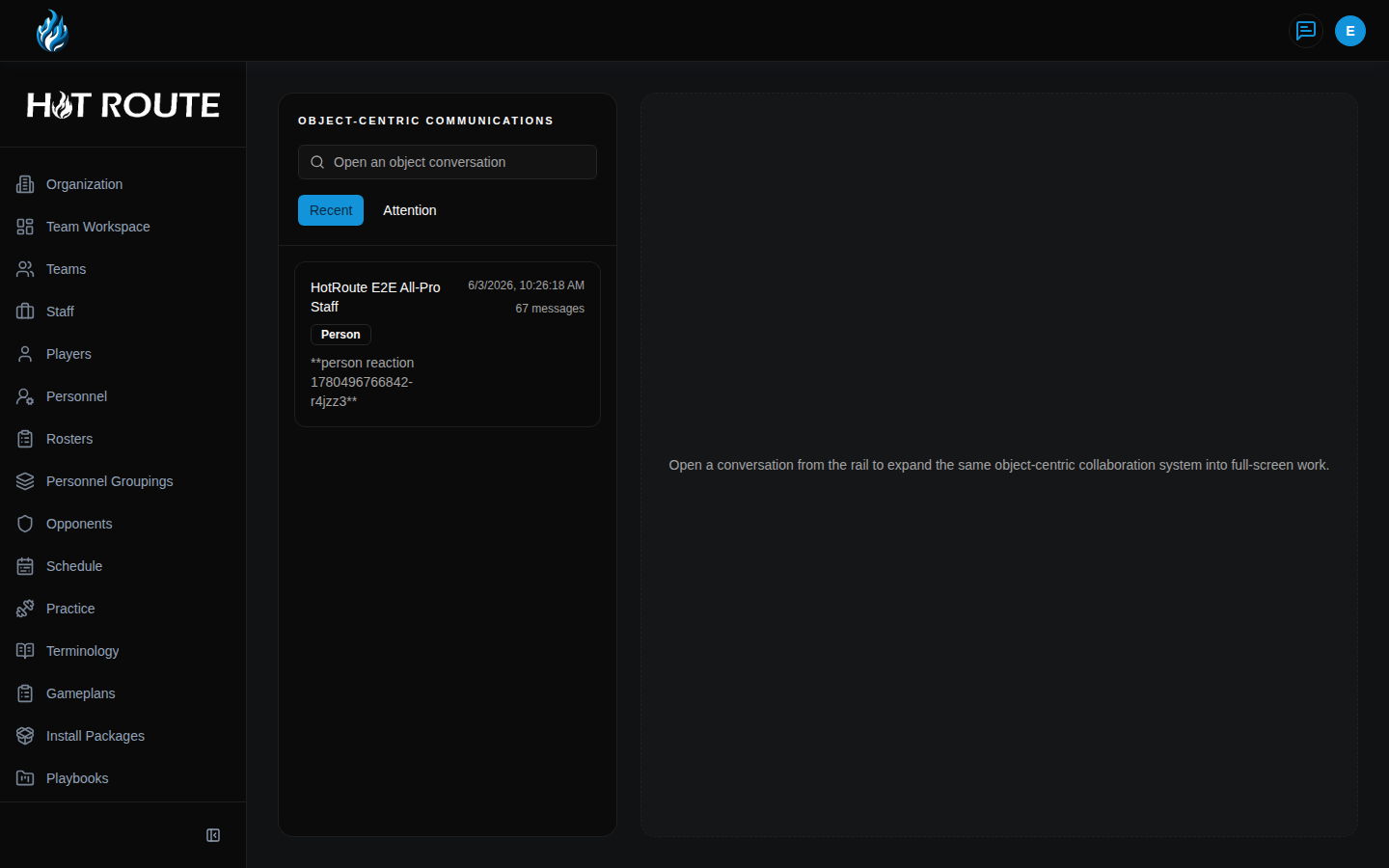
The full Collaboration Workspace gives more room for searching object conversations, reviewing Recent conversations, and reviewing Attention items.
Use Open an object conversation to search for a visible football object. Use Recent for active conversations. Use Attention for direct mentions or items that need your review.
When an object conversation is open, the thread panel shows messages, follow state, lifecycle controls, and message actions that are available to the current user.
Some authority and delegation pages can include linked context. Open those links only when the underlying object is visible to you and the discussion belongs in that object context.
Step-by-step instructions
- Sign in to HotRoute.
- Click the message button in the top-right app bar. The tooltip says Open collaboration.
- Review the collaboration shell.
- Click Full workspace when you want the larger workspace.
- In the full workspace, click Recent to review recent object conversations.
- Click Attention to review direct mentions and items that need your attention.
- In Open an object conversation, search for a visible object by name.
- Click the object result to open that conversation.
- Read the conversation context before posting.
- Enter your message in the conversation panel when posting is available.
- Use follow, resolve, reopen, lock, unlock, or archive actions only when they match the staff's real workflow and your access level.
What good looks like
Good collaboration is tied to the real football object under discussion.
Staff should be able to answer:
- What object is this conversation about?
- Can everyone in the conversation see that object?
- Is this a recent discussion, an attention item, or an object-specific thread?
- Does the message belong in this object context?
- Is the conversation still active, resolved, locked, or archived?
Common questions or mistakes
Why do I not see a conversation another coach mentioned?
You may not have access to the underlying football object, or the conversation may not have activity available to your account.
Does mentioning someone grant them access to the object?
No. Collaboration follows product access. Mentioning or messaging does not expand object visibility.
Why is Recent empty?
The organization may not have active object conversations yet, or none are visible to your account.
When should I use Full workspace instead of the shell?
Use the shell for quick review. Use the full workspace when you need object search, attention review, or more room to read and respond.
Related docs / next steps
Read Home Dashboard and Navigation to understand the collaboration button in the app shell.
Read Object-Linked Collaboration for the visibility and lifecycle rules behind object conversations.
Read Authority Delegations when a responsibility handoff includes linked football context.
Read Organization Configuration if collaboration access appears incorrect for a user.
Read Operations and Orchestration for the broader operating model.