


Feature Guides
Home Dashboard and Navigation
Understand the HotRoute home dashboard, protected app shell, left navigation, user menu, and access-based navigation behavior after sign-in.
Overview / Purpose
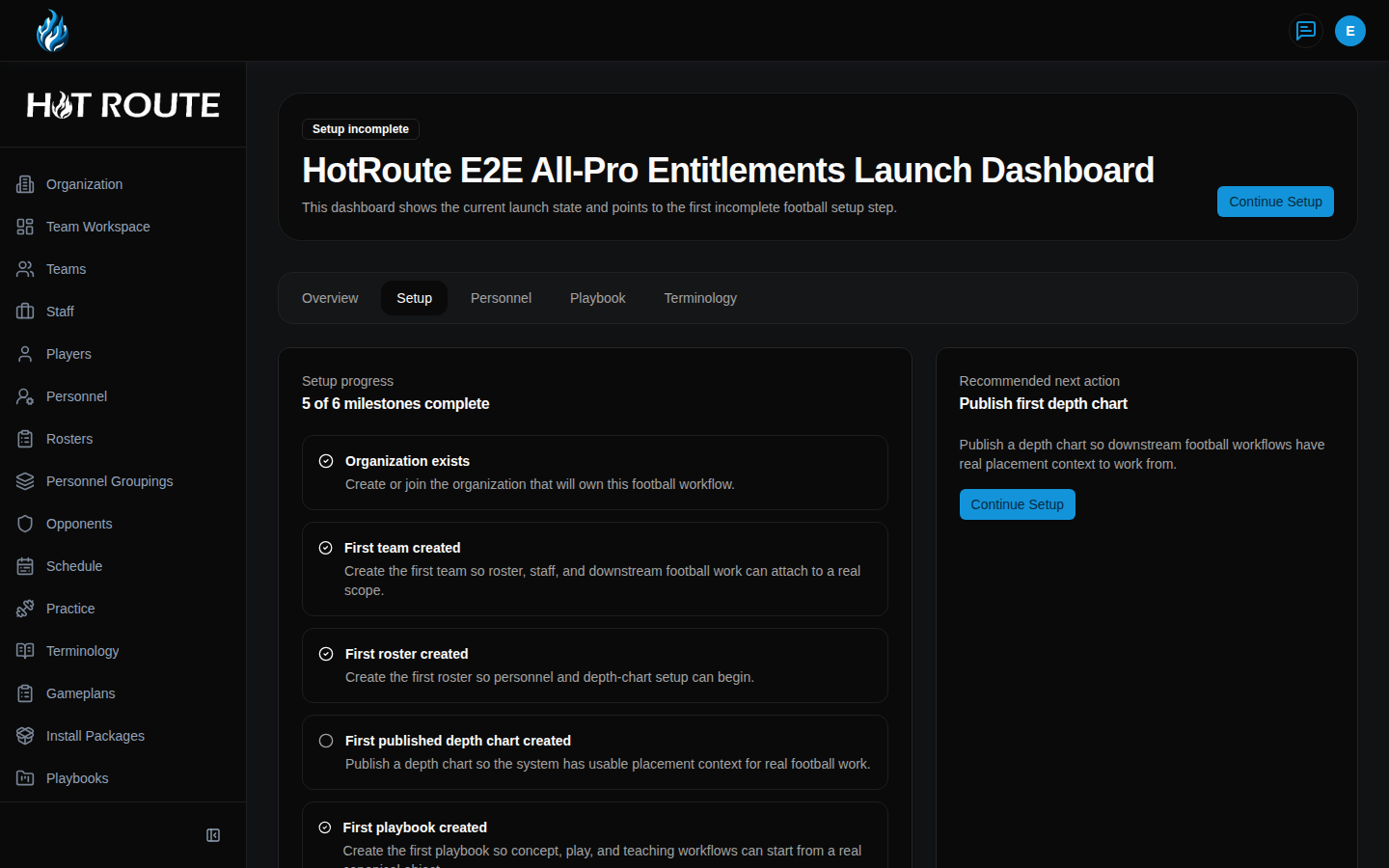
The HotRoute home dashboard is the first protected workspace most users see after sign-in.
Use it to understand where the organization stands, what the next setup or weekly work step should be, and which navigation paths are available for the current user.
Who this is for
This page is for any signed-in HotRoute user who needs to understand the app shell.
It is especially useful for organization owners helping staff understand why one person sees a different left navigation than another person.
What to know first
HotRoute navigation is not a flat menu for every user. It changes based on the account's organization, role, and plan access.
If a page does not appear in the left navigation, that usually means one of these things is true:
- the account is not linked to an organization yet
- the account is linked but still needs provisioning repair
- the page requires owner or staff authority
- the organization's current plan does not include that surface
- the surface is not launch-visible for that user
The /protected route is a simple protected entry path. If you are signed in, it sends you into the product. If you are not signed in, it sends you to Login.
How it works
The top bar always gives users the main HotRoute logo, collaboration button, workspace panel controls when available, and the user menu.
The left navigation shows the football work areas available to the current account. Desktop navigation may show more modules than the mobile bottom navigation.
The home dashboard itself shows launch setup, next action, recent activity, personnel context, playbook context, and terminology context when those objects exist for the organization.
When the account has no organization yet, the dashboard points the user to Create or Join Organization.
Step-by-step instructions
- Sign in to HotRoute.
- Confirm HotRoute opens the Launch Dashboard or another safe page for your account.
- Use the left navigation to open the football work area you need, such as Organization, Teams, Staff, Players, Schedule, Playbooks, or Play Designer.
- If the left navigation is collapsed, click the bottom sidebar button to expand it.
- Click the HotRoute logo in the top-left corner to return to the home dashboard.
- Click the user circle in the top-right corner to open the user menu.
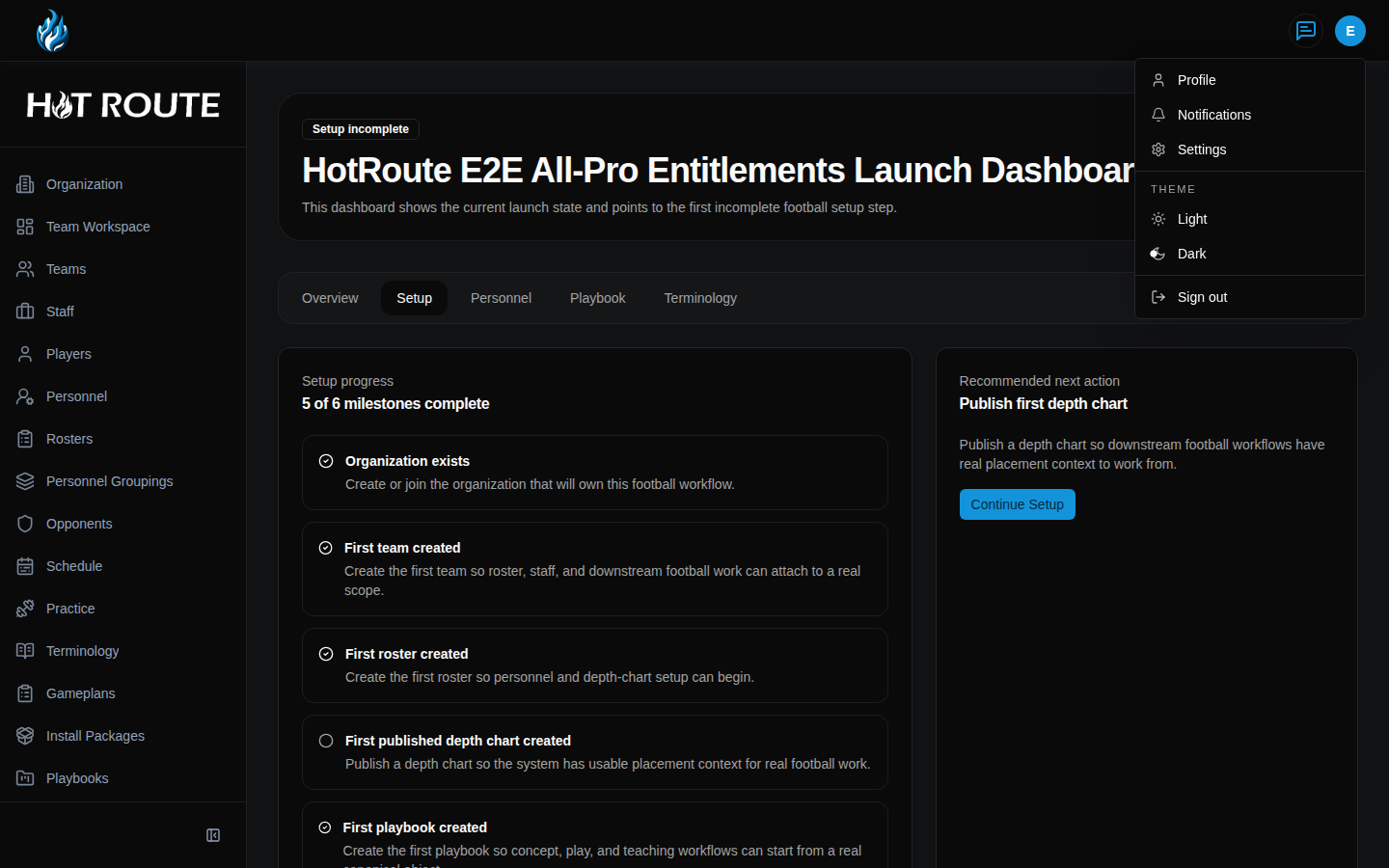
- Click Profile when you need to review personal account details.
- Click Settings when you are the organization owner and need owner-managed organization defaults.
- Use the theme choices in the menu when you need to switch between light and dark display.
- Click Sign out when you are done.
- If HotRoute shows Create or join organization, click that action and follow the organization setup or invite guidance.
What good looks like
A healthy signed-in session has a clear home dashboard, a left navigation that matches the user's role and plan, and recovery messages that explain what the user should do next.
The user should be able to answer:
- What organization or setup state am I working in?
- What is the next recommended action?
- Which product areas are available to me?
- Where do I open my profile?
- Where does the owner open settings and billing?
- How do I sign out cleanly?
Common questions or mistakes
Why does another coach see more navigation items than I do?
Navigation follows organization, role, and plan access. An owner or All-Pro staff member may see more surfaces than a player, guest, or lower-tier user.
Does hiding a navigation item mean the data disappeared?
No. It means that page is not available to the current account from that context. The owner can review role, membership, and billing state when access looks wrong.
Why did HotRoute send me to Login from a protected page?
The route requires a signed-in account. Sign in first, then HotRoute returns you to a safe next step.
Why did HotRoute send me to Organization instead of the page I requested?
The page needs organization context. Create an organization, join with an invite, or ask the owner to review your membership.
Related docs / next steps
Read Sign In and Account Setup if a user cannot get into the app yet.
Read Profile and Account Review to understand the profile page.
Read Organization Configuration when the account or staff needs organization setup.