


Administration
Organization Configuration
Use the Organization Configuration page to review the organization record, keep the working season current, manage invite access, send role-specific member invites, open service-account controls, handle owner-only member administration, and connect to companion organization authority docs.
Overview / Purpose
The Organization Configuration page is the control room for the organization record in HotRoute.
Use it to confirm the staff is operating inside the right organization, review the current roster and staff counts, set the working season, generate an invite code, send role-specific member invites, open service-account controls, and manage member access when you are the organization owner.
When the next job is staff responsibility or football standards, use the companion Staff Authority and Organization Standards guides.
Who this is for
This page is mainly for the person who owns organization setup. In football terms, that is the staff member who makes sure the program is pointed at the right season, the right people are inside the building, and access changes are handled cleanly.
Owners can update settings and manage members. Non-owners can still open the page to review the organization they belong to, but owner-only controls are locked or shown in read-only mode.
What to know first
You must be signed in and linked to an organization before the page can show organization details.
If your account is not linked correctly, HotRoute shows recovery guidance instead of exposing organization data. If you are linked but not the owner, you can view the record but cannot change owner-managed settings.
The Current Season field matters because it gives HotRoute one working season default for roster, playbook, and team-context workflows. Keep it aligned with the season your staff is actively preparing.
There are two owner invite paths. Use the Invite Code when you need a general organization join code. Use Member invites when you know the person's email address and the role path they should receive before they join.
How it works
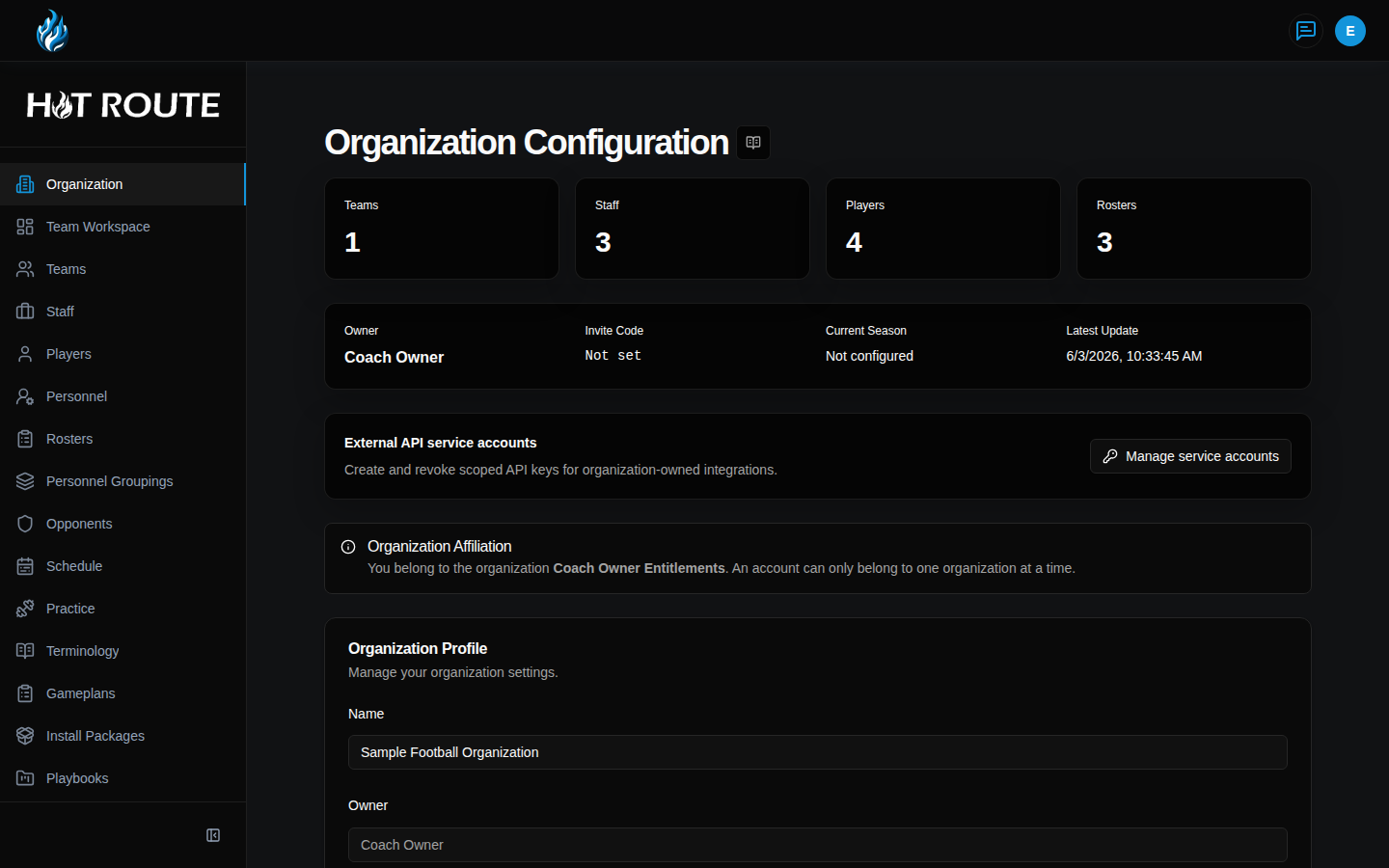
The top of the page gives a quick pulse check: team count, staff count, player count, roster count, owner, invite code status, current season, and latest update.
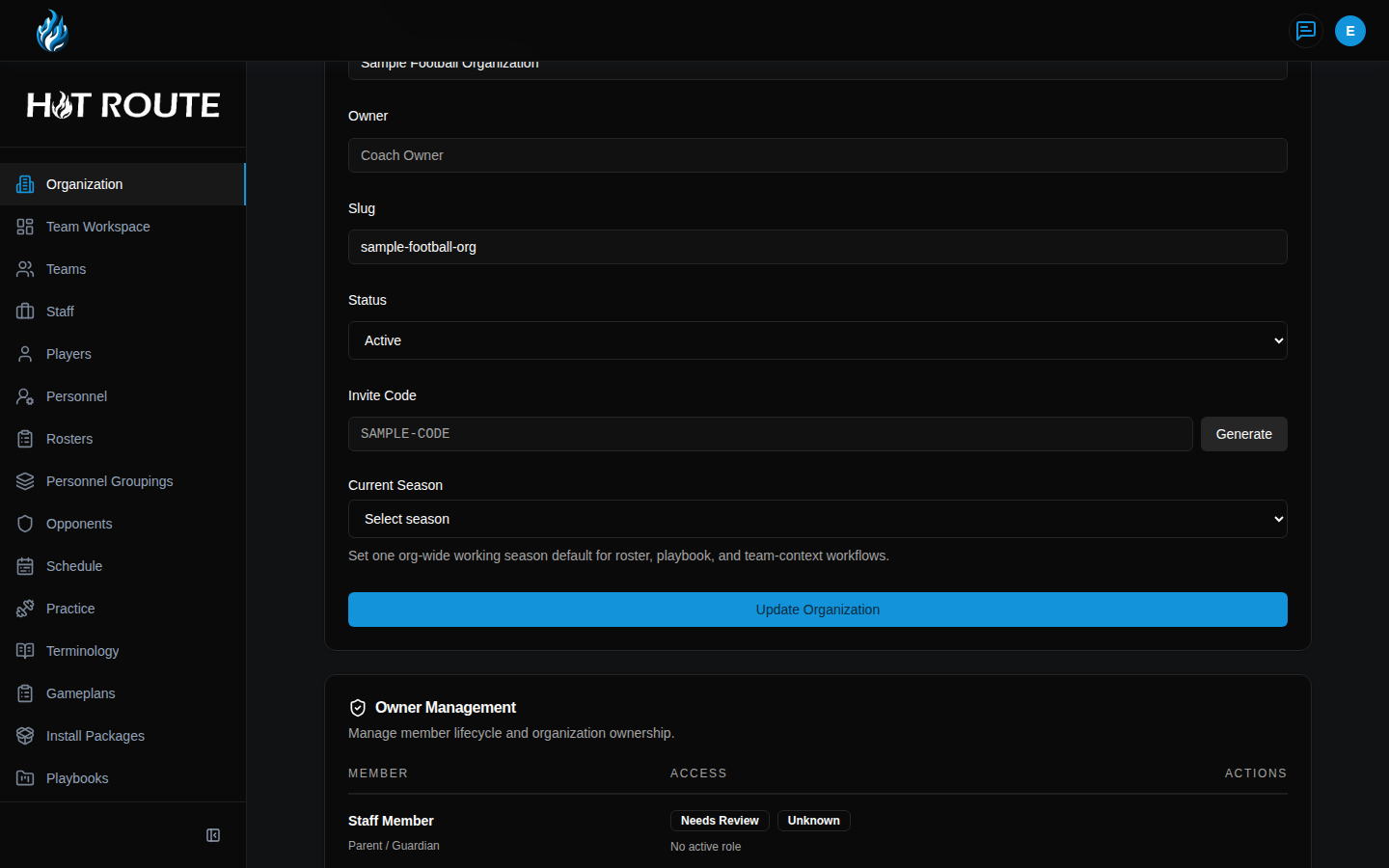
The middle of the page is where owners maintain the organization profile. That includes the organization name, slug, status, invite code, and current season.
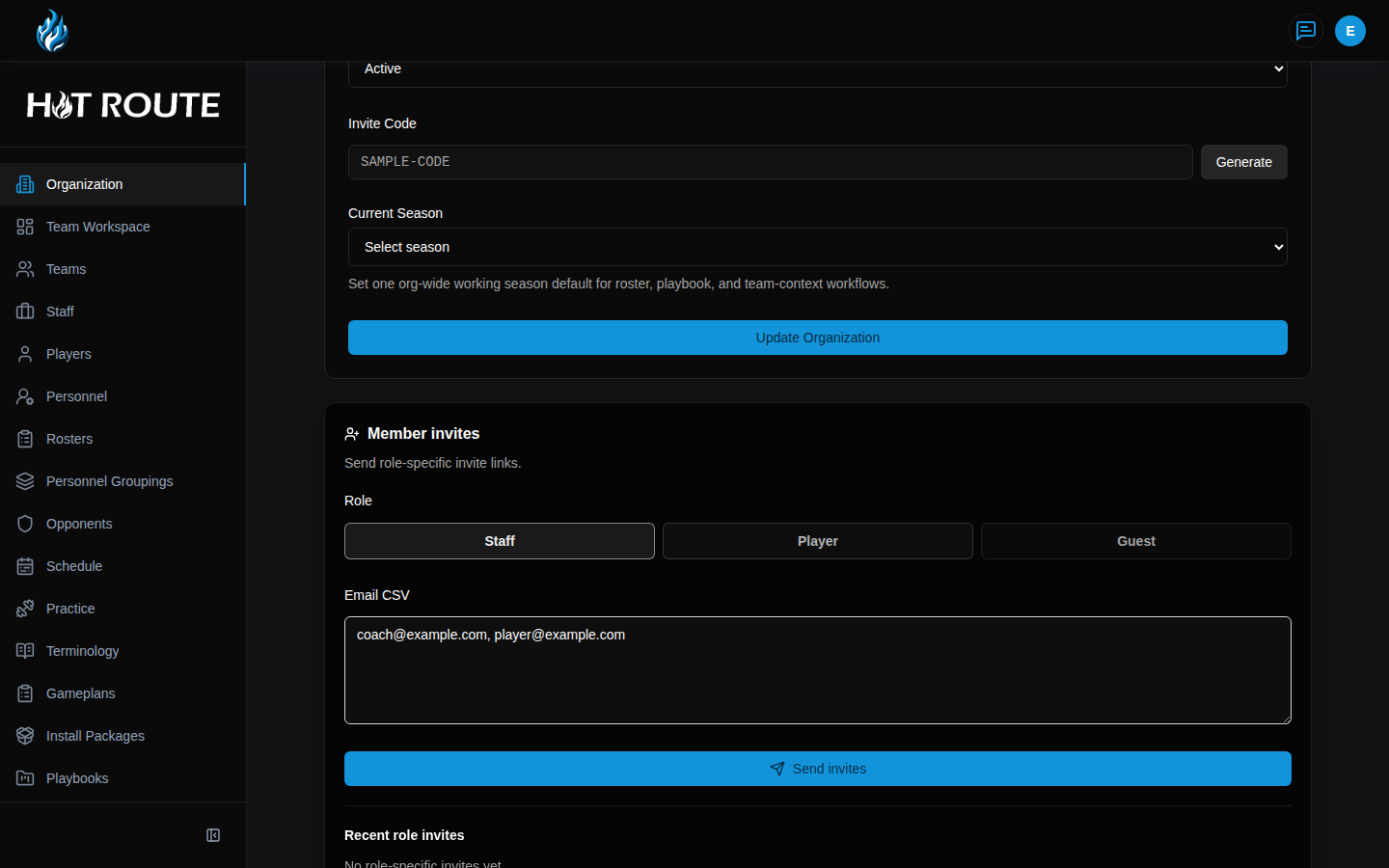
The next owner section is Member invites. It lets owners send role-specific invite links to known email addresses for Staff, Player, or Guest access.
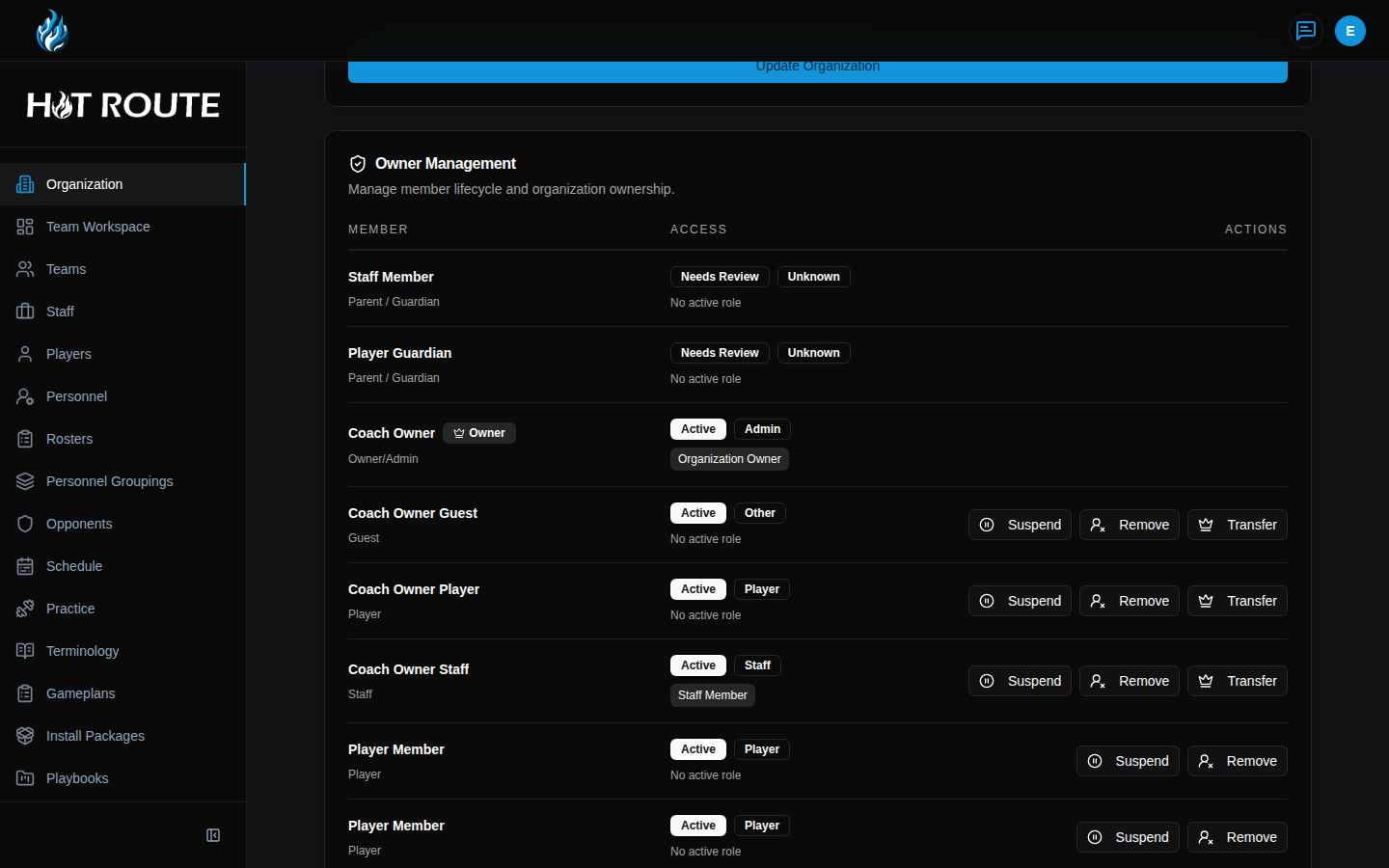
The bottom of the page is for owner administration. Owners can review member access, suspend or remove members, restore access when available, and transfer ownership to another eligible member.
Step-by-step instructions
- In the left navigation, click Organization.
- Confirm the page heading says Organization Configuration.
- Review the summary cards at the top of the page. These show how many teams, staff, players, and rosters are currently attached to the organization.
- Review the organization detail row. Confirm the listed owner and current season match the staff structure you expect.
- To manage external integrations, click Manage service accounts in the External API service accounts card. Use the Manage Service Accounts guide when you need the full key-creation workflow.
- In Organization Profile, update the organization name or slug only when the staff-facing identity should change.
- Use Status to keep the organization marked correctly.
- In Invite Code, click Generate when the organization needs a new join code. Use the Invite Code guide when you are adding coaches, staff, or other users to the organization.
- In Current Season, choose the season your staff is actively using.
- Click Update Organization to save the profile changes.
- Scroll to Member invites when you want to invite known people before they appear in the member table.
- In Role, choose Staff, Player, or Guest.
- In Email CSV, enter one or more email addresses. You can separate addresses with commas, semicolons, spaces, or new lines.
- Click Send invites to send role-specific invite links.
- Review New invite links after sending. Use Copy when a generated invite link needs to be shared manually.
- Review Recent role invites to see the latest invite role, invite state, and delivery state.
- Scroll to Owner Management.
- Review each member row. The Access column shows whether the member is active, needs review, or has another lifecycle state.
- Use Suspend when a member should temporarily lose organization access.
- Use Remove when a member should no longer belong to the organization.
- Use Transfer when ownership should move to another eligible member. The target member must accept before ownership changes.
What good looks like
A healthy organization configuration has a clear owner, active organization status, the correct current season, and member access that matches the real staff structure.
The page should make it easy for an owner to answer:
- Are we operating inside the right organization?
- Is the current season correct?
- Can new users join through the right invite path, either by general invite code or role-specific member invite?
- Are member access states current?
- Are recent role invites pointed at the right emails and role paths?
- Is ownership still held by the right person?
Common questions or mistakes
Why can I see the page but not edit it?
You are probably not the organization owner. HotRoute lets non-owner members review organization affiliation, but owner-managed controls stay locked.
Should I generate a new invite code every time someone joins?
No. Generate a new code when the existing invite path should change, such as after a staff transition or when an old code should no longer circulate.
When should I use Member invites instead of the invite code?
Use Member invites when you know exactly who should join and whether they should come in as staff, player, or guest. Use the invite code when you need a general organization join path.
Can I invite more than one person at once?
Yes. Paste multiple email addresses into Email CSV. HotRoute accepts common separators and skips duplicate emails in the same send.
Does sending a member invite add the person immediately?
No. It sends a role-specific invite link. The person still needs to accept the link and finish sign-up or sign-in before HotRoute links the account to the organization.
What happens when a member is suspended?
Suspension is for temporary access removal. The member loses active organization access until an owner restores them.
What is different about removing a member?
Removal is stronger than suspension. It removes active organization access and active role assignments.
Does ownership transfer immediately?
No. The target member must accept the transfer before ownership changes.
Related docs / next steps
Read Invite Code when the next job is adding people to the organization.
Read Manage Service Accounts when the next job is connecting an approved external tool.
Read Organization Defaults when the next job is changing owner-managed football defaults or submitting an organization lifecycle request.
Read Billing Settings when the next job is reviewing plan access, checkout, Customer Portal, or All-Pro billing paths.
Read Staff Authority when the next job is defining responsibility ownership for staff work.
Read Organization Standards when the next job is managing philosophy, identity, standards, constraints, or active adoptions.
Read Operations and Orchestration if you want the broader reason organization setup matters to weekly execution.
Use FAQ / Help / Next Steps when access, invite, or ownership state does not look right.