


Administration
Manage Service Accounts
Learn how organization owners create, limit, review, and retire service accounts for approved HotRoute integrations.
Overview / Purpose
Service accounts let an organization owner connect a trusted outside tool to HotRoute without using a coach's personal login.
Think of a service account as an organization-owned key for a specific job. The owner decides what the connected tool can touch, which team or season it applies to, and how long the key should work.
Use this page when you need to create, review, revoke, or delete those organization-owned integration keys.
Who this is for
This page is for organization owners and trusted staff operators who coordinate approved integrations.
In football terms, this is not the path for adding another coach, analyst, or staff member. Use the Invite Code workflow for people. Use service accounts for organization-approved systems that need controlled access to HotRoute data.
What to know first
Only organization owners can manage service accounts.
A service account should have a clear football purpose before it is created. Examples include a staff analytics tool that needs to read playbook data, a reporting tool that needs schedule context, or a trusted workflow that needs access to a limited set of HotRoute records.
An API key is the long key string an approved outside tool uses to connect. HotRoute shows the raw key only once after creation. Store it immediately in the right secure place for your staff. If the key is lost, create a new one. If the key is exposed, revoke it.
Scopes are the boundaries on the key. They answer the coaching staff version of: "What is this tool allowed to see or do?"
How it works
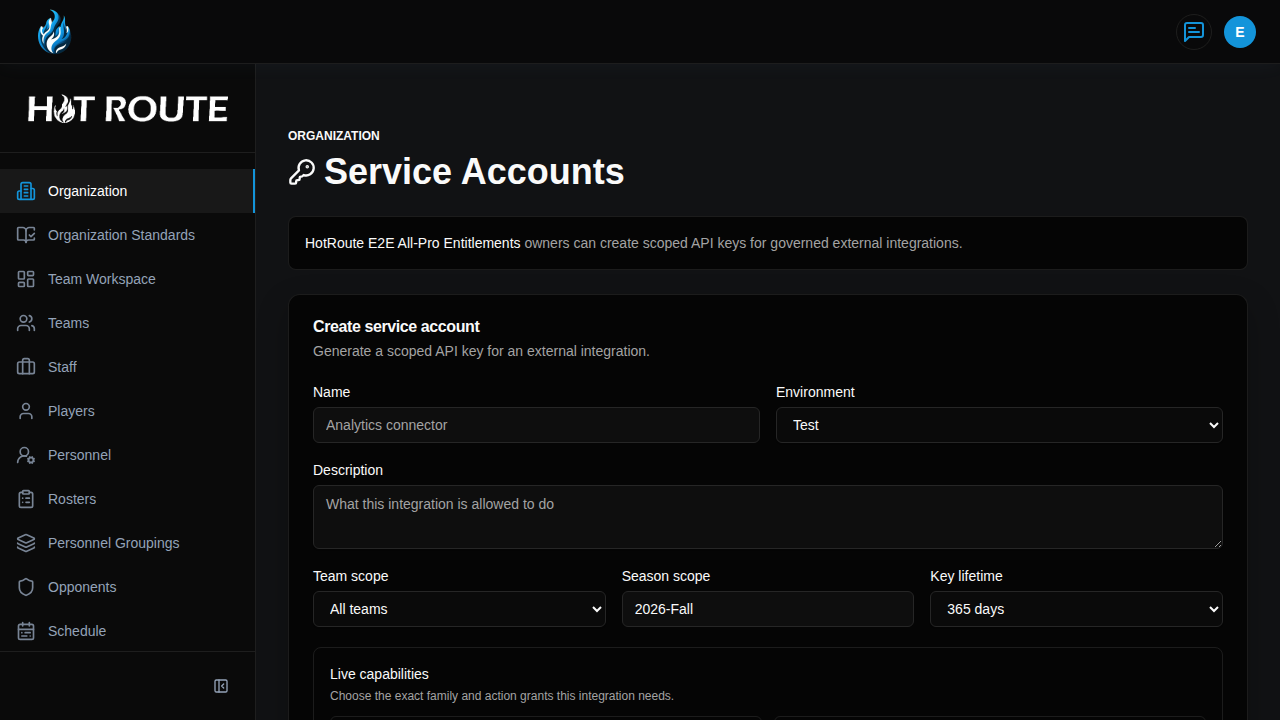
Each service account has a name, environment, description, team scope, season scope, key lifetime, and one or more live capabilities.
The Team scope and Season scope keep a key pointed at the right part of the organization. Use All teams or All seasons only when the outside tool truly needs that wide view.
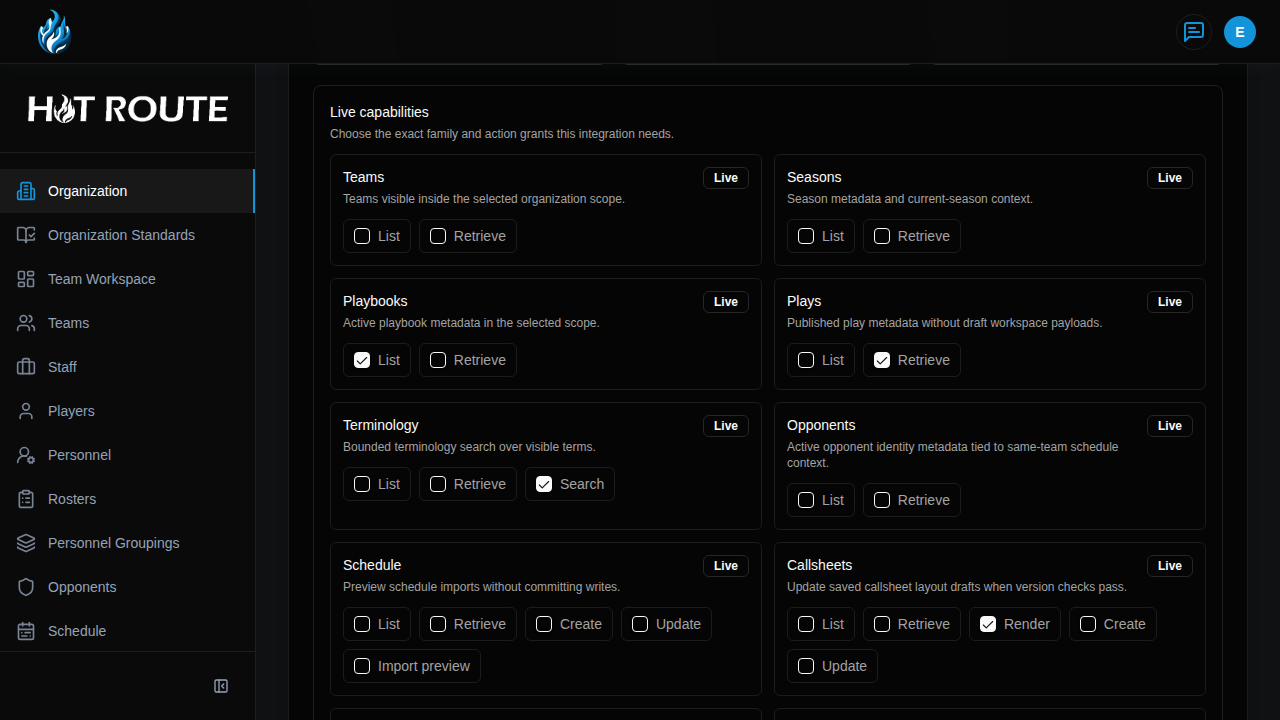
The Live capabilities section groups the available grants by object family. Each checkbox is one family/action pair, such as Plays: Retrieve, Schedule: Import preview, Callsheets: Render, or Semantic search: Search.
Unavailable, planned, review, publish, archive, billing-admin, support-admin, platform-admin, and unapproved mutation combinations are not created as service-account grants. Most service accounts should start with read-oriented actions and add write-like actions only when the integration has a clear owner and recovery path.
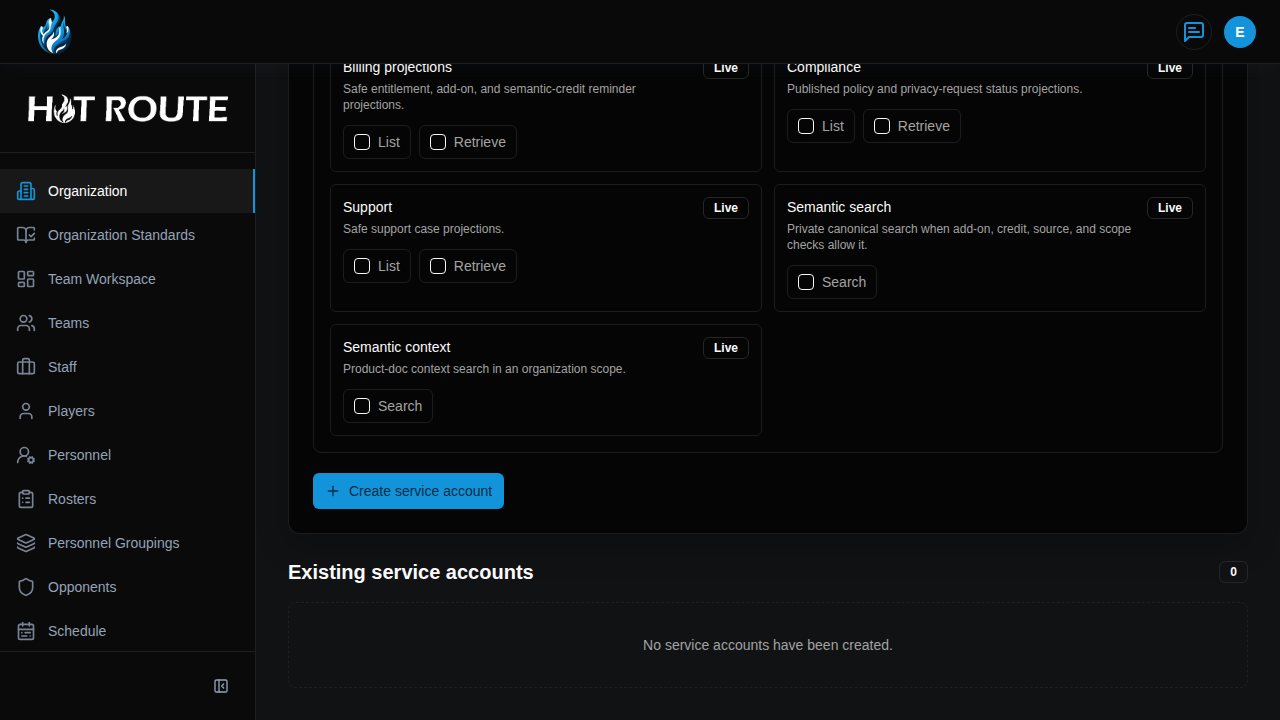
Existing service accounts appear below the create form. Each account shows its active keys and a collapsed Scopes card. Click the caret beside Scopes when you need to review the exact boundaries without taking over the whole page.
Step-by-step instructions
- In the left navigation, click Organization.
- On Organization Configuration, find the External API service accounts card.
- Click Manage service accounts.
- Confirm the page heading says Service Accounts.
- In Name, enter a plain label your staff will recognize.
- In Environment, choose Test, Preview, or Production.
- In Description, write what the integration is allowed to do.
- In Team scope, choose the team boundary for the key.
- In Season scope, choose the season boundary for the key, or leave it as All seasons only when that is intentional.
- In Key lifetime, choose how long the key should remain active.
- Under Live capabilities, check each family/action pair the integration needs.
- If a needed family or action is not listed, treat it as unavailable or planned until HotRoute approves it.
- Click Create service account.
- Copy or download the key immediately when HotRoute shows it.
- Store the key in the approved secure place for the staff or vendor that owns the integration.
- Use Install the hot CLI when the approved integration will connect through the HotRoute command-line tool.
- In Existing service accounts, review created accounts, active keys, and the account count.
- Click the caret beside Scopes on a service-account card when you need to review its boundaries.
- Click Revoke when an active key should stop working.
- Click Delete when the service account itself should be retired.
What good looks like
A healthy service-account setup is easy for an owner to explain.
Each account should have:
- a name tied to a real integration
- a description that explains the allowed job
- the narrowest team and season boundary that still works
- only the live family/action grants the integration needs
- a key lifetime that matches the trust level of the integration
- revoked or deleted keys when the work ends
Common questions or mistakes
Should I use a service account to add a coach or staff member?
No. Use Invite Code when the goal is to add a person to the organization.
Should I choose all teams and all seasons?
Only when the integration truly needs that wide view. Most keys should be limited to the team, season, and football areas they actually support.
Why can I only see the key once?
HotRoute shows the raw key once so it is not sitting around in the product later. Store it immediately. If it is lost, create a replacement key.
When should I revoke a key?
Revoke a key when it might be exposed, when a vendor changes, when an integration no longer needs access, or when you want to rotate access as part of normal operations.
What is the difference between revoking a key and deleting a service account?
Revoking stops a specific key from working. Deleting retires the service account and marks its active keys and scopes as deleted.
Related docs / next steps
Return to Organization Configuration when you need the broader owner settings page.
Use Invite Code when the work is about adding coaches, staff, or other users to the organization.
Read Staff Authority when the next job is defining who owns staff responsibilities instead of connecting an external tool.
Read External API and Customer Agent Integrations before handing a key to an approved technical partner or customer agent.
Use Install the hot CLI when that partner or agent will connect with the HotRoute command-line tool.