


Administration
Invite Code
Learn how organization owners use general invite codes and when to use role-specific member invites instead.
Overview / Purpose
An invite code is the join code an organization owner gives to a new HotRoute user so their account lands in the right organization.
Use invite codes for people: coaches, analysts, staff operators, and other approved users. Do not use invite codes for outside systems or integrations. Use Manage Service Accounts for that work.
The goal is simple: the owner generates the code, shares it privately, the new person enters it during sign-up, and HotRoute connects that person to the organization after the account is created and signed in.
HotRoute also supports Member invites from Organization Configuration. Member invites are better when the owner already knows the person's email address and wants to send a role-specific invite link for Staff, Player, or Guest access.
Who this is for
This page is for organization owners who bring people into HotRoute.
It is also useful for staff members who are helping a new coach or operator understand what to enter during sign-up.
What to know first
Only an organization owner can generate or save a new invite code.
An account can belong to only one organization at a time. If someone already belongs to another organization, HotRoute will not silently move them into a new one.
Share invite codes privately. Treat the code like a staff access path, not a public link.
Generate a new code when an old code should stop circulating, such as after a staff change, vendor handoff, or mistaken share.
Use Member invites instead of the general code when you want the join path tied to a specific email address and role path.
How it works
The invite code lives on the Organization Configuration page inside Organization Profile.
The owner clicks Generate to create a code, then clicks Update Organization to save it. After that, the owner sends the code to the new user through the staff-approved communication path.
The new user enters the code in Invite Code (optional) on the sign-up form. After email confirmation or first sign-in, HotRoute checks the code and links the account to the matching active organization.
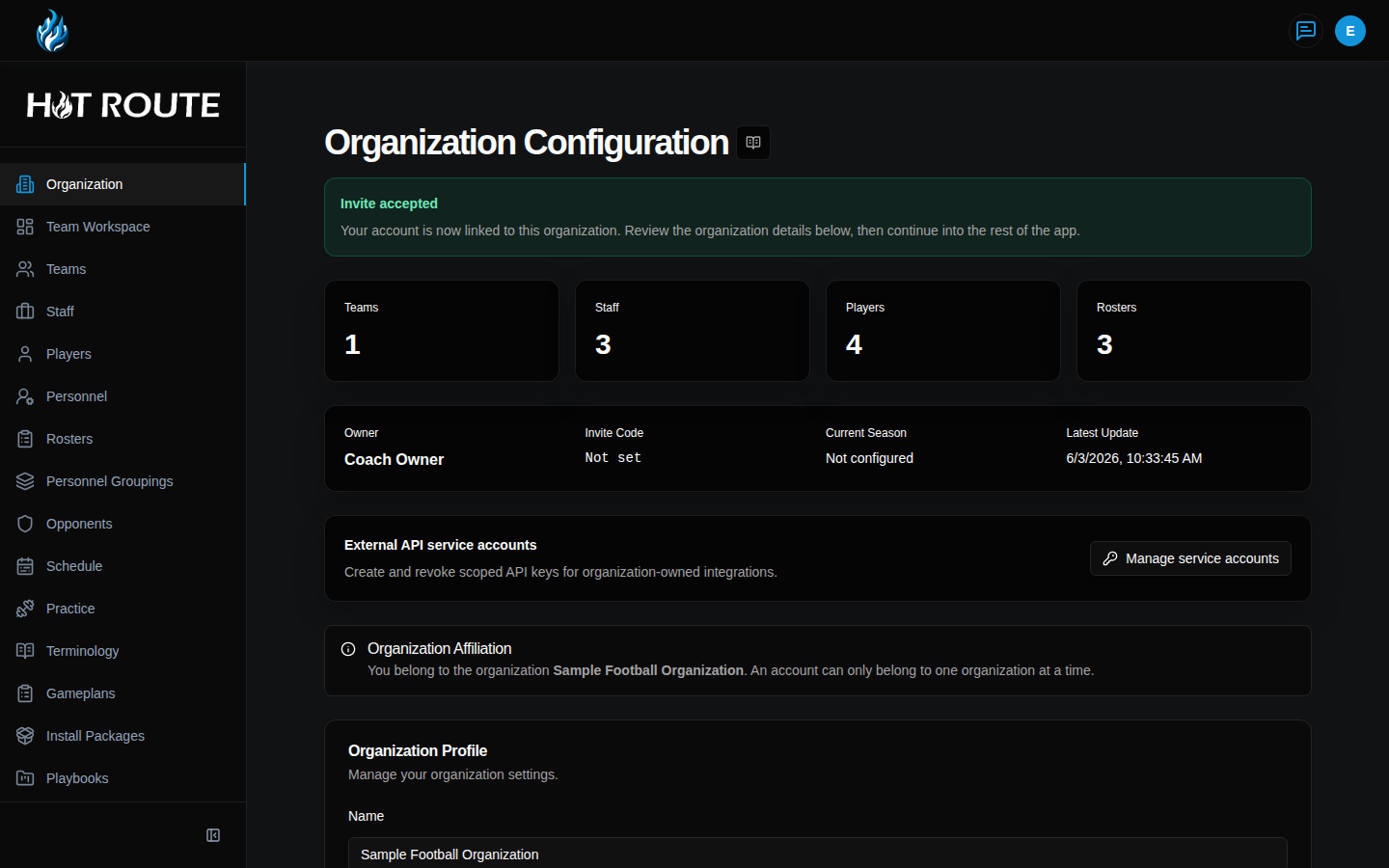
When the join succeeds, the user lands on Organization Configuration with an Invite accepted message.
Member invites work differently. The owner chooses a role path, enters one or more email addresses, and clicks Send invites. The recipient uses the invite link from the email. That link carries the role-specific invite path, so the recipient does not need to type the general invite code.
Step-by-step instructions
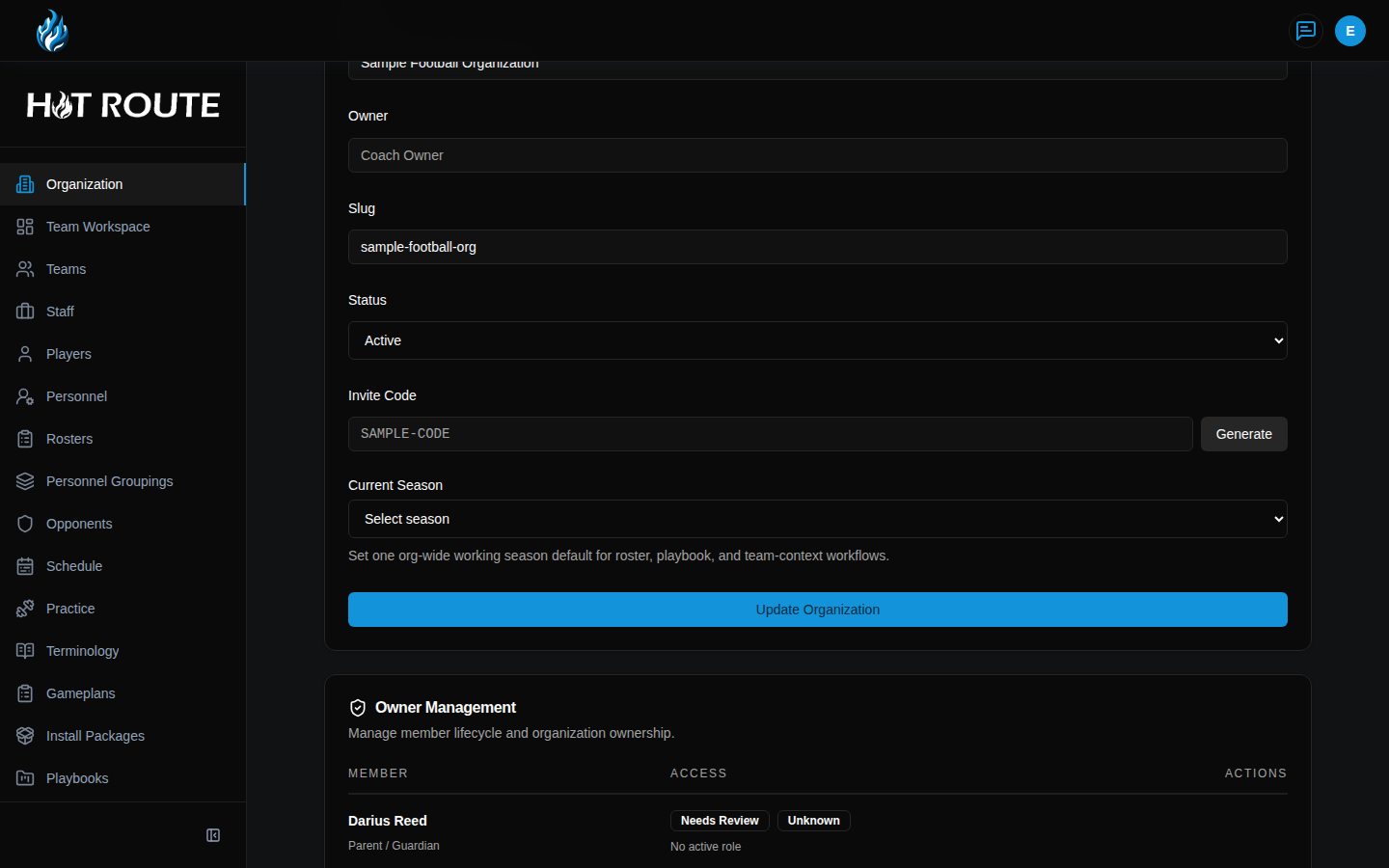
- As the organization owner, click Organization in the left navigation.
- Scroll to Organization Profile.
- Find Invite Code.
- Click Generate.
- Click Update Organization to save the generated code.
- Copy the saved invite code and send it privately to the person joining the organization.
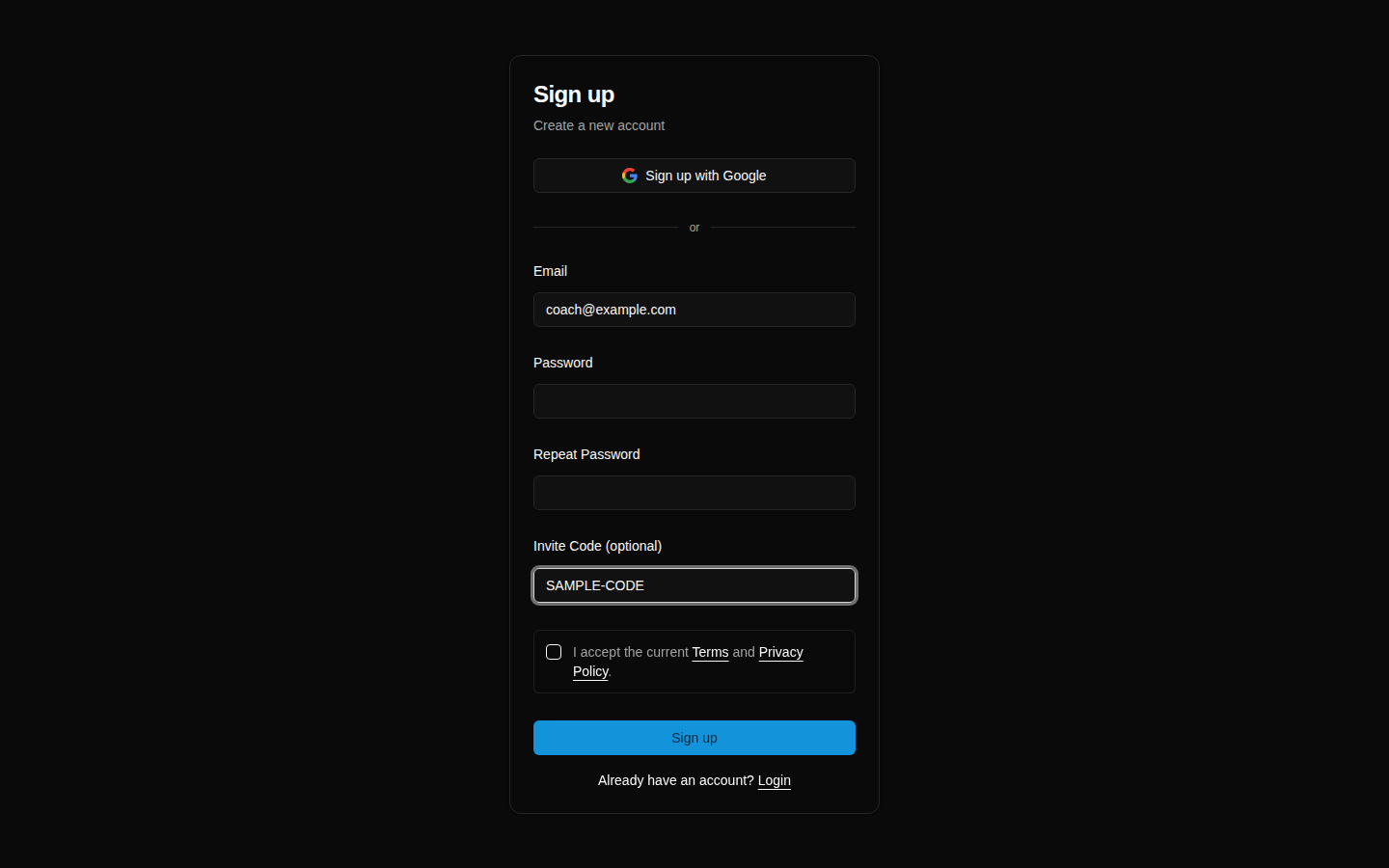
- Ask the new user to open the HotRoute sign-up page.
- Ask them to enter their email and password.
- In Invite Code (optional), ask them to enter the code exactly as provided.
- Ask them to accept the current Terms and Privacy Policy.
- Ask them to click Sign up.
- After the account is confirmed and signed in, ask the user to open Organization.
- Confirm the page shows Invite accepted.
- Confirm the organization name matches the staff or program they were meant to join.
- When the owner needs a role-specific invite instead, stay on Organization Configuration and scroll to Member invites.
- In Role, choose Staff, Player, or Guest.
- In Email CSV, enter the person's email address, or paste multiple addresses.
- Click Send invites.
- Ask the recipient to use the invite link from the email. If email delivery needs help, the owner can copy the generated invite link from New invite links after sending.
What good looks like
A clean invite-code flow has a clear owner, a current invite code, and a new user who lands in the intended organization without extra repair work.
The owner should be able to answer:
- Who received this code?
- Was the code shared privately?
- Did the new user enter the code during sign-up?
- Does the user now see the correct organization?
- Does the member access state still match the staff's intent?
- If the person needed a specific role path, did the owner use Member invites instead?
Common questions or mistakes
Does clicking Generate automatically save the code?
No. Click Generate, then click Update Organization. The code is not the organization's active invite path until the profile is saved.
Can a user join without an invite code?
They can create an account without a code, but the account may not be linked to your organization. Use the invite code when the person should join an existing organization.
Can a user sign up with Google and still use the invite code?
Yes. Ask them to type the invite code in Invite Code (optional) before they start the Google sign-up flow. HotRoute carries that code into the first sign-in completion.
What is the difference between an invite code and a Member invite?
An invite code is a general organization join code. A Member invite is sent to a specific email address and carries the intended role path: Staff, Player, or Guest.
Does a Member invite recipient need to type the invite code?
No. The invite link carries the member invite path. The recipient should use the link from the email, then sign up or sign in from that path.
What if the invite code is no longer valid?
The user may see an Invite code no longer valid message. Generate or confirm the current code, then have them try the current invite path.
What if the user already belongs to another organization?
HotRoute will show that the organization join needs review. An account can belong to only one organization at a time, so the owner or HotRoute support may need to help resolve the account's affiliation.
Should I post the invite code in a public channel?
No. Share it only through the staff-approved path for the people who should join the organization.
Related docs / next steps
Return to Organization Configuration when you need to generate a new code, update the current season, or review owner controls.
Use Manage Service Accounts when you need an organization-owned key for an approved external tool.
Read Staff Authority when the right people have joined and the next job is defining who owns football responsibilities.