


Feature Guides
Team Setup and Workspace
Learn how owners and staff create teams, inspect team detail, use the Team Workspace, and open staff authority views for the active football season.
Overview / Purpose
Teams are the starting point for most football operations in HotRoute.
Use Teams to create and inspect the football groups your organization manages. Use Team Workspace to see whether the selected team and season have the staff, roster, schedule, and authority context needed for the week.
Who this is for
This guide is for the owner or coach who keeps football setup organized before the staff starts weekly work.
It is also useful for coordinators and operators who need to understand why a roster, staff assignment, schedule, or opponent item is not appearing in the right team context.
What to know first
Set up football operations in this order when you are starting from a clean organization:
- Confirm the organization and current season.
- Create the team.
- Add locations the team uses.
- Add staff and players.
- Create the roster and depth chart.
- Create opponents and schedule events.
- Review staff authority and weekly readiness ownership.
Teams do not replace rosters. A team is the football group, such as Varsity Alpha. A roster is the group of players tied to that team for a season. A depth chart is the playing order by position.
Access follows role and plan. If a user cannot create or edit teams, the owner should review membership, role, and plan access before assuming the data is missing.
How it works
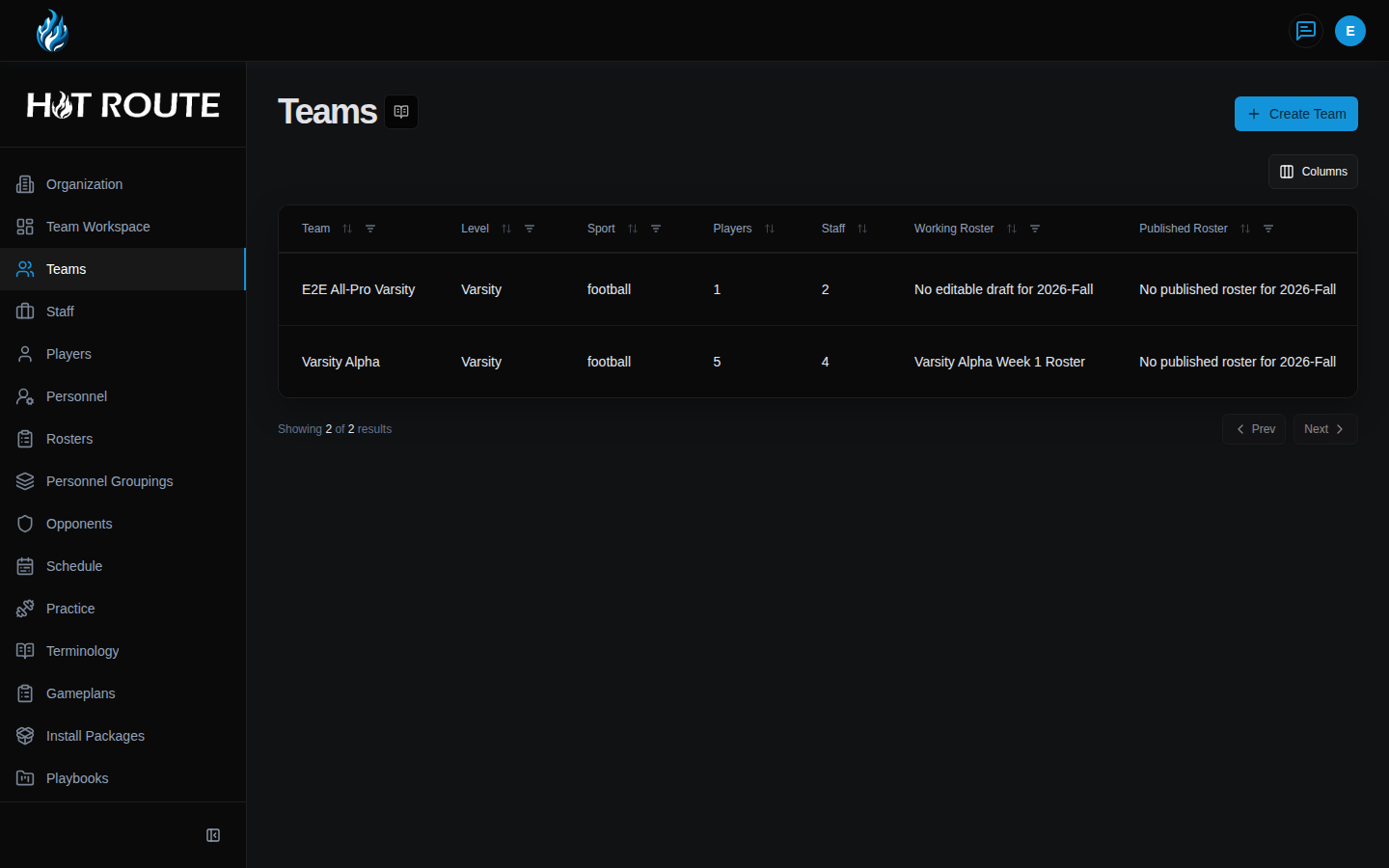
The /team route opens the team directory. It shows each team, its level, sport, staff count, player count, working roster, and published roster for the current season.
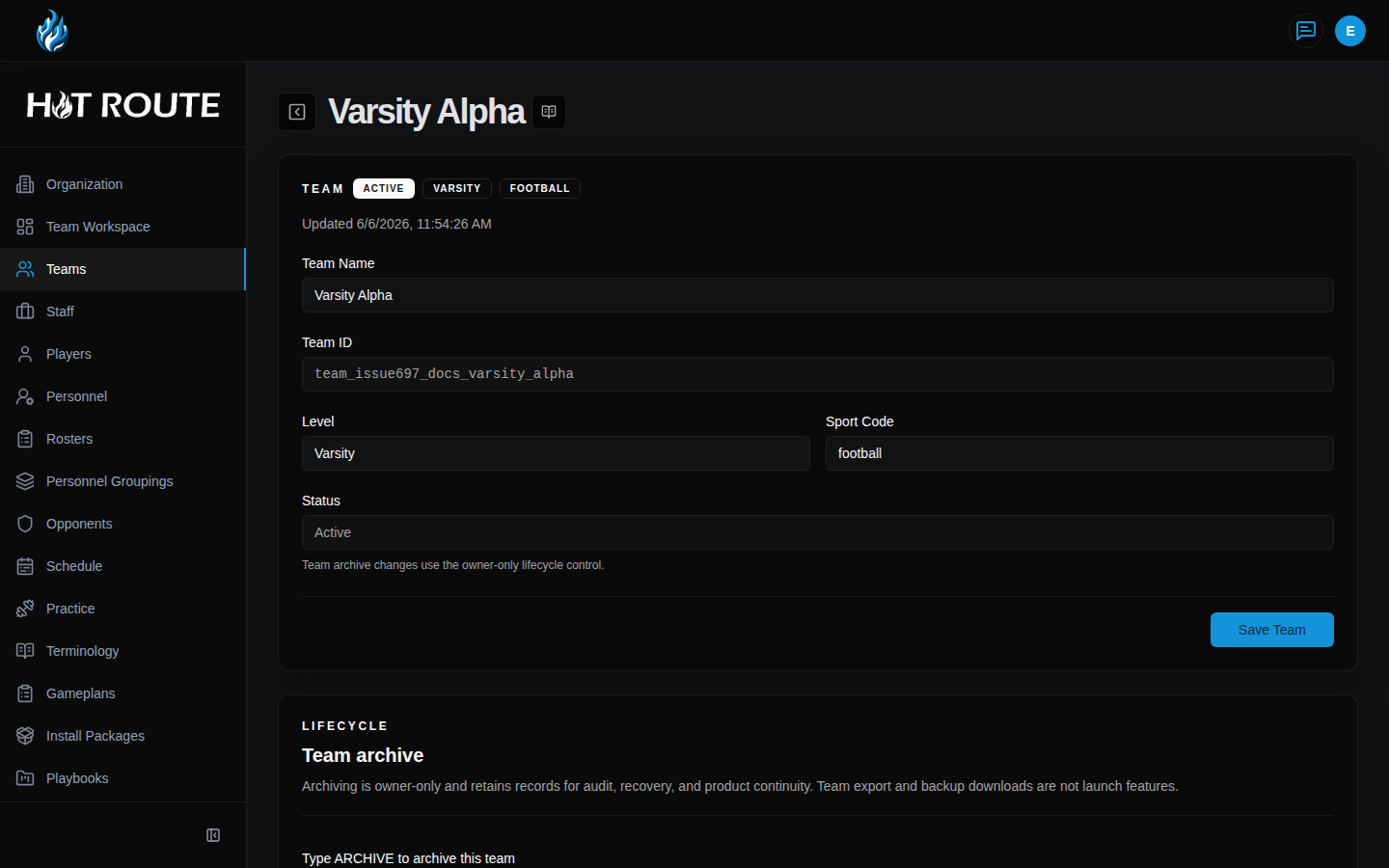
The /team/[id] route opens one team. Use it to review or update the team name, level, sport code, and status controls that are available to the current user.
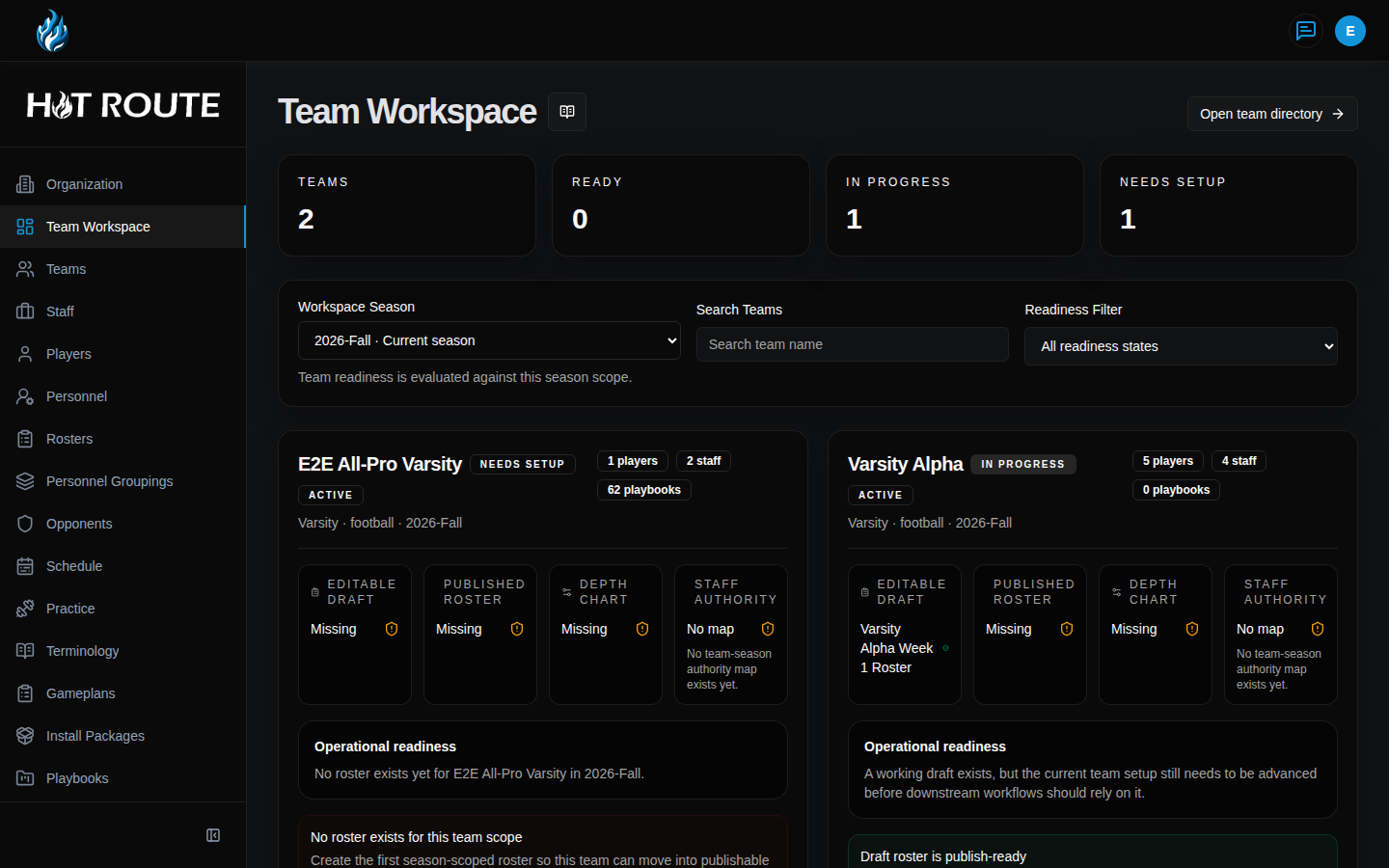
The /team-workspace route gives a broader readiness view. It helps the staff see whether team setup is ready, in progress, or missing important pieces.
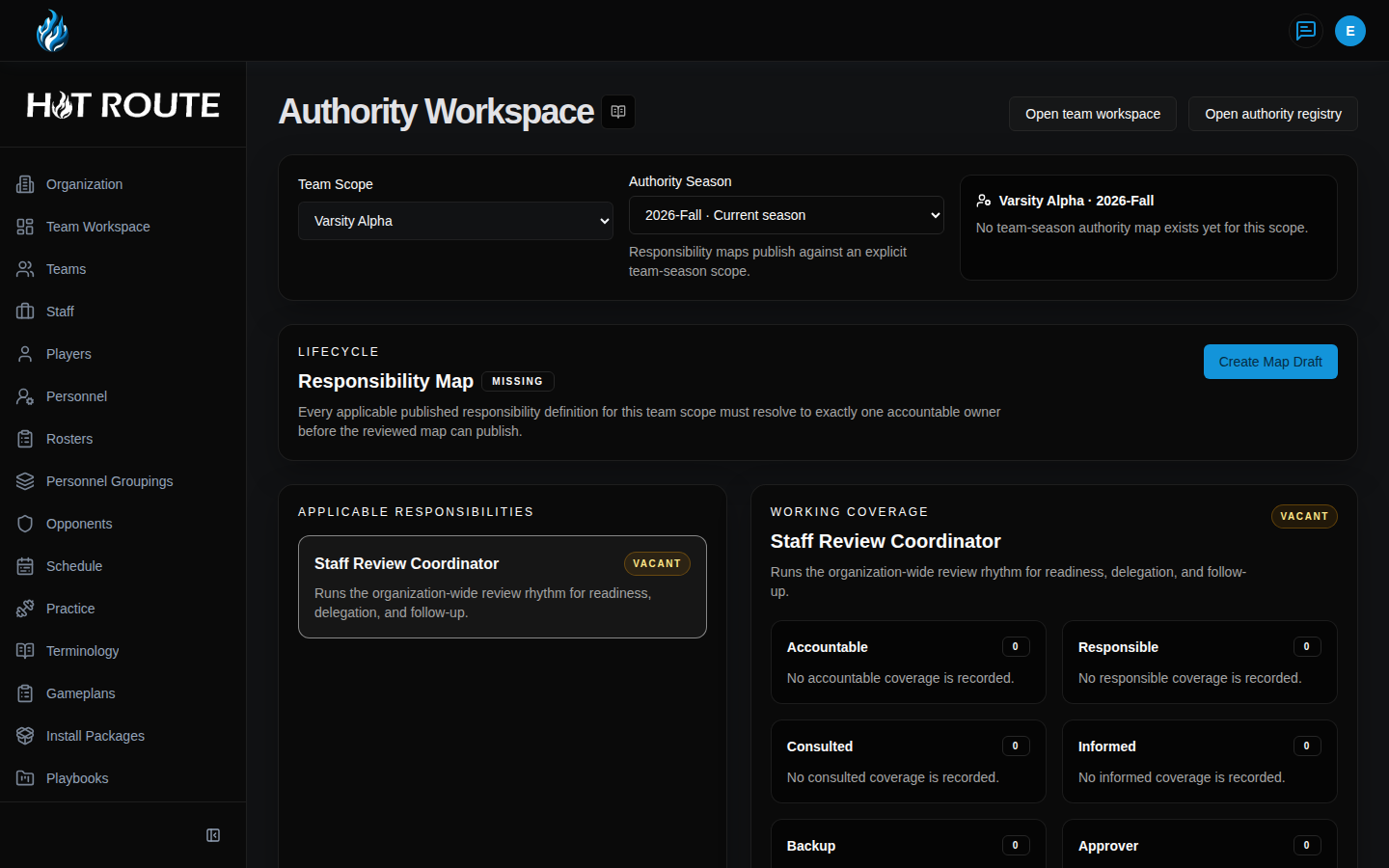
The /team-workspace/staff-authority route opens Authority Workspace for team and season responsibility checks. When Team Workspace has a selected team and season, that context carries into Authority Workspace.
Step-by-step instructions
- In the left navigation, click Teams.
- Review the team table. Check Team, Level, Sport, Players, Staff, Working Roster, and Published Roster.
- Click Create Team when you need to add a new football group.
- Enter Team Name, Level, and Sport Code.
- Click Create Team to save it.
- Click a team row, such as Varsity Alpha, to open team detail.
- In the left navigation, click Team Workspace.
- Use Team Scope to choose the team.
- Use Season to choose the season the staff is actively preparing.
- Review the readiness sections. Look for missing roster, depth chart, schedule, staff, or authority context.
- Click Open team directory when you need to return to the team table.
- Click Staff Authority or open
/team-workspace/staff-authoritywhen responsibility ownership needs review. HotRoute opens Authority Workspace with the current team and season context.
What good looks like
A ready team has a clear name, level, football sport code, active staff, active players, a current working roster, and a schedule or opponent context for the week.
The staff should be able to answer:
- Which team and season are we working in?
- Who is assigned to the team?
- Which roster is the working version?
- Is there a published roster or depth chart when staff needs one?
- Which staff responsibilities still need attention?
Common questions or mistakes
Why does the team exist but show no roster?
The team and roster are separate records. Open Rosters and Depth Charts and create a roster for the team and season.
Why do player counts and roster counts differ?
Player profiles can point at a team before those players are added to a roster. The roster count reflects roster membership for that roster version.
Why can I see Teams but not create a team?
Team creation is controlled by role and plan access. Ask the owner to review your member role and the organization's plan.
Should I make a separate team for every position group?
No. Use teams for football groups such as Varsity, JV, or a program-level unit. Use rosters, depth charts, personnel groupings, and staff authority for the detailed football structure inside the team.
Related docs / next steps
Read People and Personnel when the next job is adding coaches, staff, players, and personnel packages.
Read Rosters and Depth Charts when the next job is building the roster for the team.
Read Locations, Schedule, and Opponents when the team is ready for weekly events and opponent prep.
Read Staff Authority when the staff needs explicit responsibility ownership.