


Feature Guides
Rosters and Depth Charts
Learn how rosters and depth charts organize players by team and season, what coaches can create or update, and what good roster setup looks like.
Overview / Purpose
Rosters tell HotRoute which players belong to a team for a season. Depth charts tell HotRoute how those players are ordered at each position.
Use Rosters when the staff needs a working player list for the season, a locked version for shared reference, or a depth chart that downstream football work can trust.
Who this is for
This guide is for roster administrators, coordinators, position coaches, and staff operators who keep the team ready for practice, teaching, game planning, and weekly execution.
What to know first
A roster belongs to one team and one season.
A roster can be a draft, a published version, a historical version, or an archived version depending on lifecycle state. Drafts are for active work. Published versions are the staff's shared reference.
A depth chart belongs to a roster. It should not be treated as a separate player list.
Before creating a roster, confirm these pieces exist:
- the team
- the season
- player records
- position context
- staff ownership for roster or depth work
Plan and role access can limit create, update, publish, and lock actions. If a button is missing or disabled, ask the owner to review membership, role, and plan access.
How it works
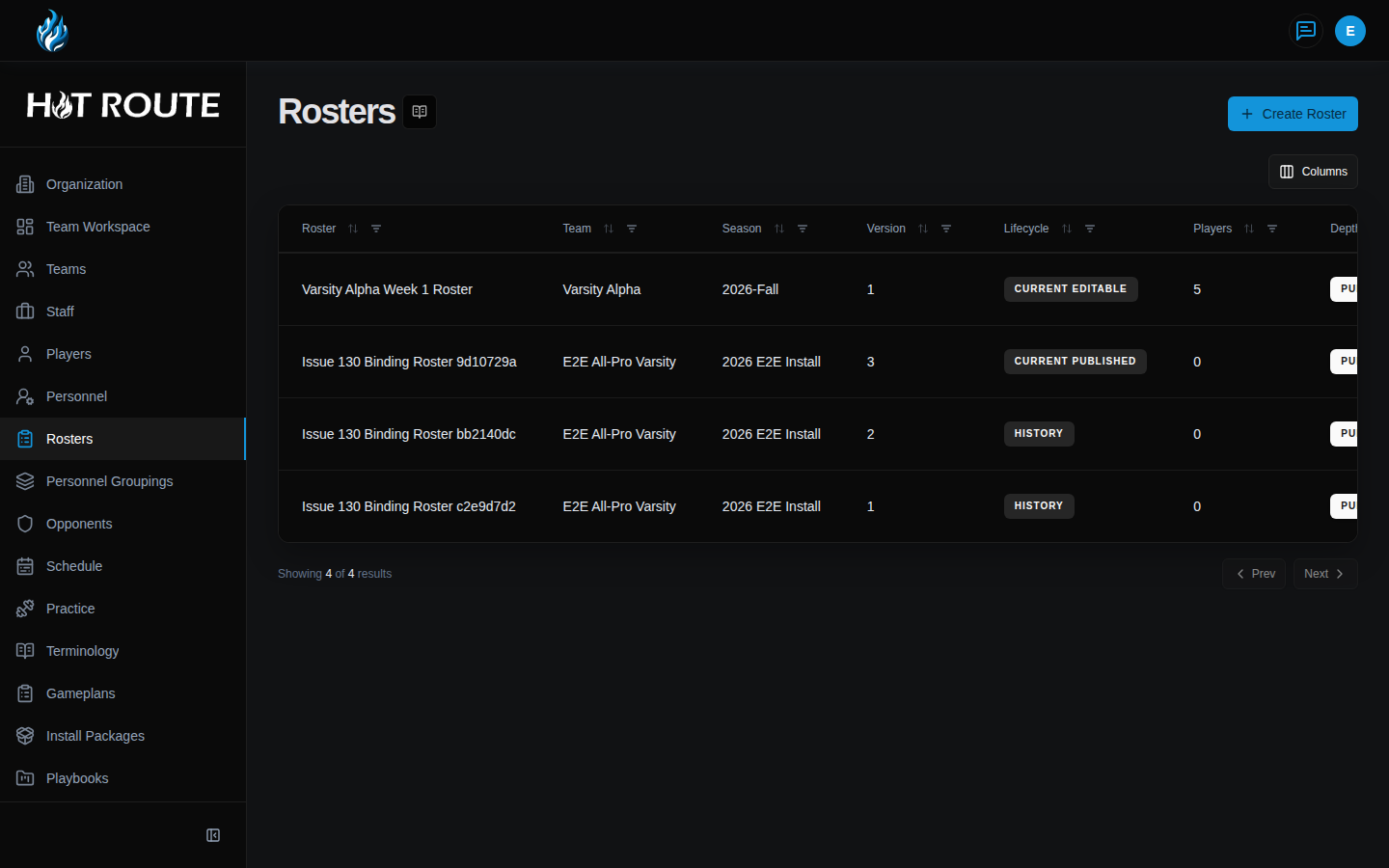
The /rosters route opens the roster directory. It shows roster name, team, season, version, status, player count, lifecycle, and depth chart state.
The /rosters/new route creates a roster. The create form asks for Roster Name, Team, and Season.
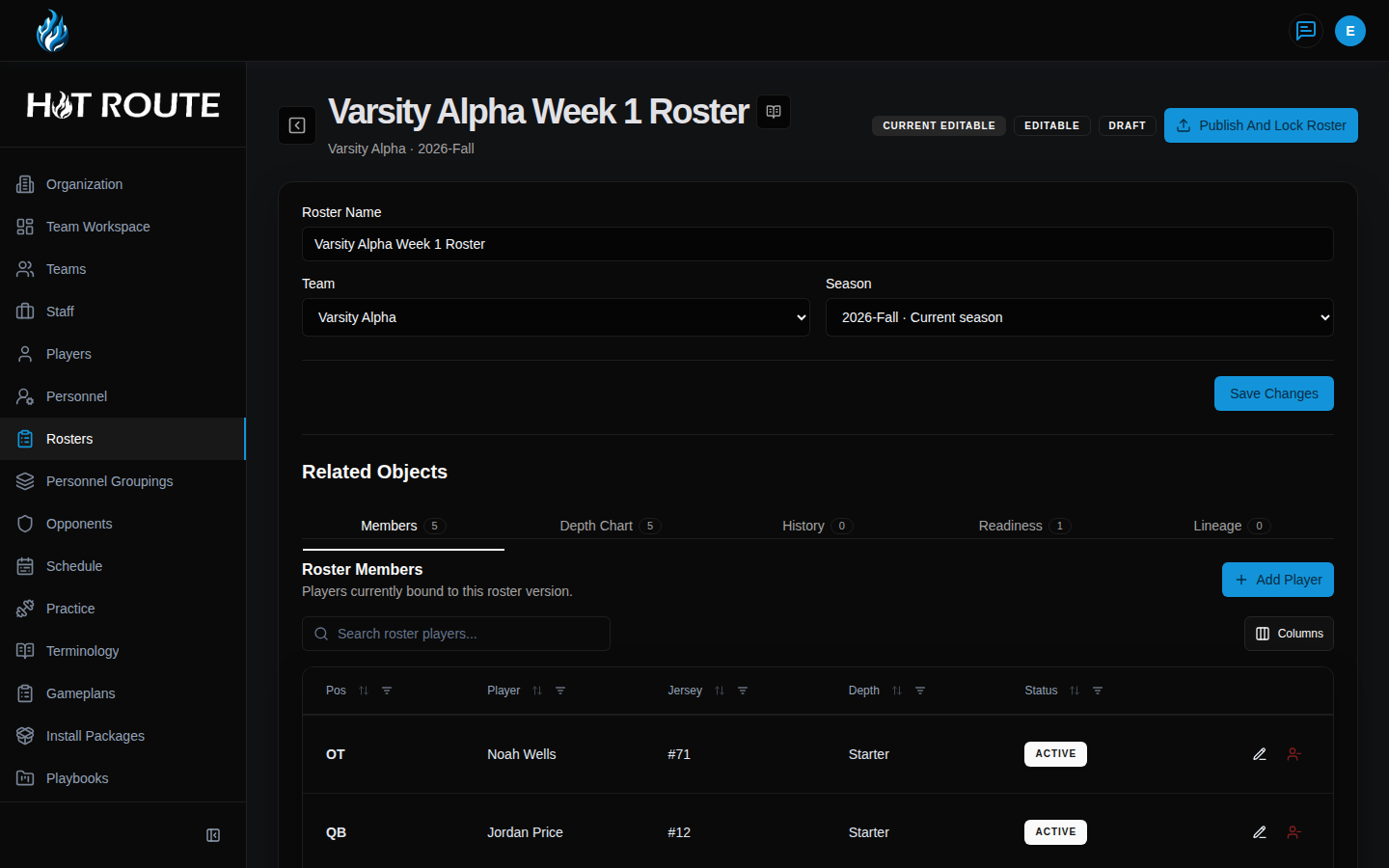
The /rosters/[id] route opens a roster detail page. It includes editable roster fields, related roster members, depth chart tabs, readiness checks, and lineage.
Step-by-step instructions
- In the left navigation, click Rosters.
- Review Roster, Team, Season, Version, Status, Players, Lifecycle, and Depth Chart.
- Click Create Roster when the team needs a roster for a season.
- Enter Roster Name.
- Choose Team.
- Choose Season.
- Click Create Roster.
- Open the roster row.
- In roster detail, confirm the roster name, team, and season.
- In Related Objects, click Members to review roster membership.
- Click Add Player to add an eligible player to the roster.
- Review Position, Player, Jersey, Depth, and Status.
- Click Depth Chart when you need position order.
- Use Readiness before publishing or locking a roster.
- Click Publish And Lock Roster only when the staff is ready for the roster to become the shared reference.
What good looks like
A good roster is not just a list of names. It has the right team, the right season, current player membership, clear positions, jersey numbers when useful, and depth context where the staff needs it.
The staff should be able to answer:
- Which roster is the current working version?
- Which roster is published?
- Which players are active on this roster?
- Are positions and depth clear enough for coaches to trust?
- Are readiness blockers resolved before publishing?
- Does the roster line up with the team's weekly plan?
Common questions or mistakes
Can I create more than one draft roster for the same team and season?
HotRoute is designed to avoid multiple editable drafts for the same team and season. Open the existing draft or roll forward from a locked version when that workflow is available.
Does publishing a roster mean the roster cannot ever change again?
Publishing locks that version as a trusted reference. Future changes should happen in a new working version, not by quietly changing the locked reference.
Why does a player show in Players but not in the roster?
The player profile exists, but the player has not been added to this roster version.
What is the difference between depth and roster membership?
Roster membership says the player is on the roster. Depth says where the player sits in position order.
Related docs / next steps
Read People and Personnel when a player or position is missing.
Read Team Setup and Workspace when the roster is not tied to the correct team or season.
Read Locations, Schedule, and Opponents when the roster needs to support a specific week or opponent.